

What’s on the dashboard
Revenue
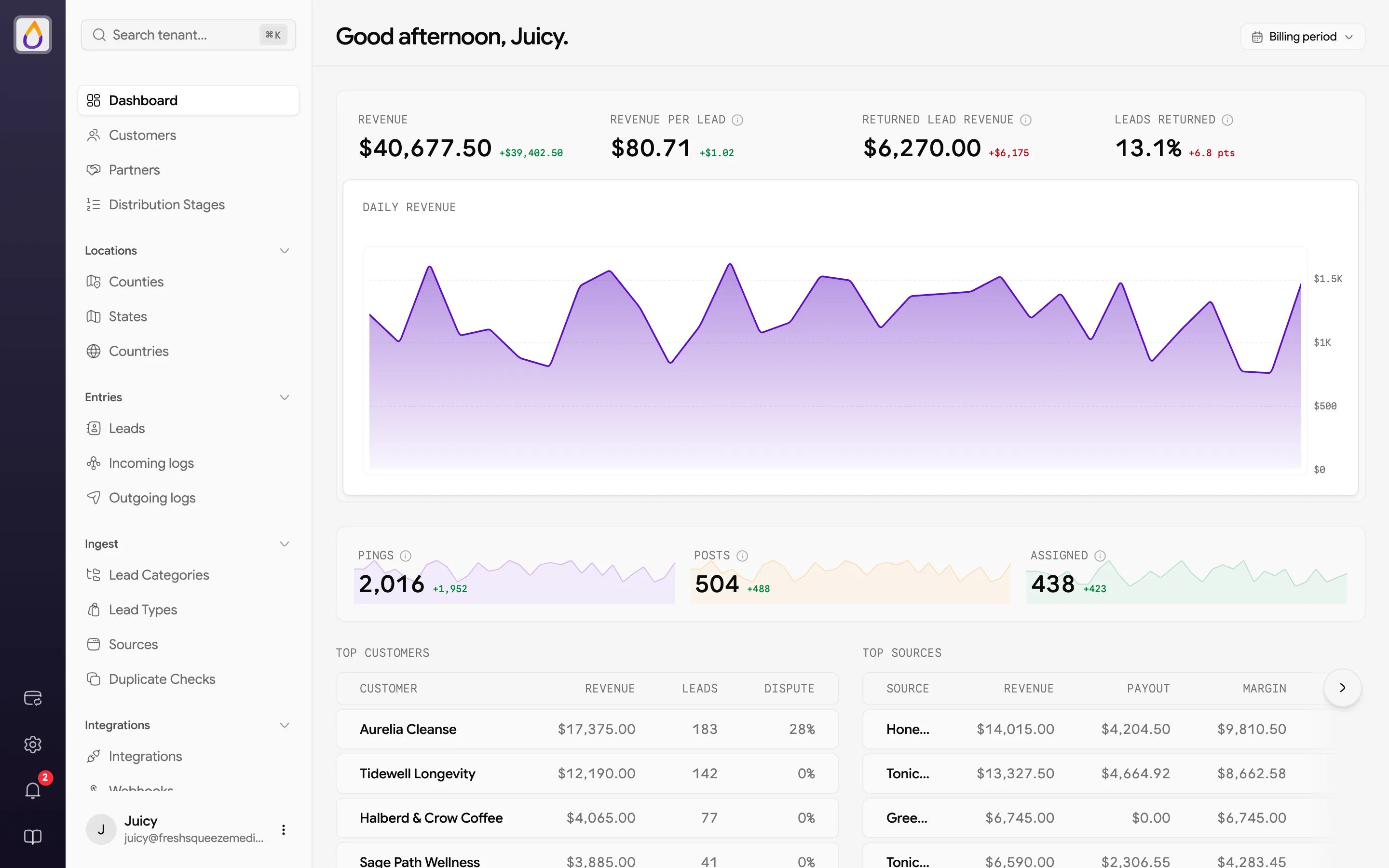
Four headline numbers cover the selected timeframe.- Revenue is what you earned from leads.
- Revenue per Lead is your average revenue for each lead.
- Returned Lead Revenue is revenue from leads that were later returned.
- Leads Returned is the share of leads that were returned.
Traffic funnel
Pings, Posts, and Assigned show how much traffic came in and how much of it sold, each with a sparkline and the change from the previous period.- Pings are price and eligibility checks your sources sent before submitting a lead.
- Posts are full leads your sources submitted.
- Assigned counts leads delivered to a customer or partner.
Leaderboards
- Top customers ranks your biggest buyers by revenue, with how many leads they bought and their dispute rate.
- Top sources ranks your best sources by revenue, with the payout you owe them, your margin, and their lead count.
Revenue, the funnel, and the leaderboards are only shown to users whose role can view analytics. Everyone else sees the greeting and the setup cards.
Getting started
Until your workspace is set up, the bottom of the dashboard shows three Getting started cards, Define a Lead (create a lead category), Create a Source (add a source), and Find Customers (add a customer). Each card checks itself off as you finish it, and Review setup → takes you back to the setup walkthrough. Once all three are done, the cards disappear. New workspaces may also see a Get set up with our team banner with a Book a time link for an onboarding call. Dismiss it with the ×, which hides it for everyone in your workspace.Choosing a timeframe
Use the timeframe picker in the top-right to change the period the numbers cover. The options are Billing period, Today, 7D, 4W, 3M, 12M, MTD (month to date), Last month, YTD (year to date), All, and Custom, which lets you pick a start and end date.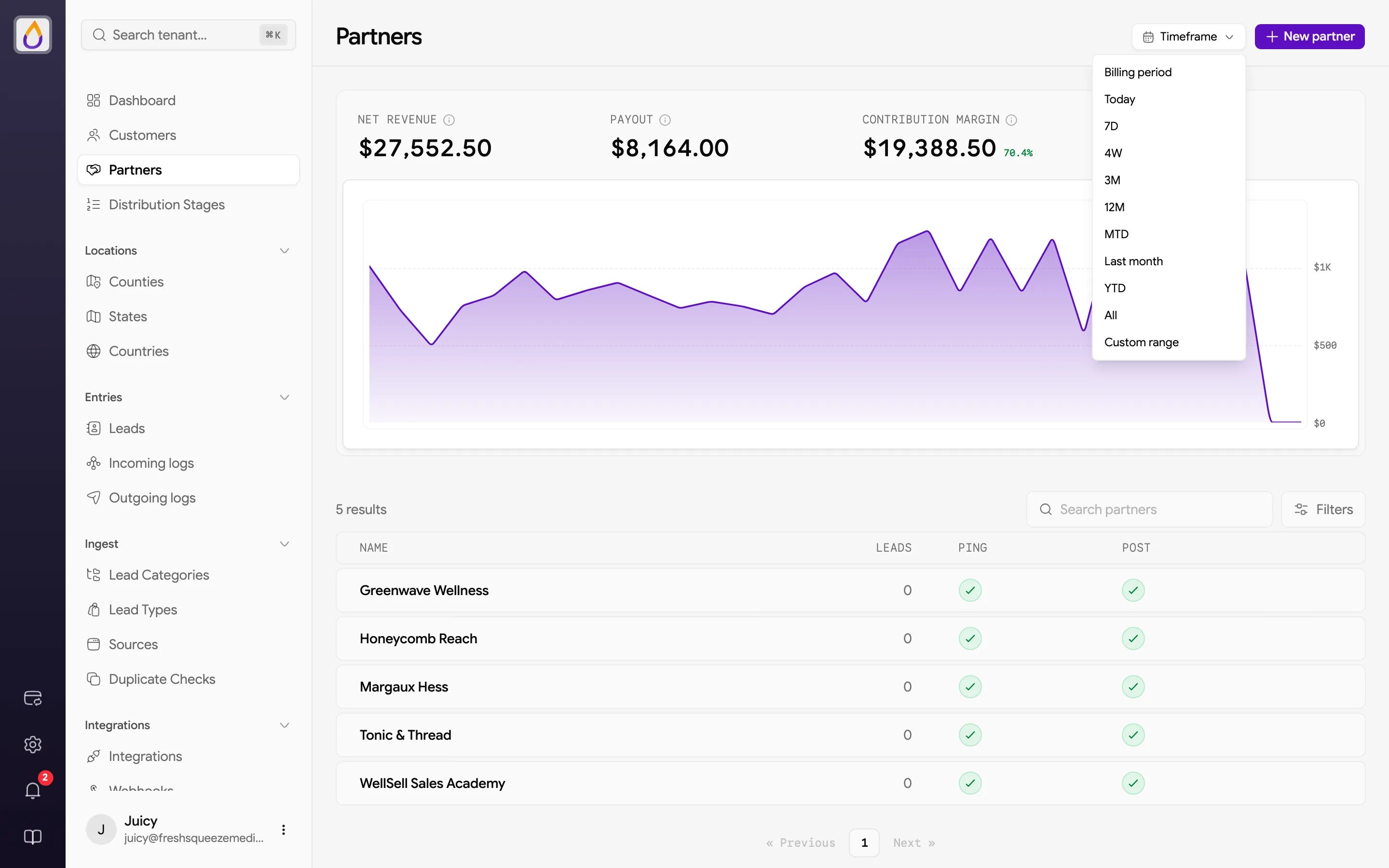
Searching with the command palette
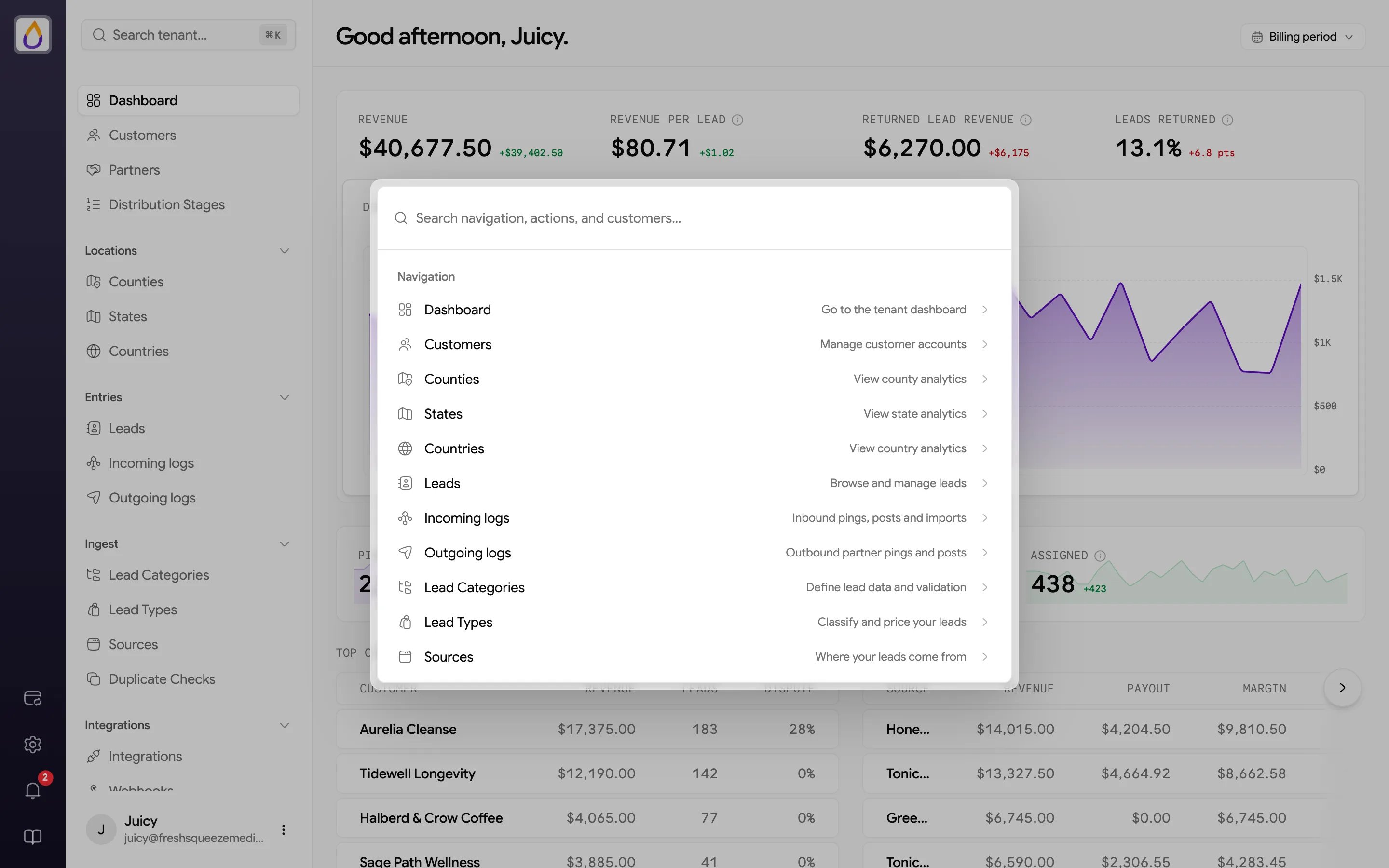
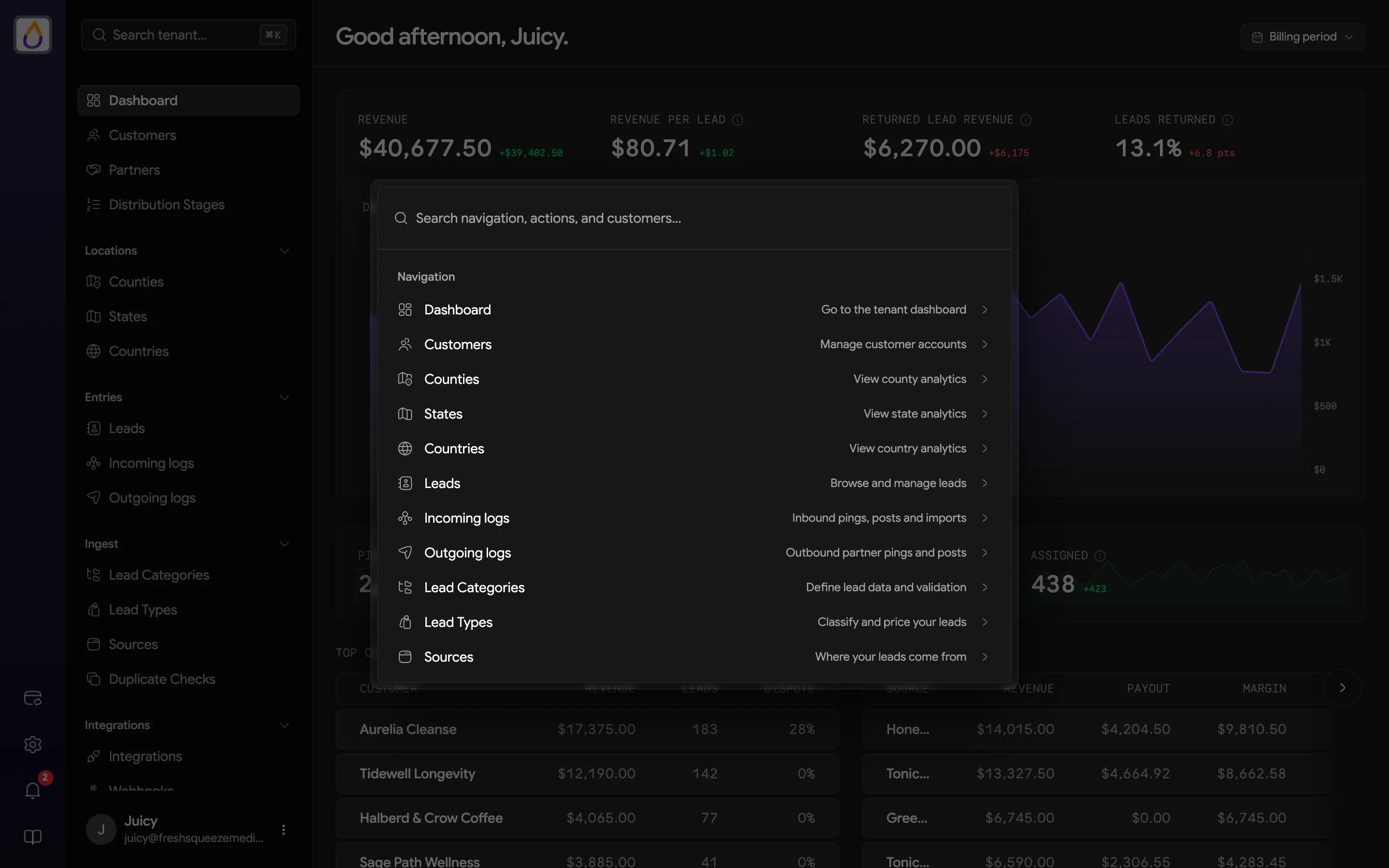
Press ⌘K (Mac) or Ctrl+K (Windows and Linux), or click Search tenant… at the top of the sidebar, to open the command palette. Start typing, and it can do three things.- Jump to a page like Dashboard, Customers, Leads, Incoming logs, Outgoing logs, Counties, States, Countries, Lead Categories, Lead Types, Sources, Distribution Stages, Webhooks, Usage, and settings pages like Bidding Settings, Payments & Deposits, Domains & Links, and Users.
- Find a record. Search results are grouped into Customers, Leads, Sources, Lead Categories, Lead Types, and locations.
- Log out. Yes, it’s in there too.
Notifications
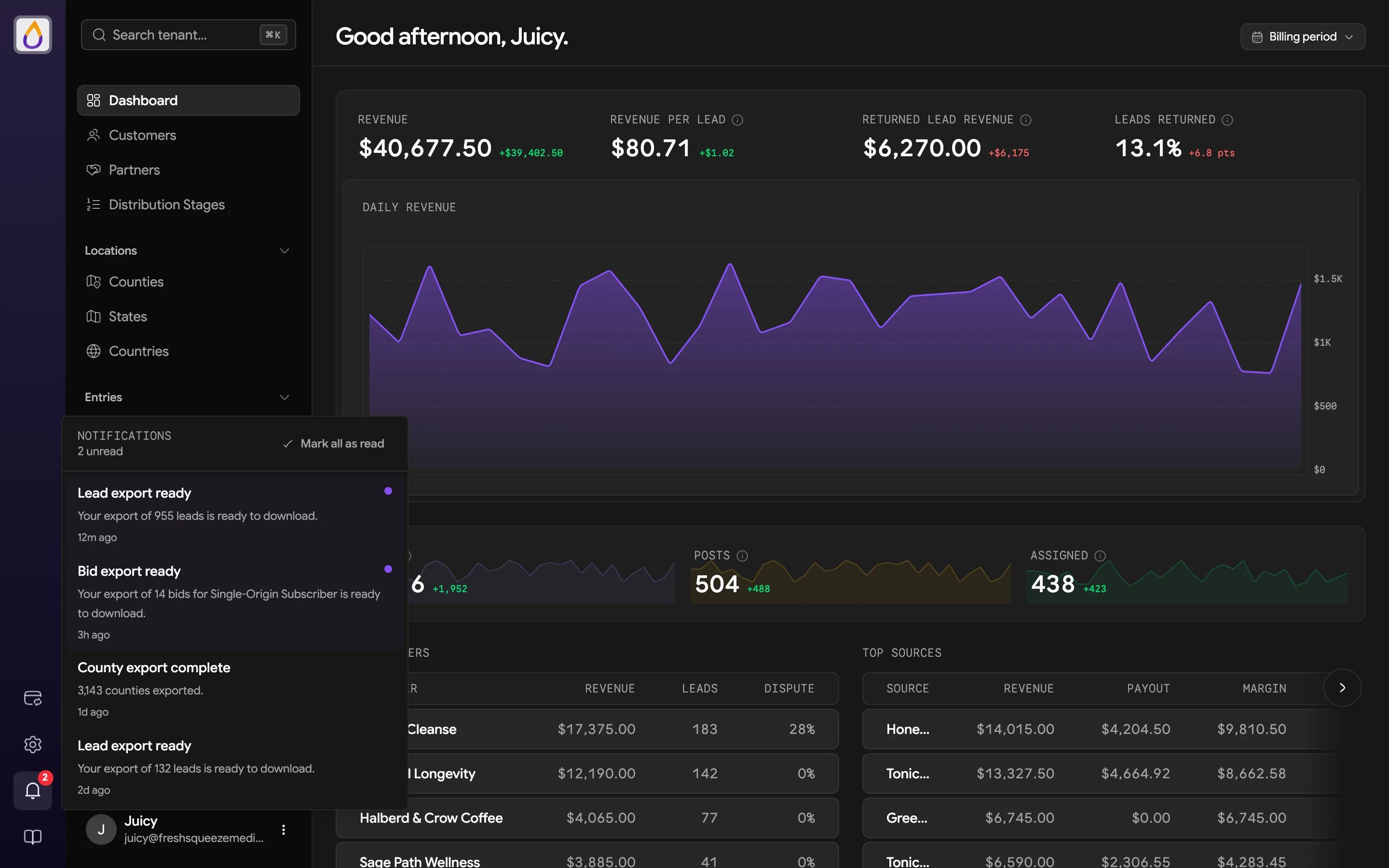
The bell in the rail on the far left is where Juiced drops things that finished in the background. Exports are the big one. When a lead export or location export is ready, a notification appears here with a link to download the file. A red badge shows how many notifications you haven’t read.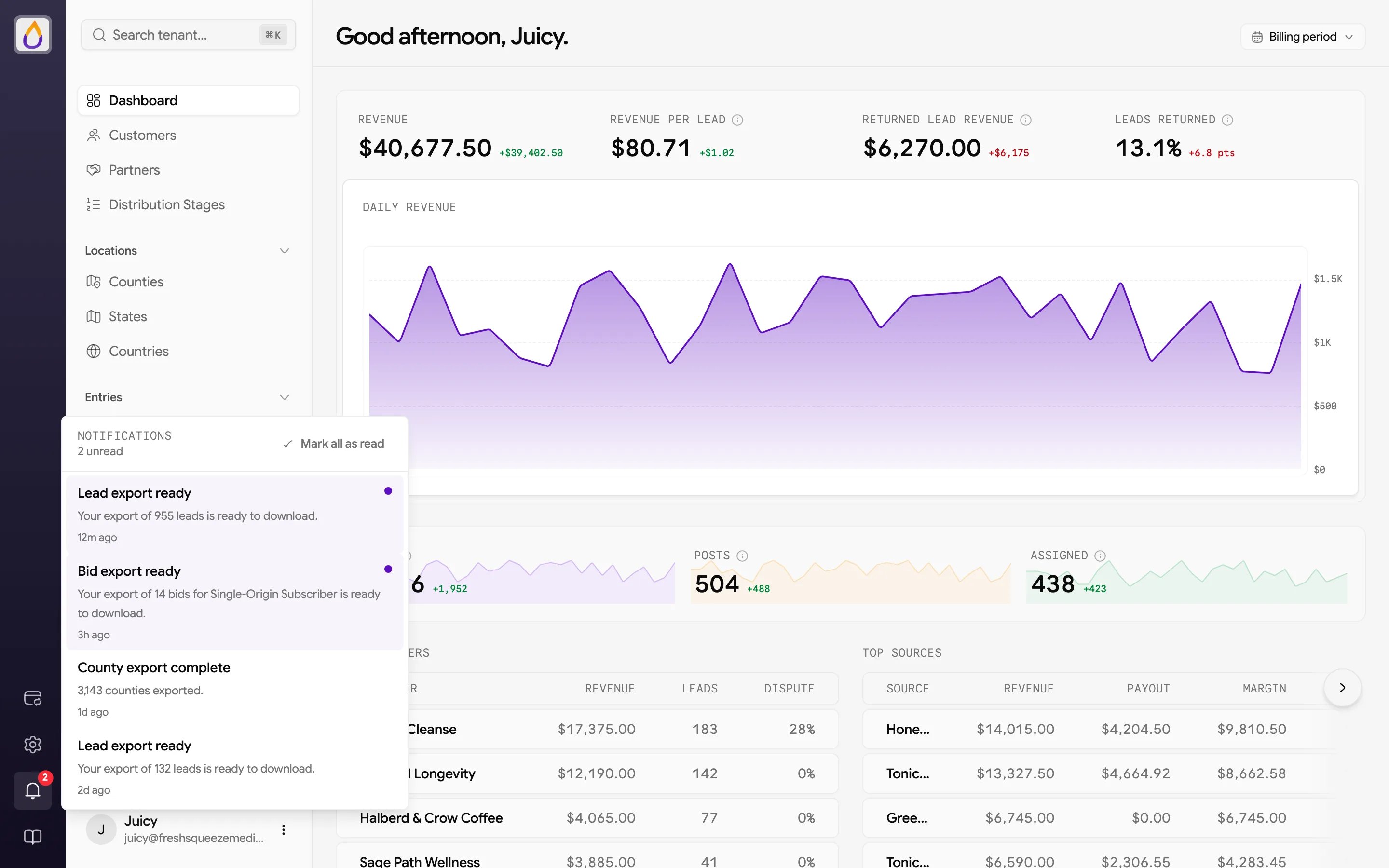
Getting around the panel
Here’s a quick map of everything else around the dashboard.- Sidebar is your main navigation, with Dashboard, Customers, Partners, and Distribution Stages at the top, then the Locations, Entries (Leads and logs), Ingest (lead categories, lead types, sources, and duplicate checks), and Integrations groups. Collapse a group you don’t use often and Juiced remembers it.
- Rail is the narrow strip on the far left that holds the Settings gear, the notification bell, and a link to these docs.
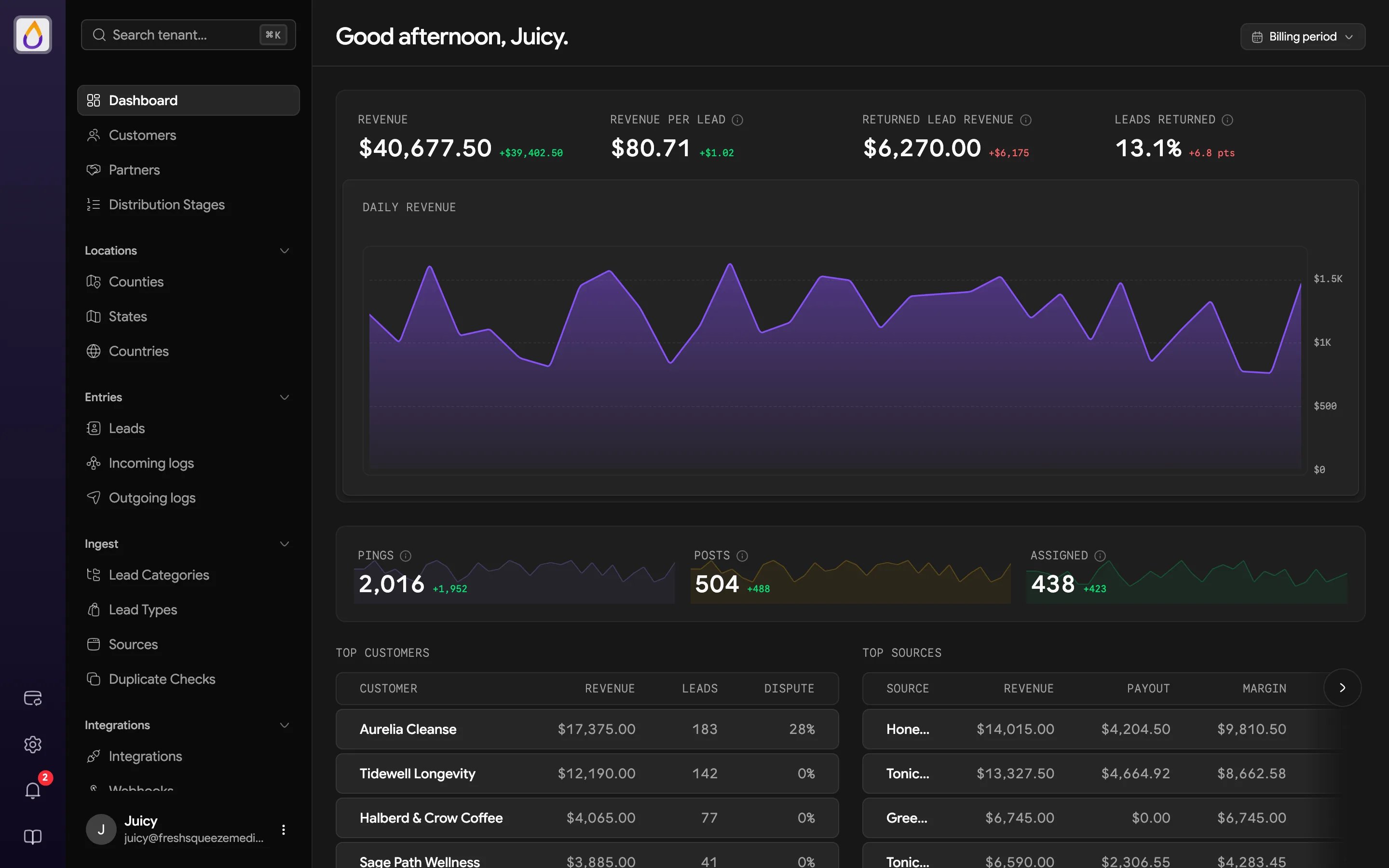
- User menu sits at the bottom of the sidebar, with your profile, theme (light or dark), and log out.
- More actions is the ⋯ menu in the page header, where record pages keep their secondary actions.