

yourcompany.usejuiced.com/tenants/{workspace id}/.... You rarely need to type them, because everything below is a click (or a keystroke) away.
Signing in
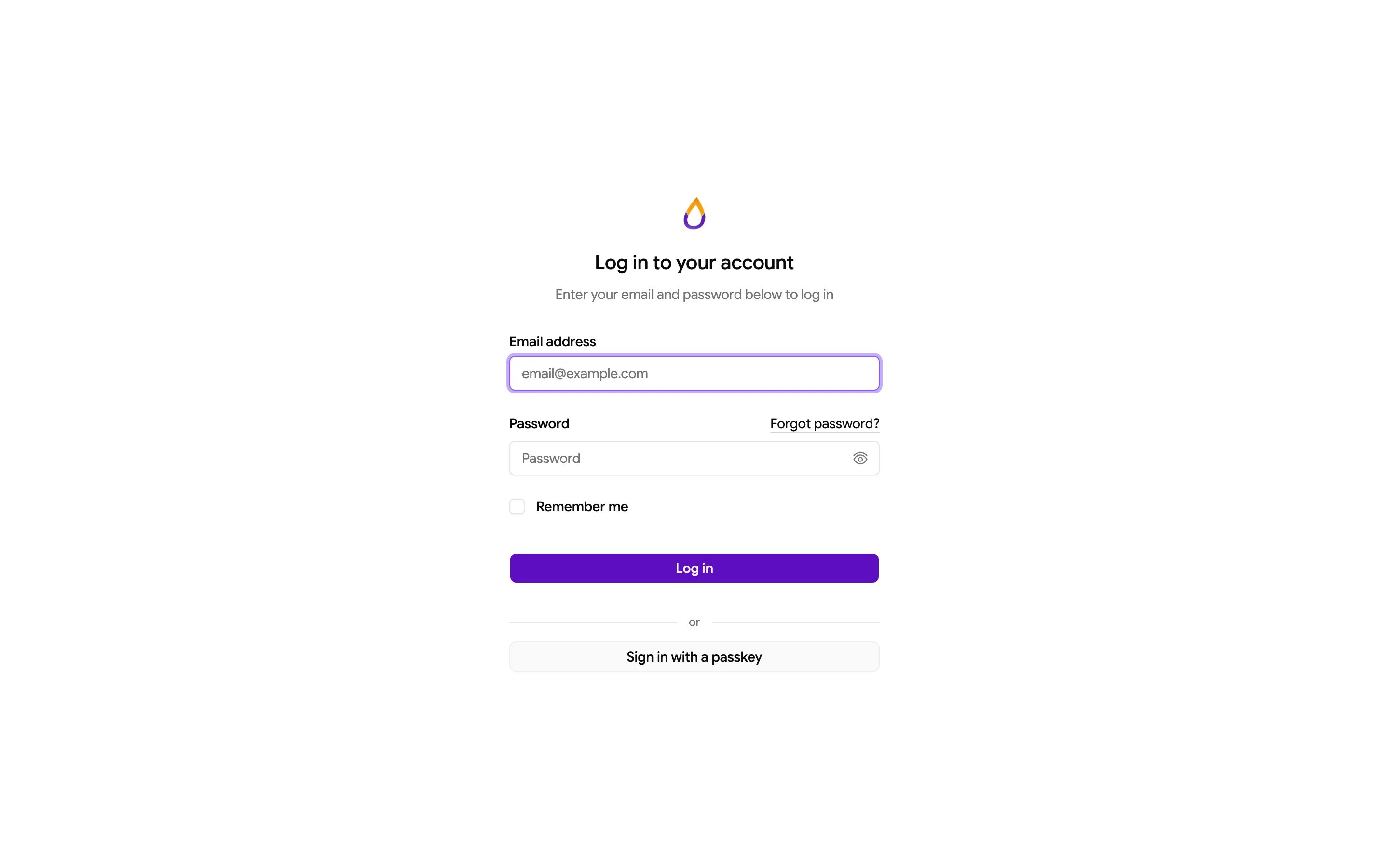
Sign in at/tenants/login on your subdomain or custom domain with your email address and password, or choose Sign in with a passkey if you’ve set one up. Forgot password? sends a reset link. Accounts that only use a passkey are asked to sign in with it instead of a password.
The command palette
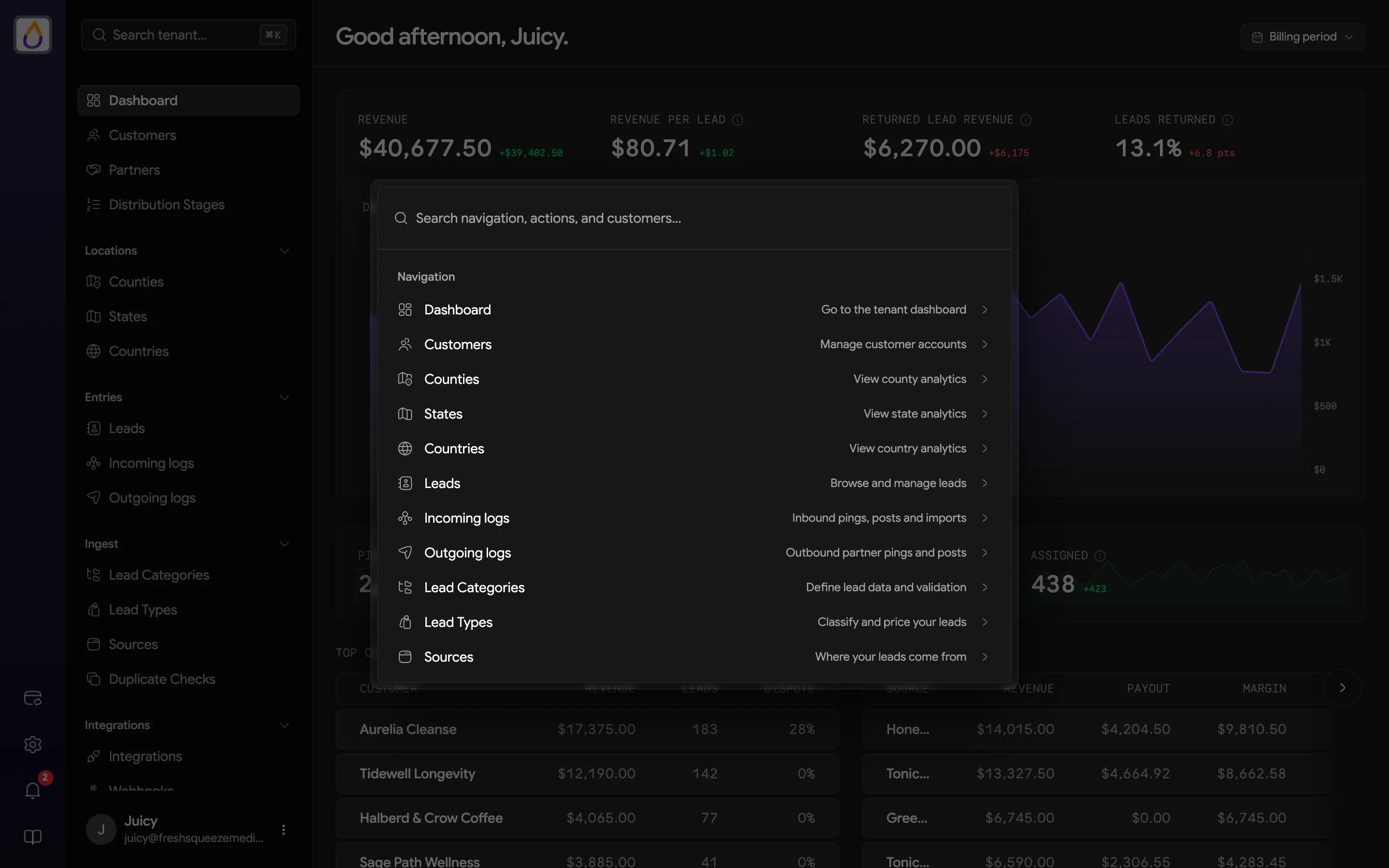
The command palette is the panel’s hidden superpower. Press ⌘ K (Mac) or Ctrl K (Windows and Linux) on any page, or click Search tenant… at the top of the sidebar. Start typing, use the arrow keys to pick a result, and press Enter to go there. Press the shortcut again or Esc to close it.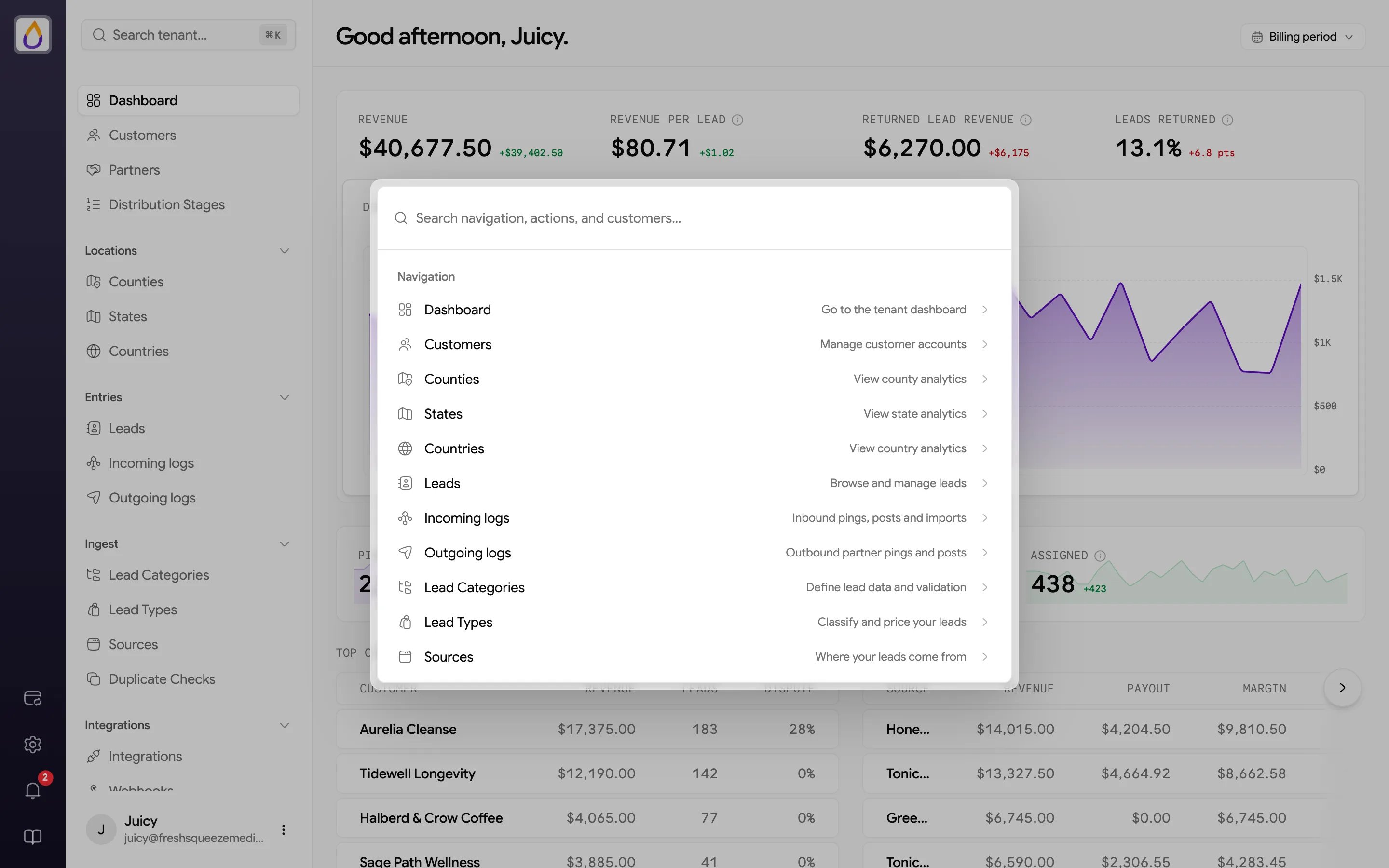
Jump to any page
Every page your role can open is in the palette, including settings pages that are a few clicks deep in the sidebar. You don’t need the exact page name either, because the palette also matches what a page is for. Type what’s on your mind and the right page comes up.
Log Out is in there too, for when you’re done for the day.
Find any record
Type two or more characters and the palette searches your data as well, grouping matches under each record type with up to five results per group. Pick one to open it.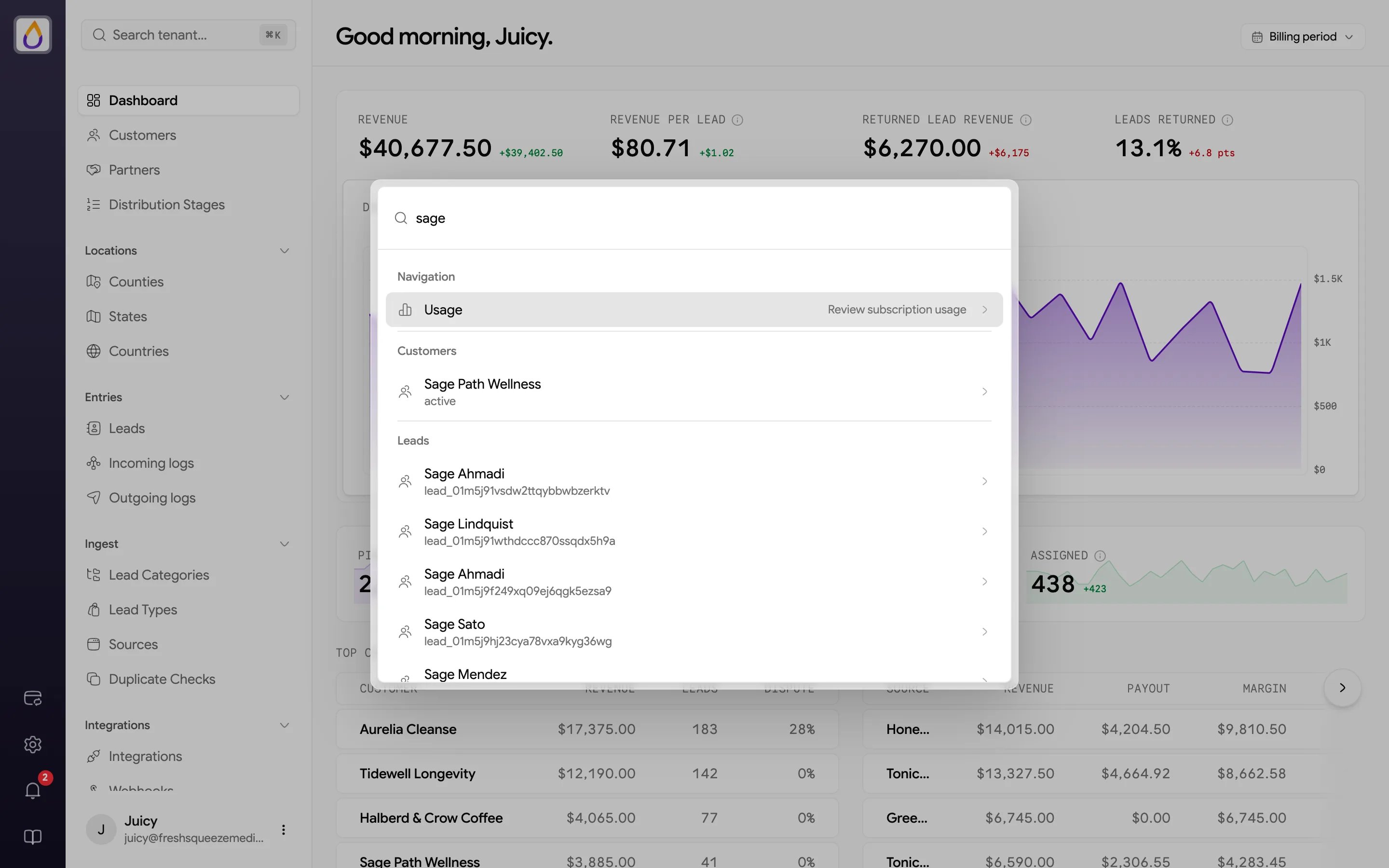
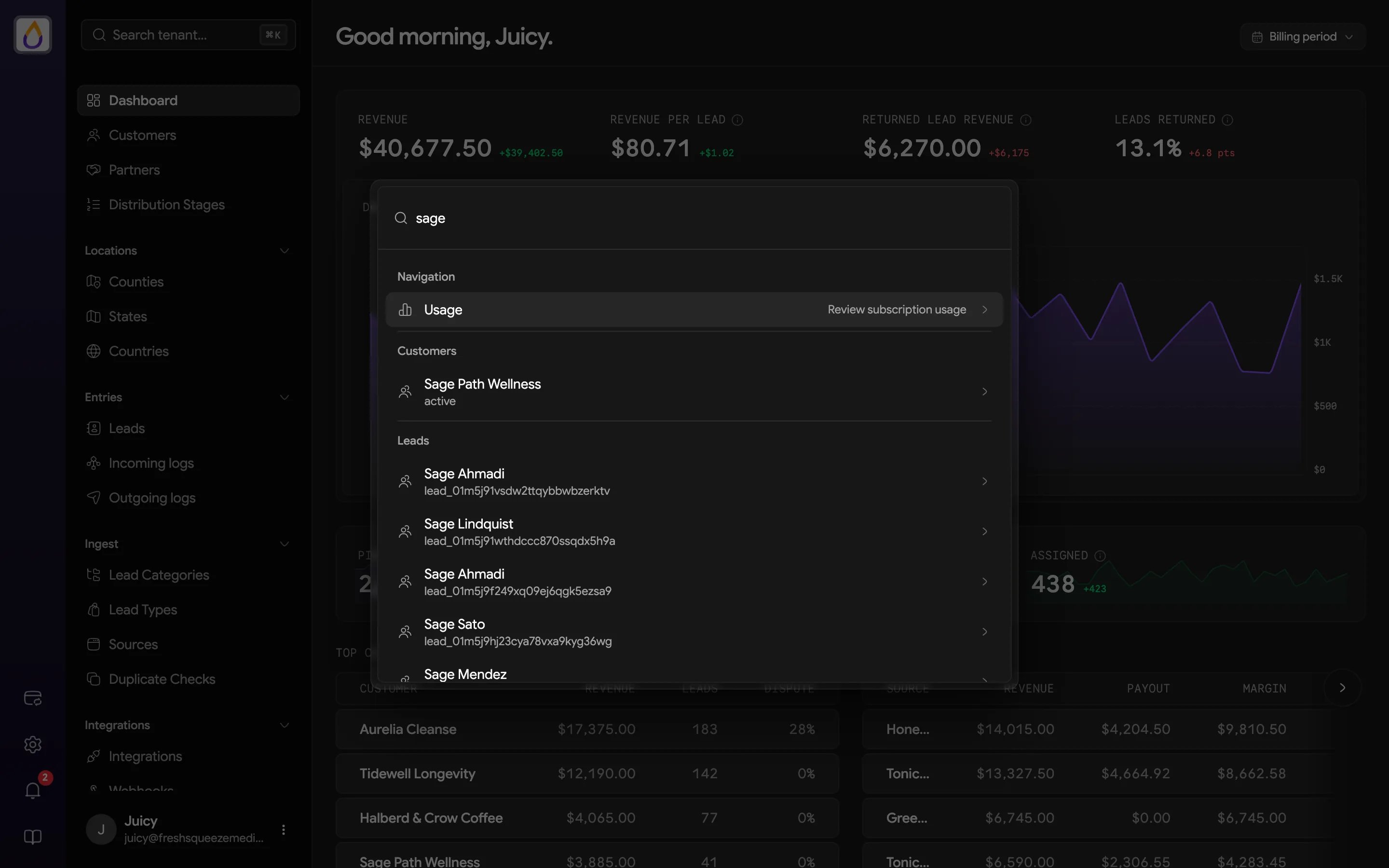
- A buyer emails about a lead. Paste the lead ID or the consumer’s email and you’re on the lead in one step.
- Someone on a buyer’s team calls in. Type their email and the palette finds the customer account they belong to, even if you don’t know the business name.
- Reconciling payments in Stripe? Paste the
cus_...ID from Stripe to find the matching customer. - Wondering how a market is doing? Type a ZIP code to open its county’s location analytics.
The rail
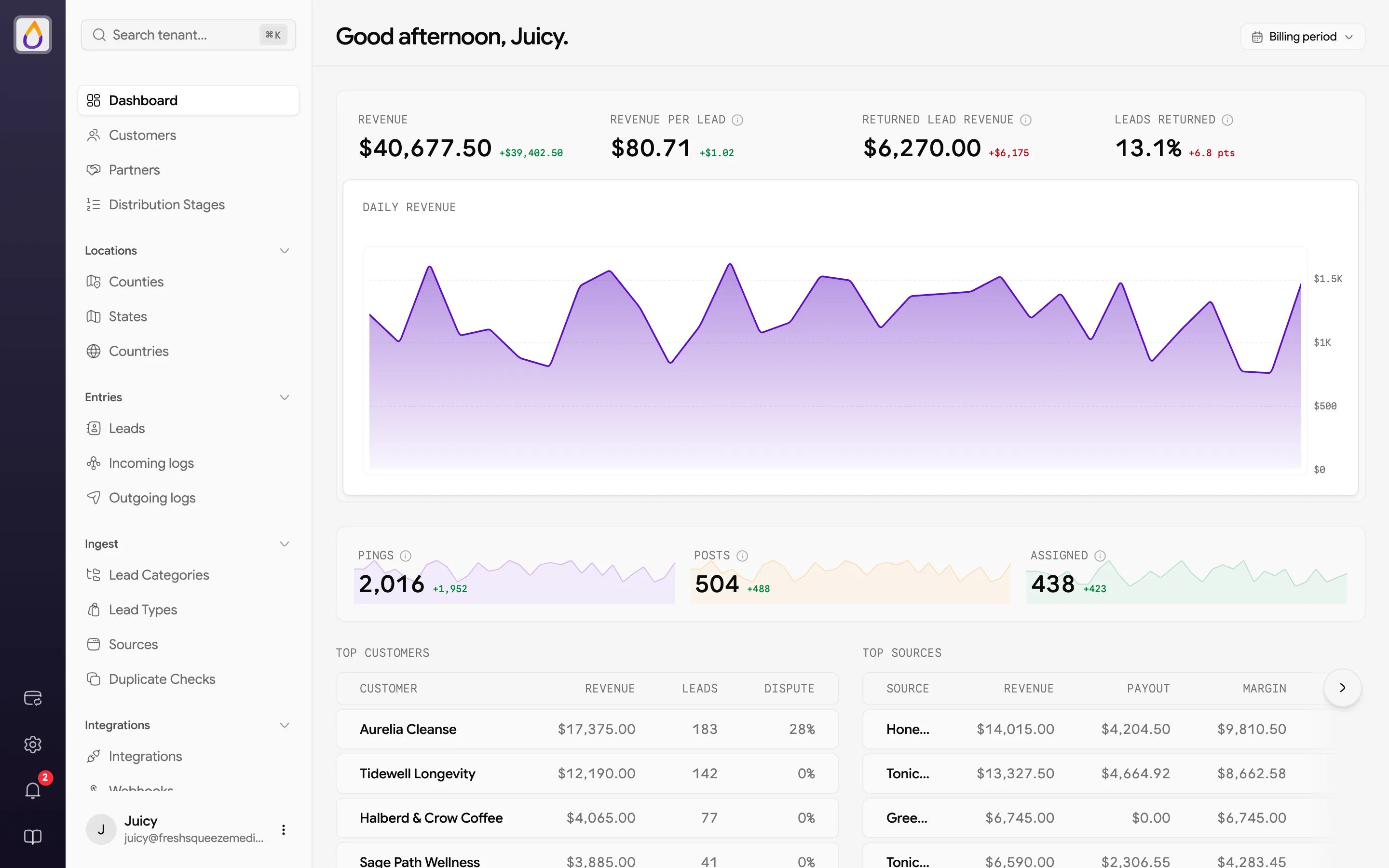
The narrow column on the far left is the rail. From top to bottom it holds these items.- Your logo
- Switch to the classic panel returns you to the previous version of the panel if you need something that hasn’t moved over yet.
- Settings (gear) opens the first settings page your role can see.
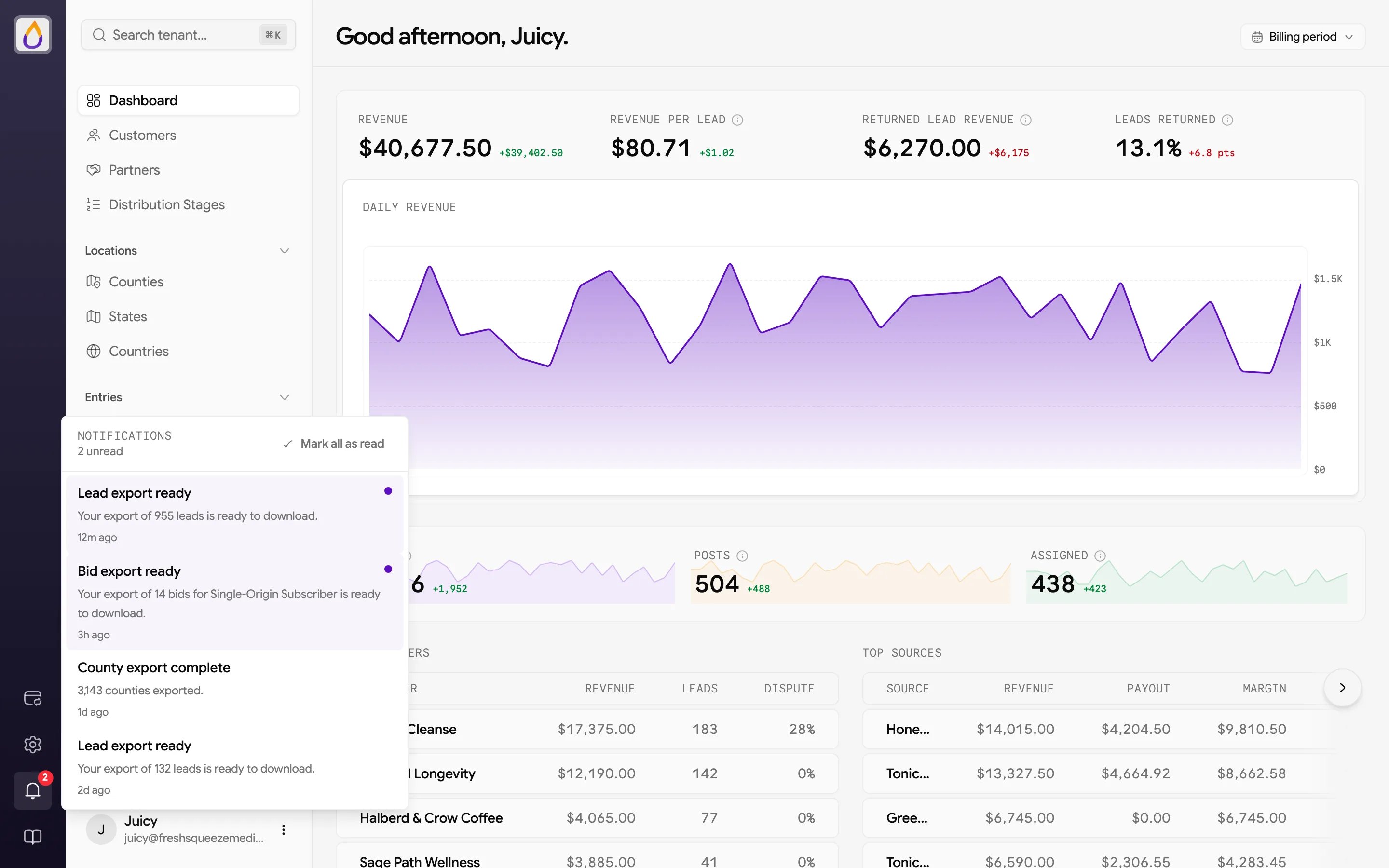
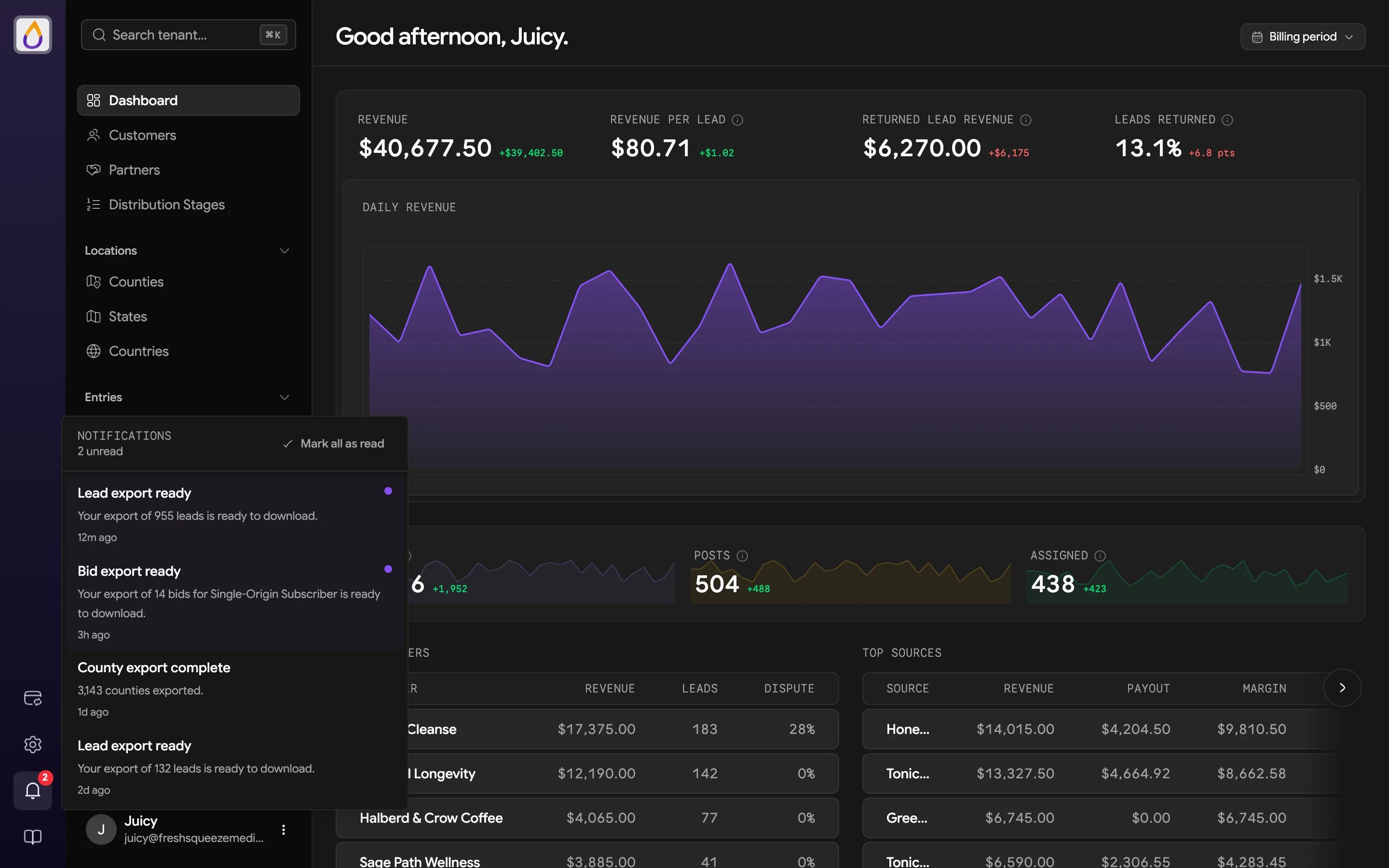
- Notifications (bell) shows your in-app notifications, such as a lead or bid export that’s ready to download, with a red count for unread ones and Mark all as read.
- Documentation (book) opens these docs.
The sidebar
The sidebar is where day-to-day work happens. At the top are the pages you’ll visit most.- Dashboard shows revenue, ping/post/assigned counts, and your top customers and sources for the selected timeframe.
- Customers are the businesses that buy your leads (Customers).
- Partners are external buyers and suppliers (Partners).
- Distribution Stages control how leads are routed (Distribution).
Your role decides which links appear. A Sales user, for example, won’t see Partners or Distribution Stages at all.
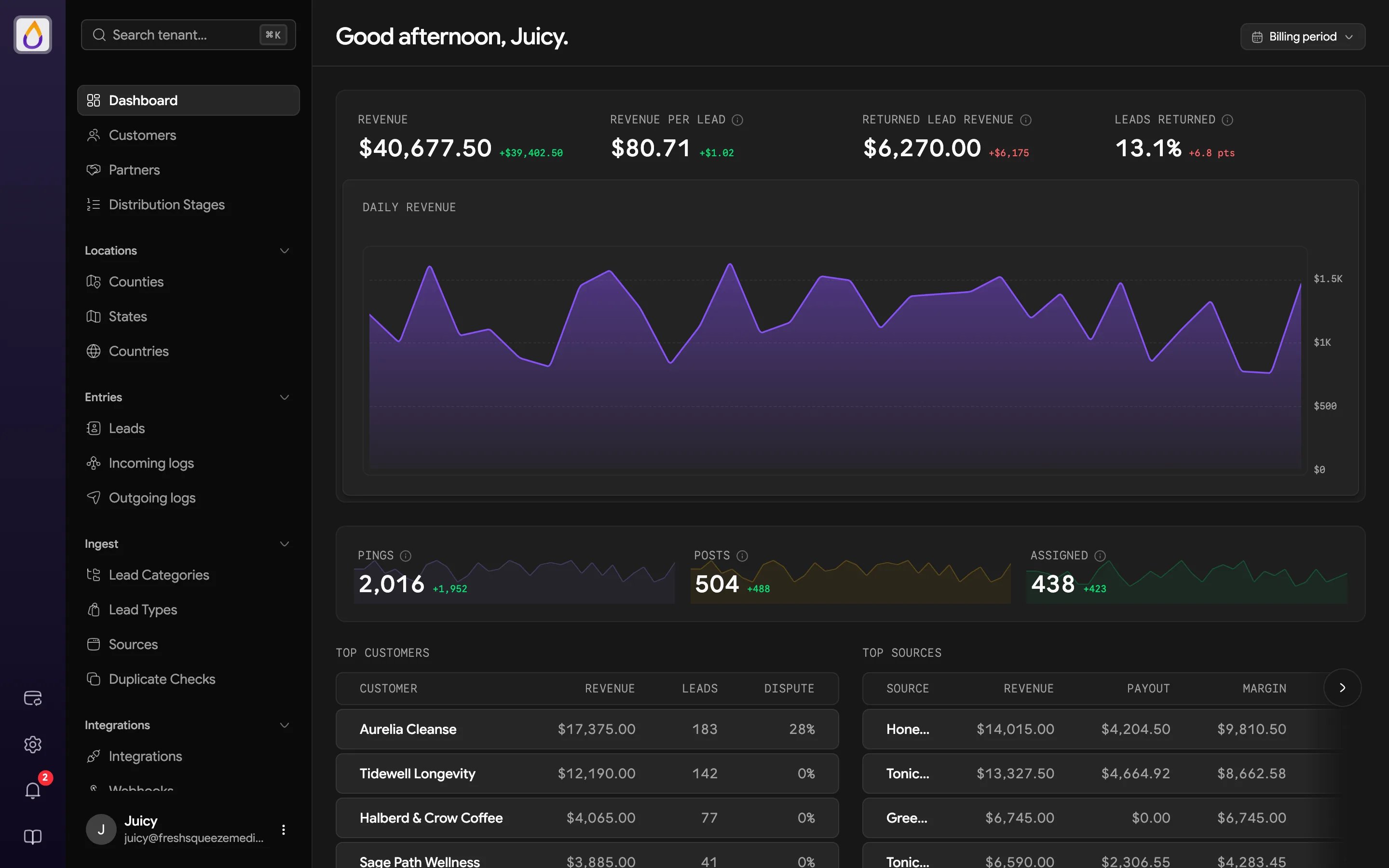
The footer of the sidebar shows who you’re signed in as. Its menu has Profile (your name, password, passkeys and other sign-in methods), a Theme switch (Light, Dark, or System), and Log out.
Settings
Click the gear in the rail to open Settings. The settings sidebar splits pages into two groups.Account
You and your relationship with Juiced, covering Company Profile, Branding, Domains & Links, Users, AI Assistants, and Usage & Billing.
Application
The product your customers experience, covering Bidding, Payments & Deposits, Subscription Products, Checkout Pages, Registration & Login, Returns, Notification Templates, and Banners.
Patterns you’ll see everywhere
A few conventions repeat on almost every page, so learning them once pays off everywhere. Saving changes. Edit forms and settings pages don’t have a Save button sitting at the bottom. As soon as you change something, a floating bar appears at the bottom of the screen with Unsaved changes, a Reset button that throws away your edits, and Save changes. Forms that create something new use a plain Cancel and a submit button instead. More actions. Record pages (a customer, a partner, a lead) show their main action, usually Edit, as a button in the header. Everything else lives in the More actions menu (the ⋯ button) next to it, with things like adding funds, pausing, viewing the timeline, or archiving. Record tabs. Records with a lot going on have a row of tabs under the header. A customer, for example, has Overview, Bids, Lead Eligibility, Leads, Transactions, Payment Methods, Contacts, Webhooks, and Users. Lists. Lists share the same toolbar, with status tabs across the top, a search box, a Filters button, and pagination at the bottom. Pages with analytics also have a timeframe picker in the header.When your subscription needs attention
If there’s a problem with your Juiced subscription, a yellow bar across the top of the panel reads “Your subscription requires attention. Some features are restricted.” with a Manage billing link. If the subscription becomes inactive, a Your subscription is inactive dialog blocks the panel until billing is resolved. From it you can Manage billing or Log Out. See Billing for details.Next steps
Quickstart
Set up everything you need to sell your first lead.
Core concepts
Learn the vocabulary you’ll see on every page.