

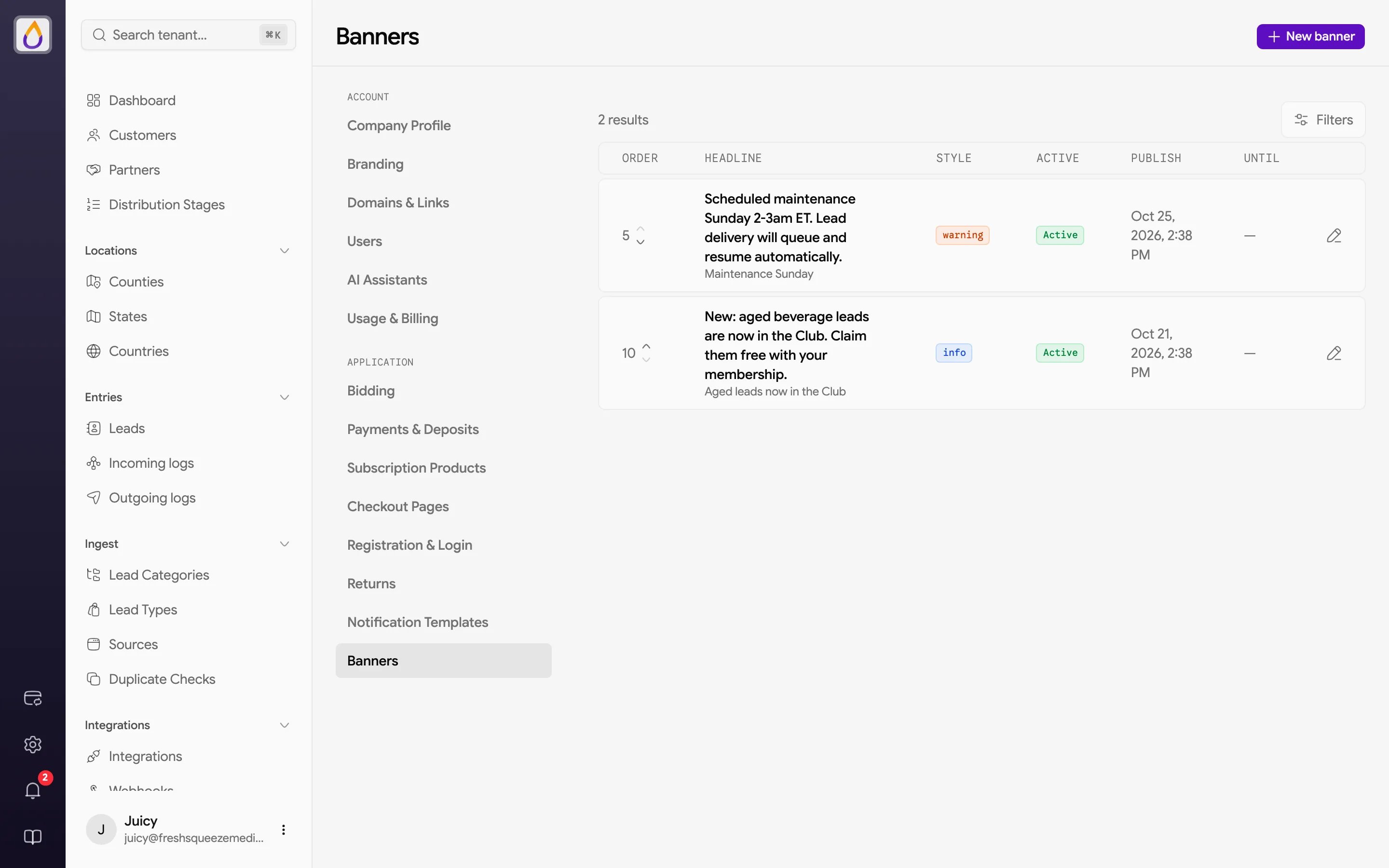
The banner list
Each banner shows its Order, Headline, Style, whether it’s Active, and its Publish and Until dates. Filter by Status (active or inactive), or include deleted banners to restore one. Order matters. Use Move up and Move down to rank banners. The customer portal shows one banner at a time, which is the first one in this order that’s active, inside its schedule, and matches the customer’s conditions.Creating a banner
Click New banner. A live preview at the top of the form shows the banner’s style, headline, and button as you type.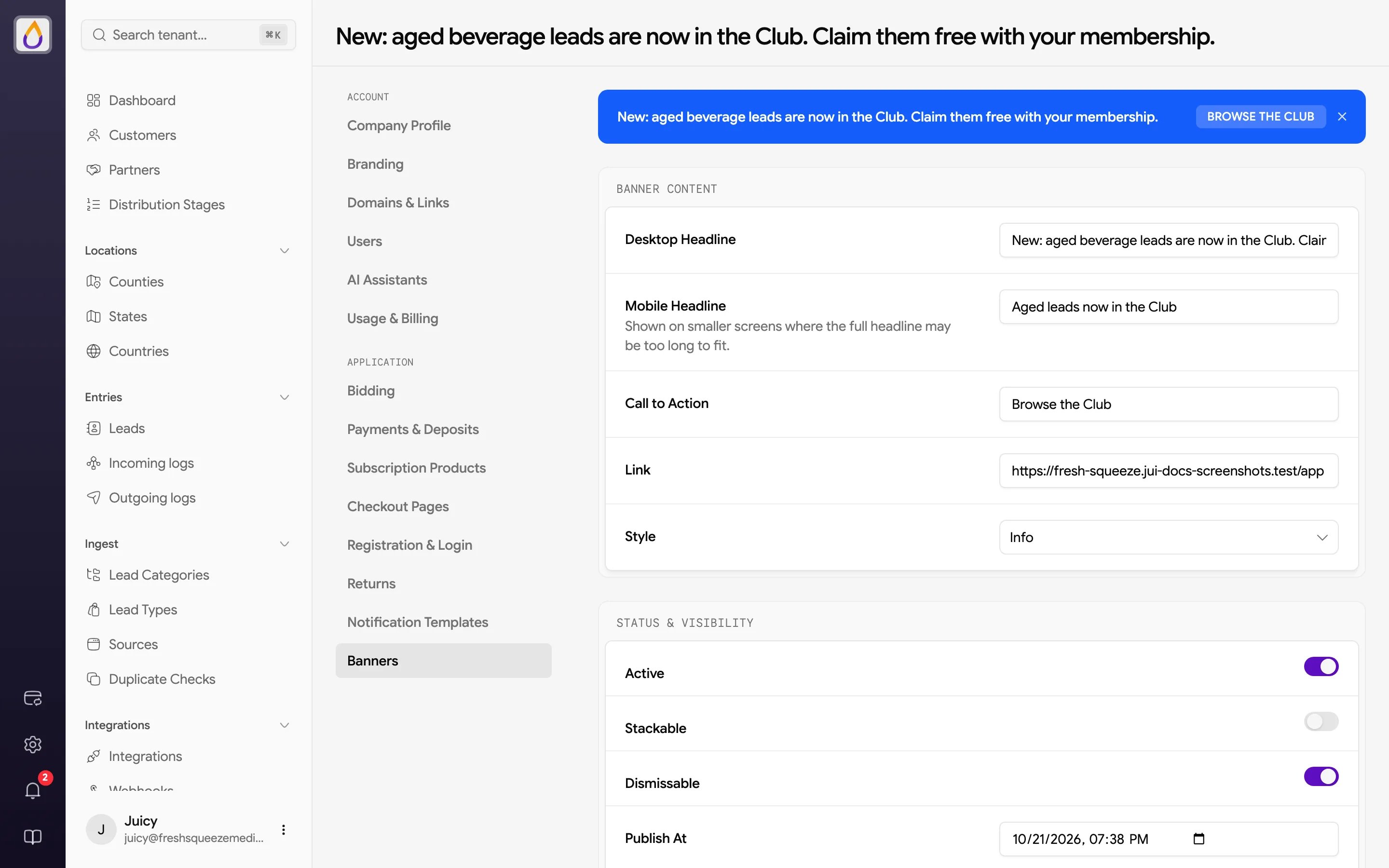
Banner Content
Status & Visibility
Conditions
Leave Conditions empty to show the banner to every customer. To target a group, build conditions on customer attributes, such as the customer’s state, country, balance, available budget, or the user’s role. Conditions within a group must all match (AND), and the banner shows if any group matches (OR). Conditions are checked each time a customer loads the portal, so a customer who starts matching later (say, their balance drops) sees the banner then without you changing anything. Click Create banner to save. To change a banner later, open it and click Edit. Changes save with the floating save bar.Banner performance
Open a banner to see how it’s doing.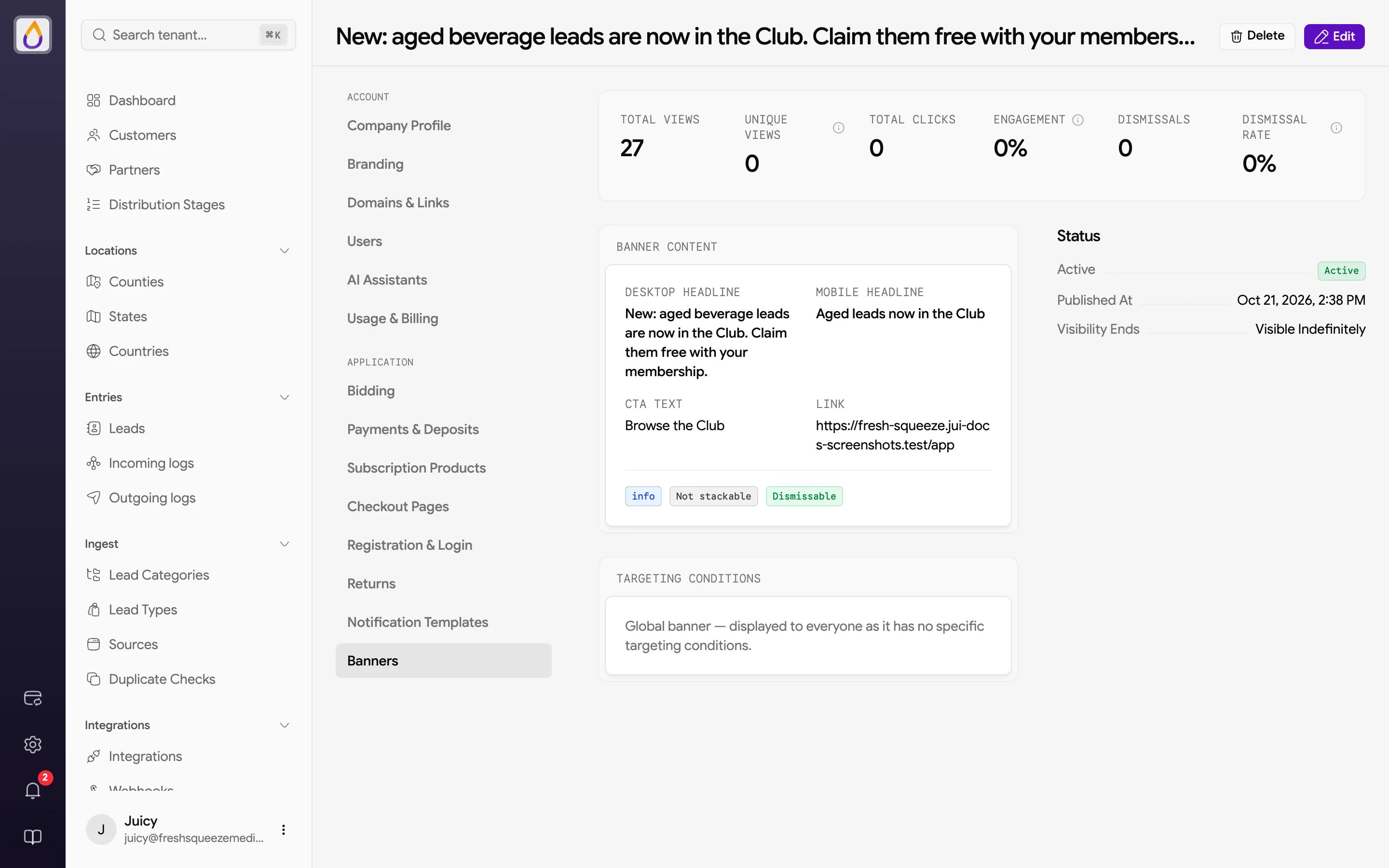
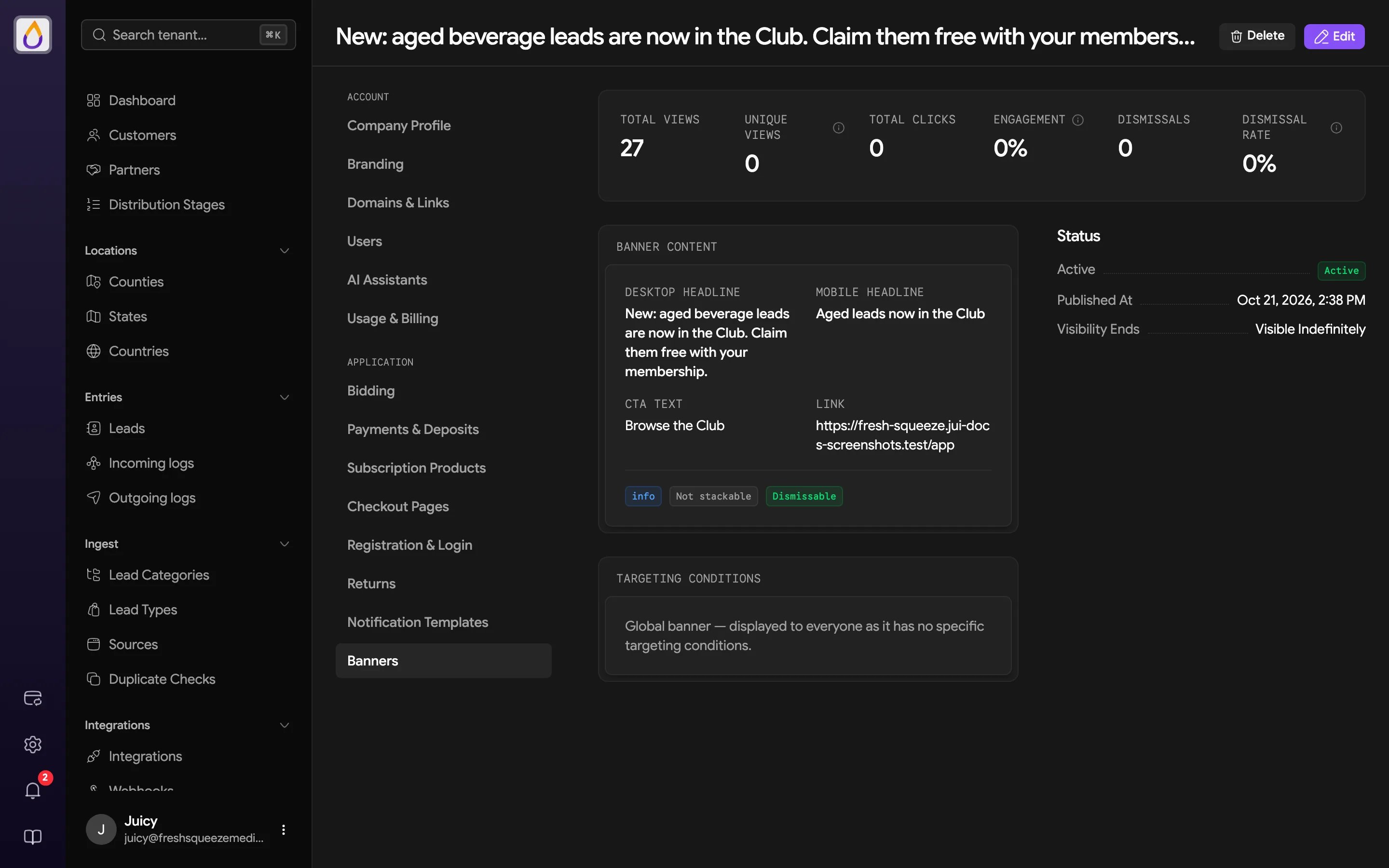
The page also shows the banner’s content, whether it’s dismissable, its schedule, and its targeting conditions. A banner with no conditions is labeled a global banner.
Deleting and restoring
Use Delete on a banner’s page to remove it. Deleted banners stop showing but can be found again by including deleted records in the list filter, where you can Restore them or Delete forever.Related guides
Publishing a banner
Write, schedule, target, and check a customer portal announcement.