
Incoming logs
An incoming log (also called a distribution flow) is one run of the pipeline, covering a ping, a post, the lead it created, and every distribution stage the lead visited. Open Incoming logs to see them all, newest first.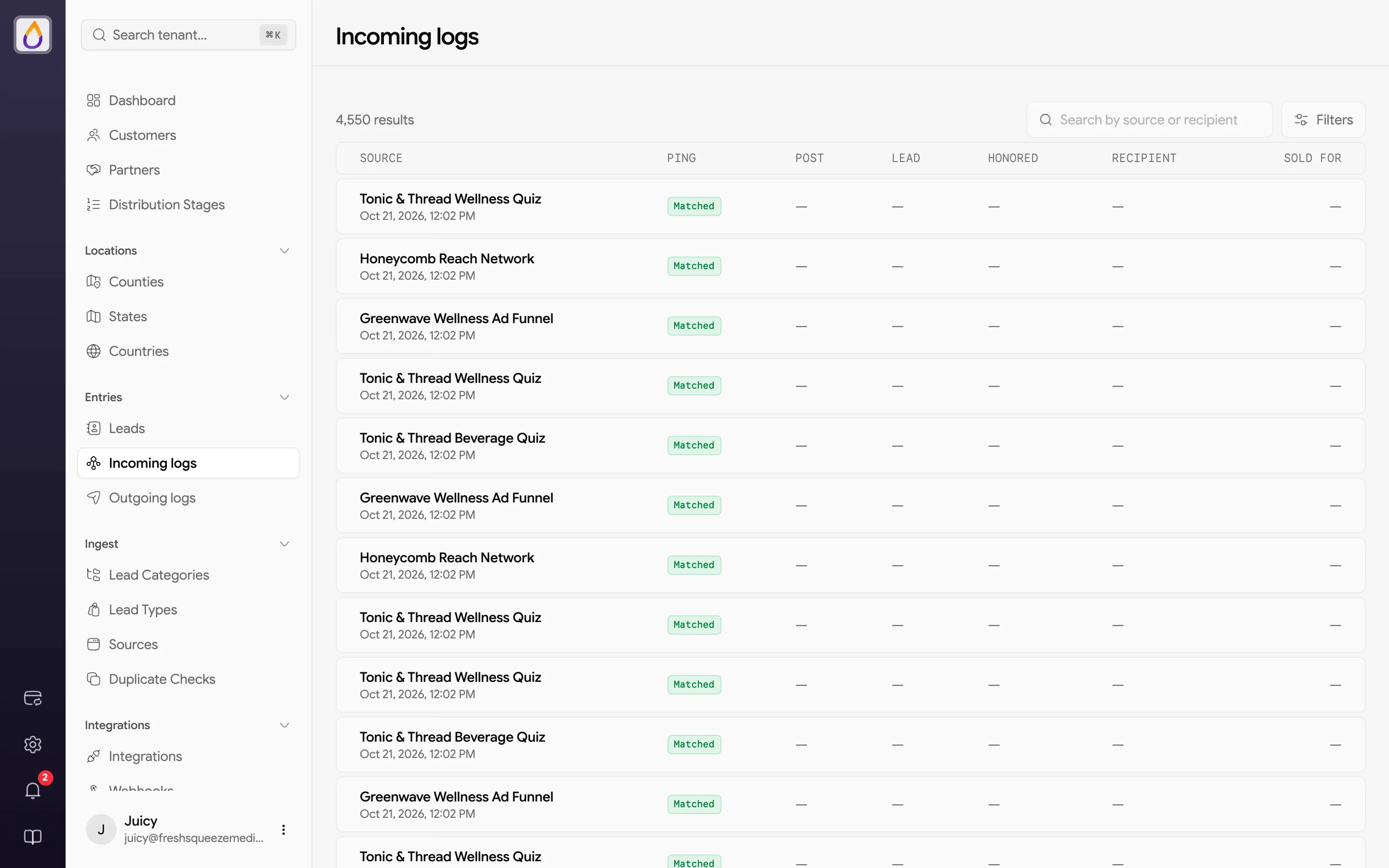
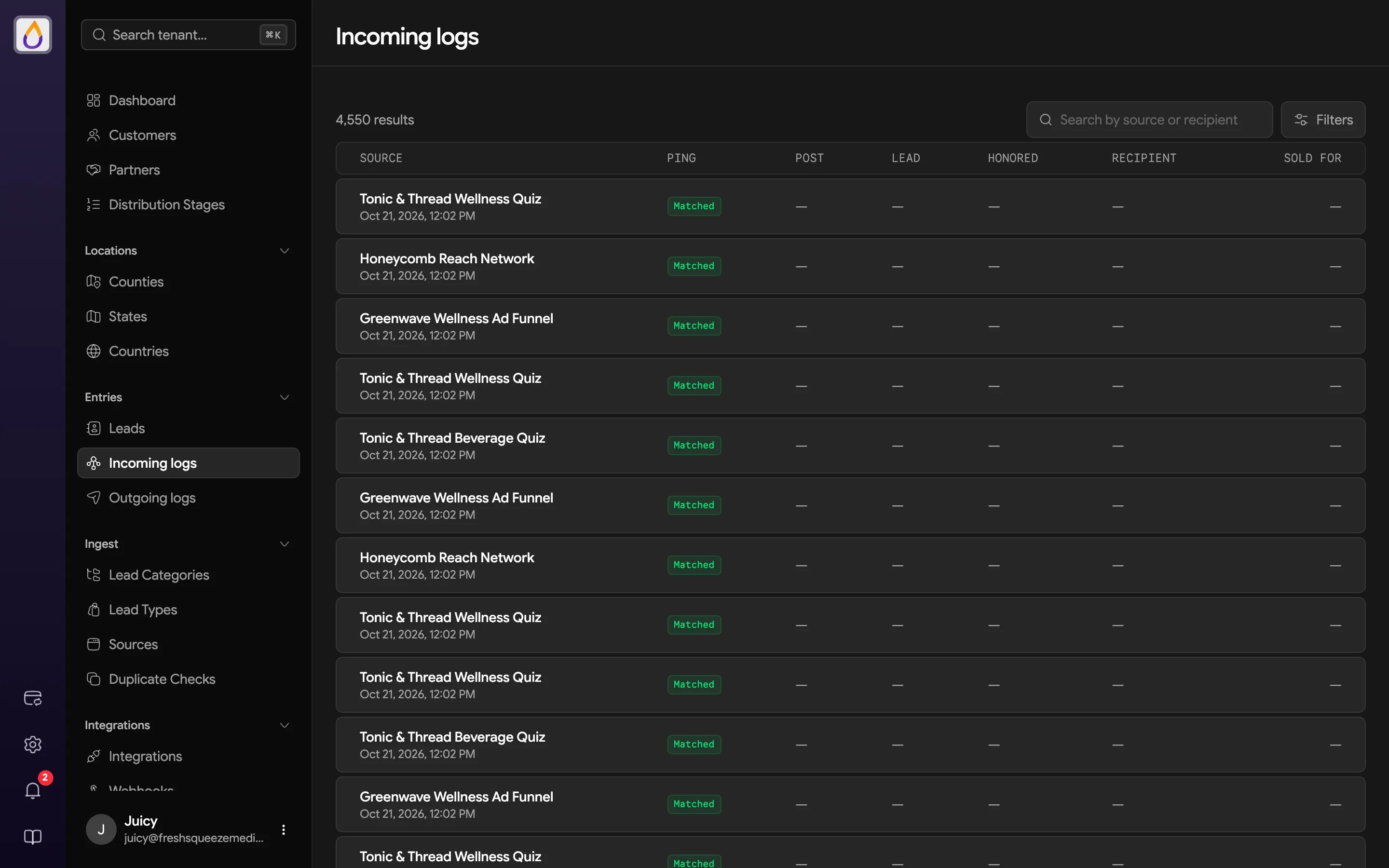
The search box matches source and recipient names. Click Filters to narrow the list by any of these.
- Ping status and Source
- Has Ping, Ping Honored, Has Post, Has Lead, and Assigned (each Yes or No)
- Recipient Type (Customer or Partner) and Channel Type (Bid, Customer, or Ping/Post)
- Test mode (real traffic by default, or test only)
- Created date range
Inside an incoming log
Click a row to open it. The page title is the log’s ID (it starts withdflow_).
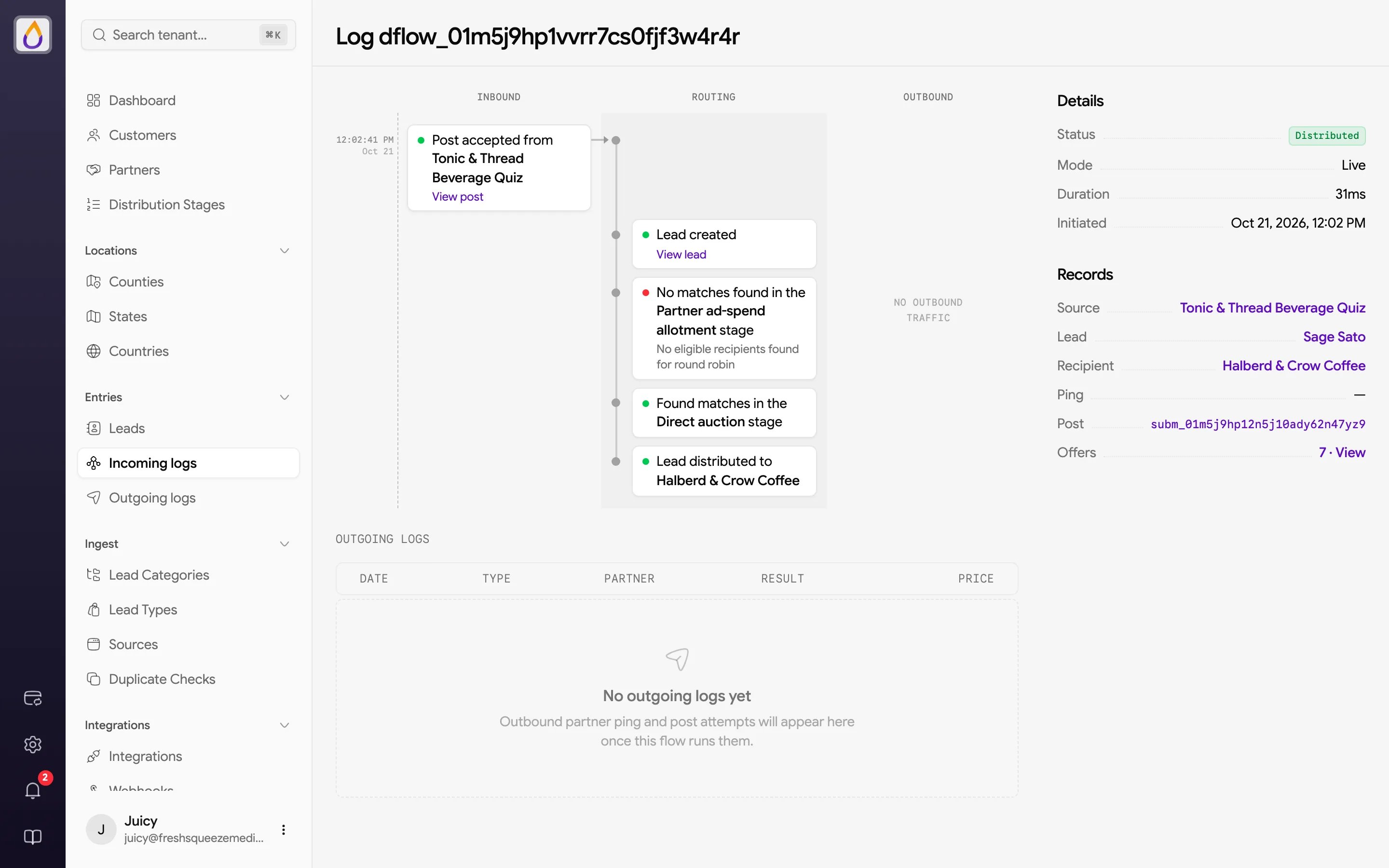
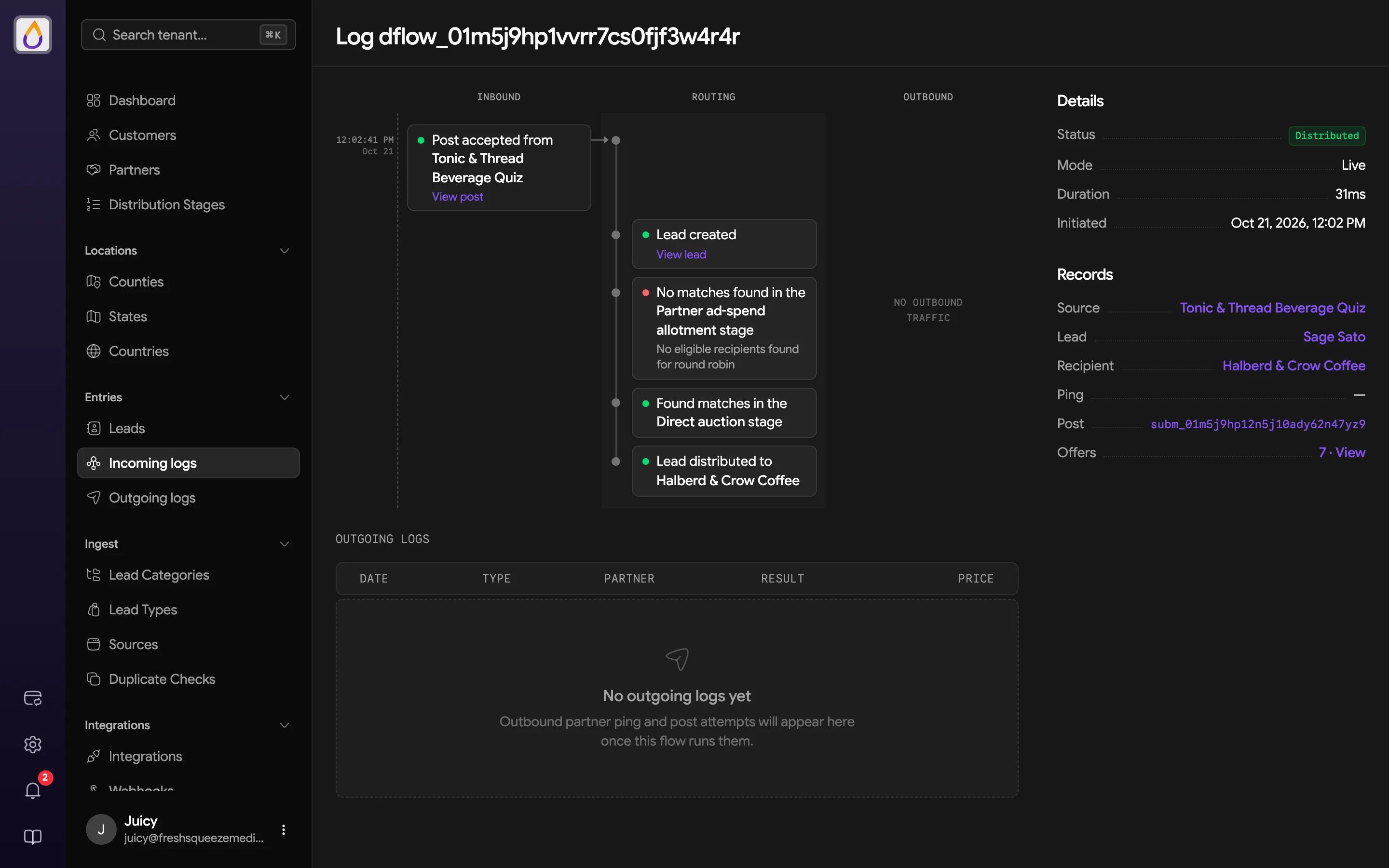
- Timeline has three lanes. Inbound holds what the source sent (the ping and post), Routing holds what Juiced did with it (lead created, each stage’s result, who won), and Outbound holds pings and posts Juiced sent to partners. Each card describes its event in plain language and links to the related ping, post, or lead where there is one.
- Details shows the flow’s Status, Mode (Live or Test), Duration, and when it was Initiated.
- Records links to the Source, Lead, Recipient, Ping, and Post, plus Offers (the number of offers made, with a View link).
- Outgoing logs lists every partner ping and post this flow triggered, with date, type, partner, result, and price.
Offers
Click View next to Offers to see every offer the lead attracted. The dialog lists each bidder’s Name (the winner is badged Winner), Channel, Bid, Effective price, Penalty (hover it for the reason), Score, Discount, Charged, and Status. It’s the fastest way to see why one buyer beat another. See ping-post for how offers are scored.Outgoing logs
Outgoing logs lists every request Juiced sent out, including pings and posts to partners and webhook deliveries. Rows are grouped by the incoming log they belong to, with a View log link to jump back to it.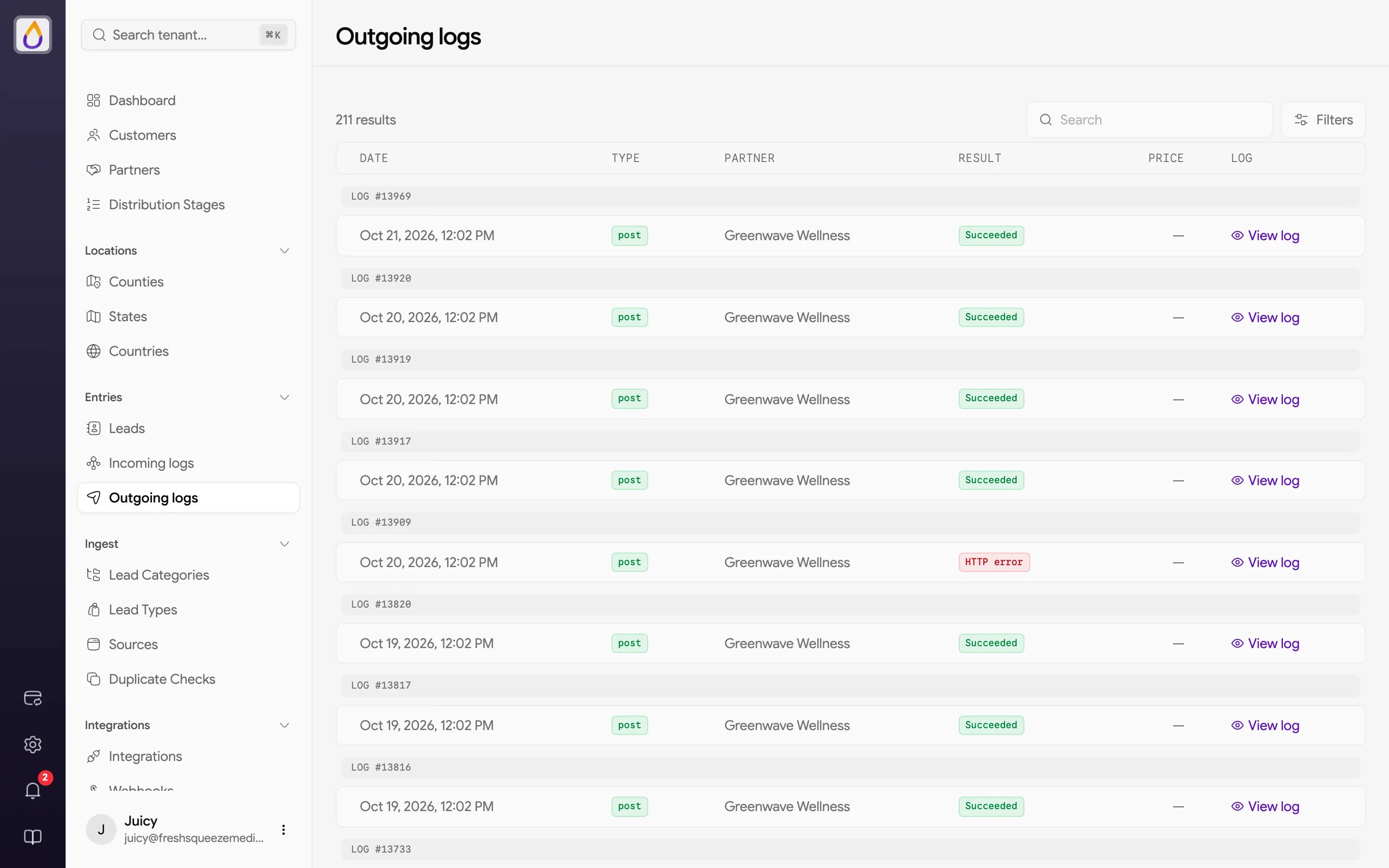
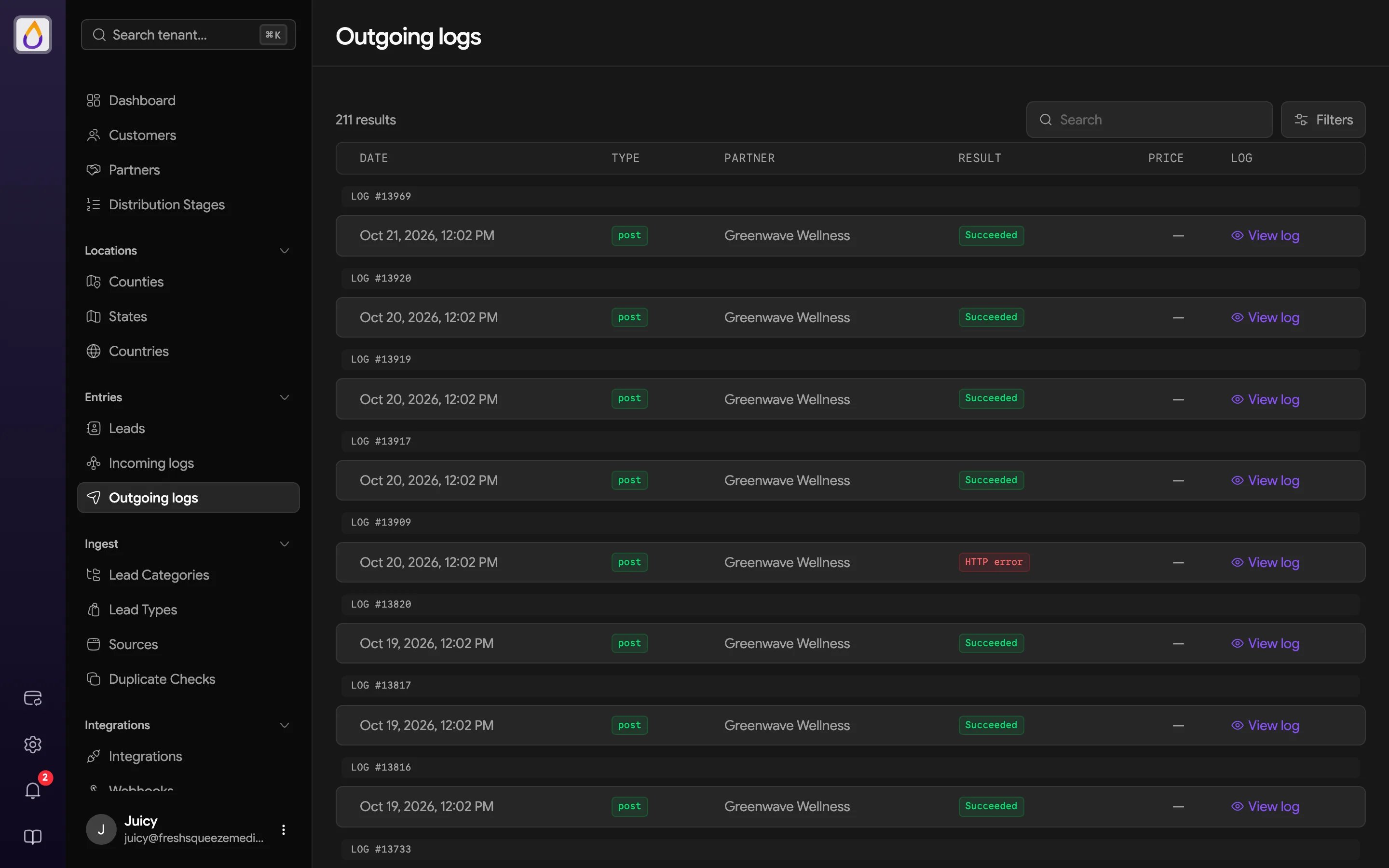
- Type (Ping, Post, or Webhook)
- Result (Pending, Succeeded, Duplicate, Rejected, HTTP error, Timeout, Validation failed, or Error)
- Partner
- Test mode (real traffic by default, or test only)
- Created date range
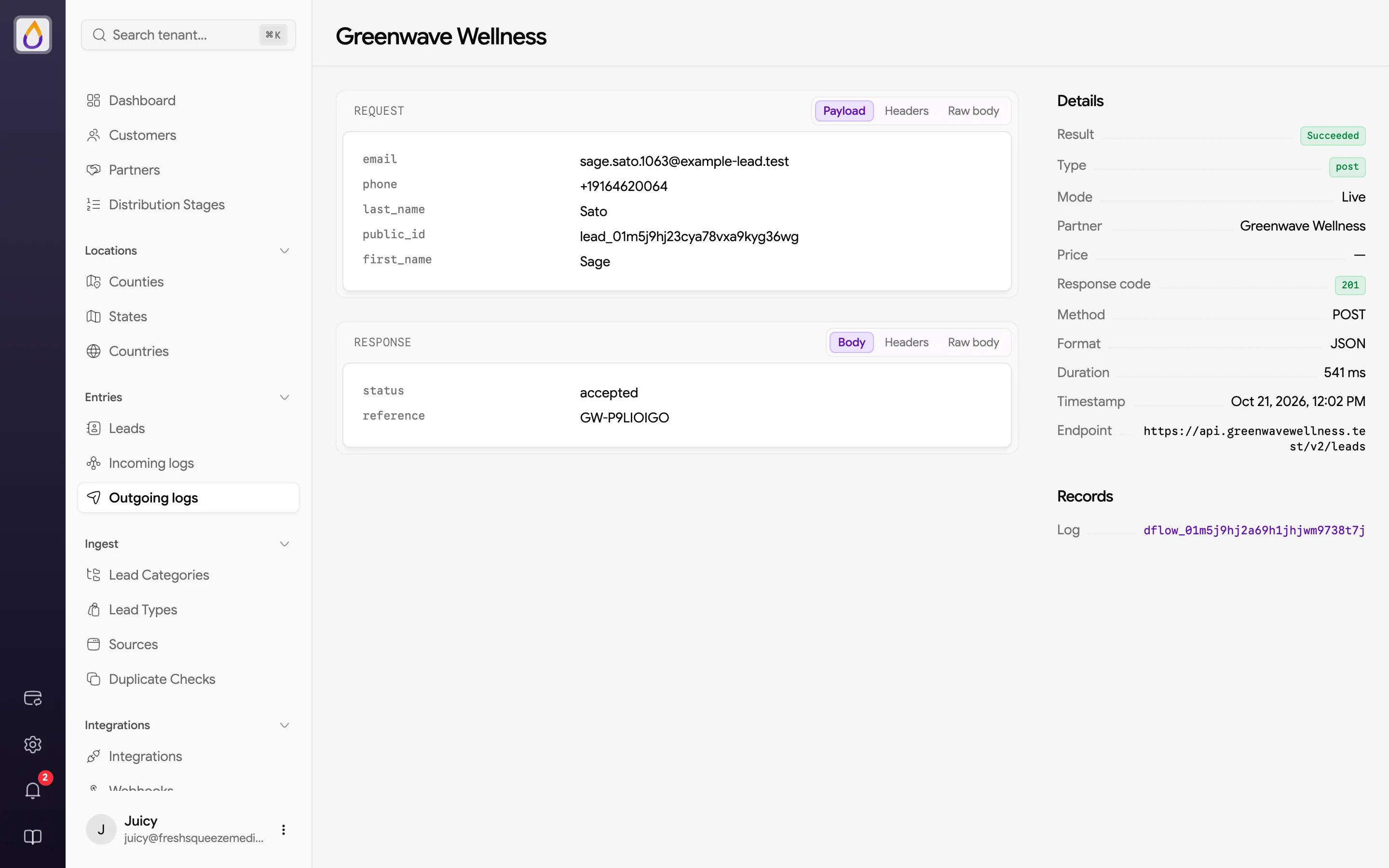
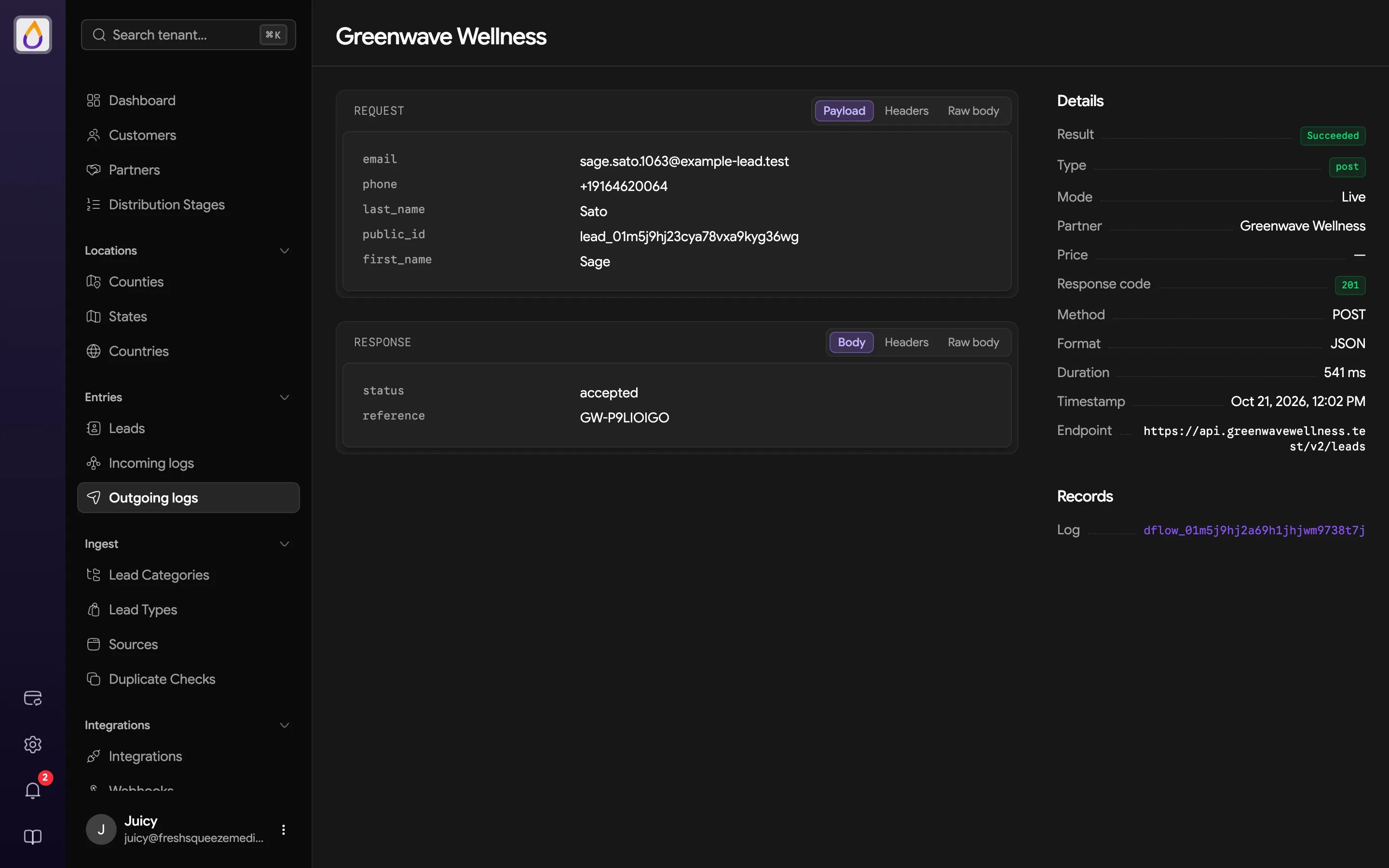
- Request shows what Juiced sent, as Payload, Headers, or Raw body.
- Response shows what the partner sent back, as Body, Headers, or Raw body. When something went wrong on our side of the wire, an Error tab shows the error class and message.
- Details lists Result, Type, Mode, Partner, Price, Response code, Method, Format (JSON or Form), Duration, Timestamp, and Endpoint.
- Records links to the incoming log.
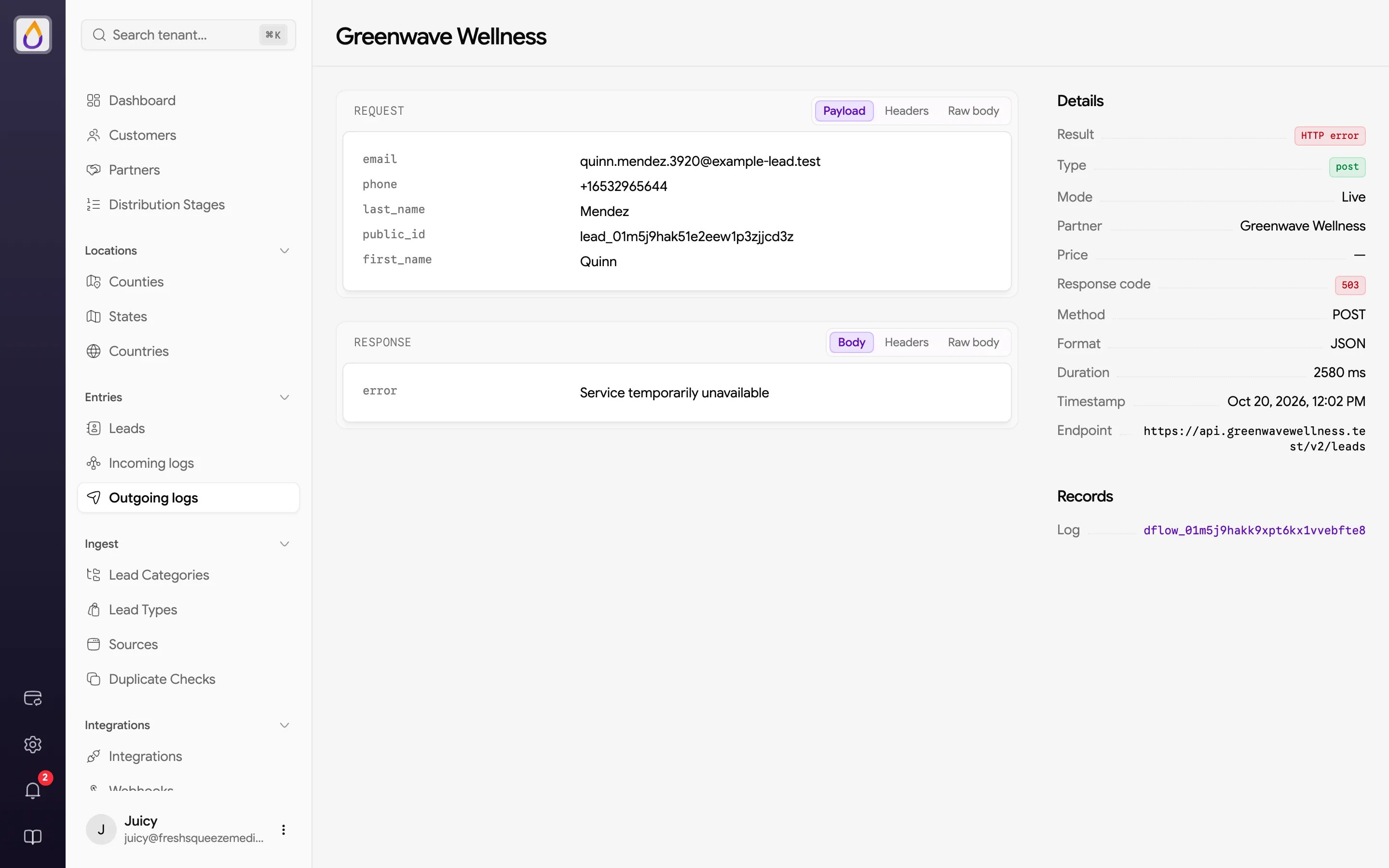
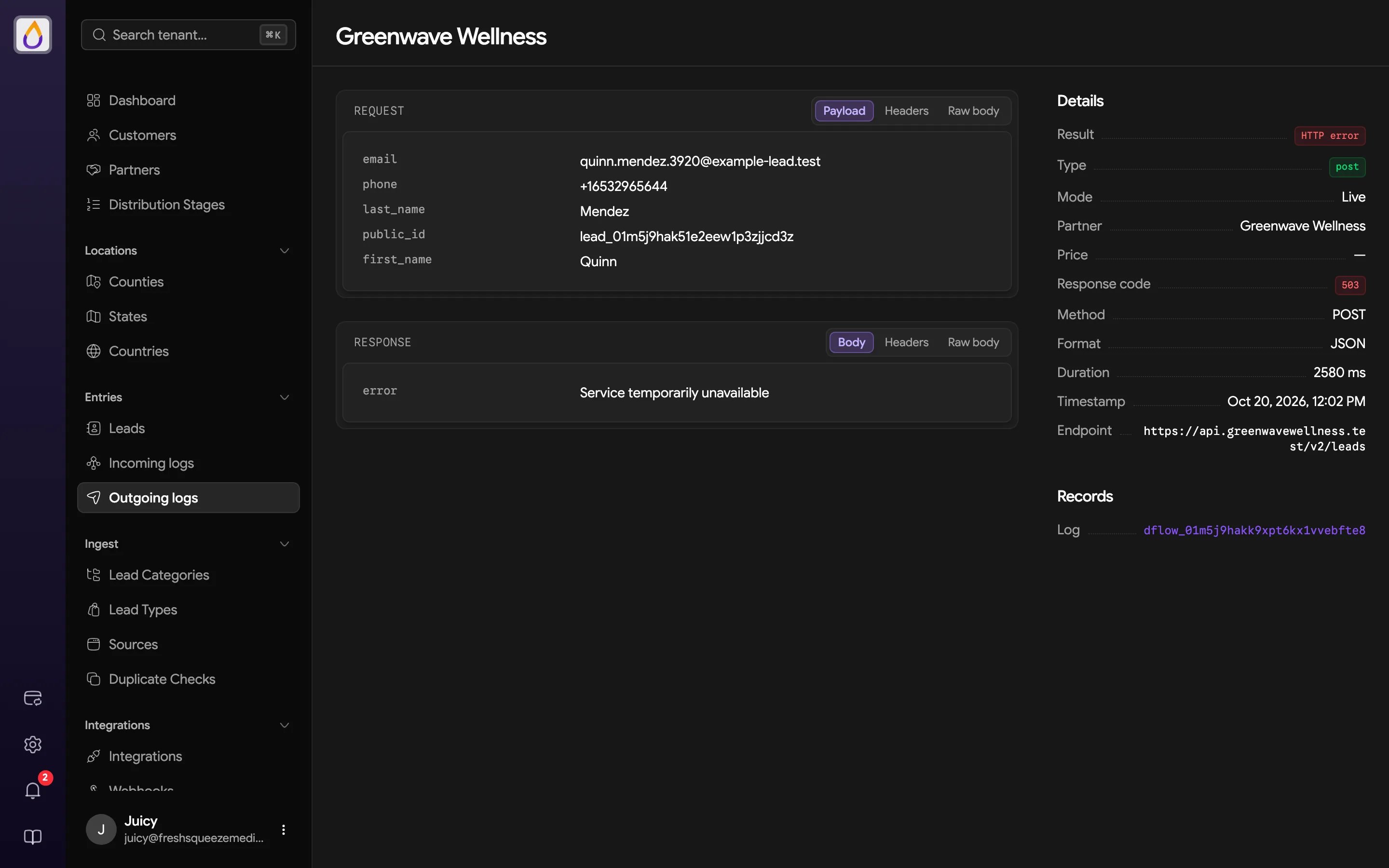
A failed post, where the partner's endpoint answered with a 503.
Ping and post inspectors
Pings and posts don’t have their own list pages. You reach them from an incoming log (the Ping and Post links under Records, or View ping / View post on a timeline card), or from a lead’s View Ping and View Post actions.Ping inspector
Shows exactly what a source sent to the ping endpoint and what Juiced answered.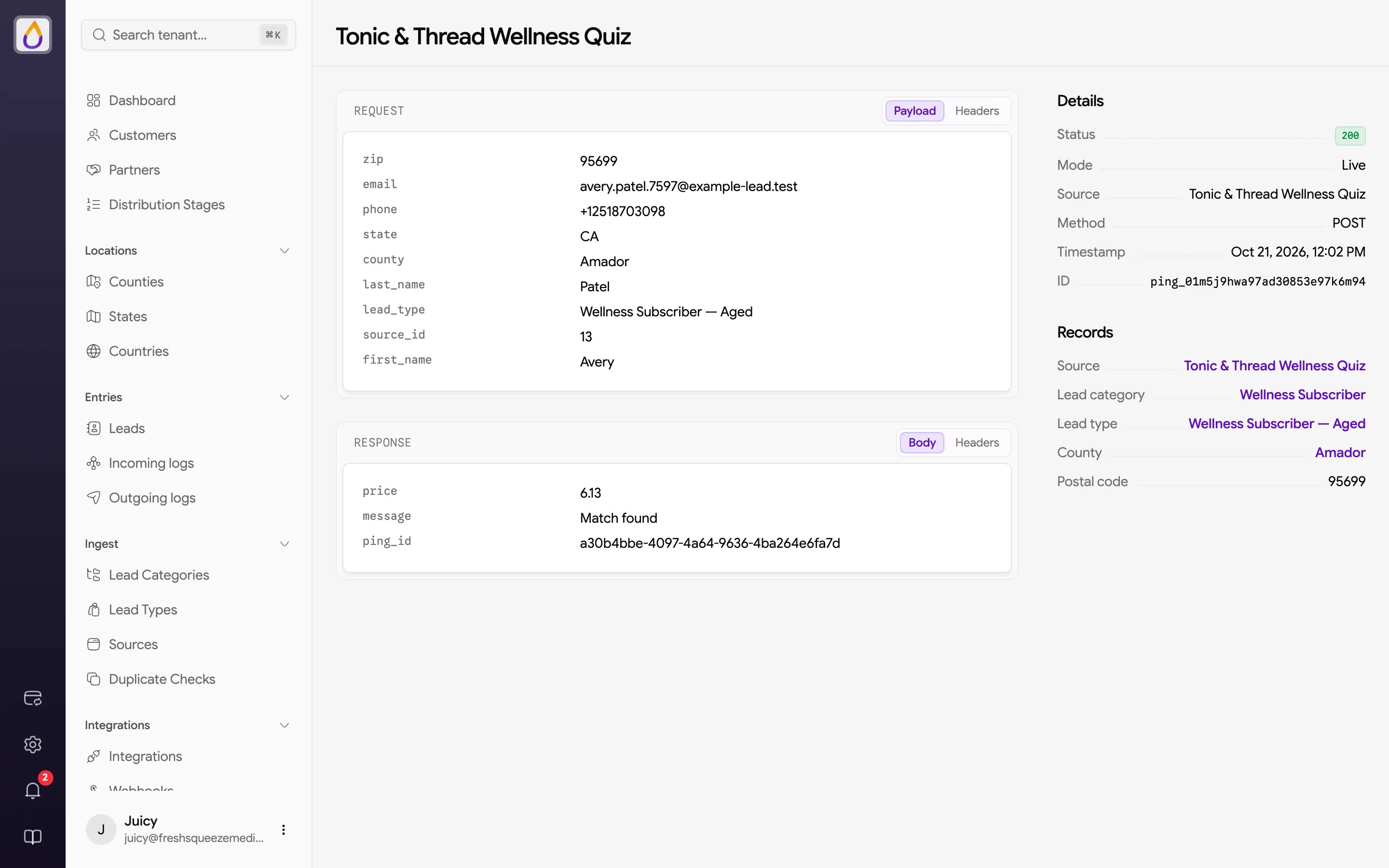
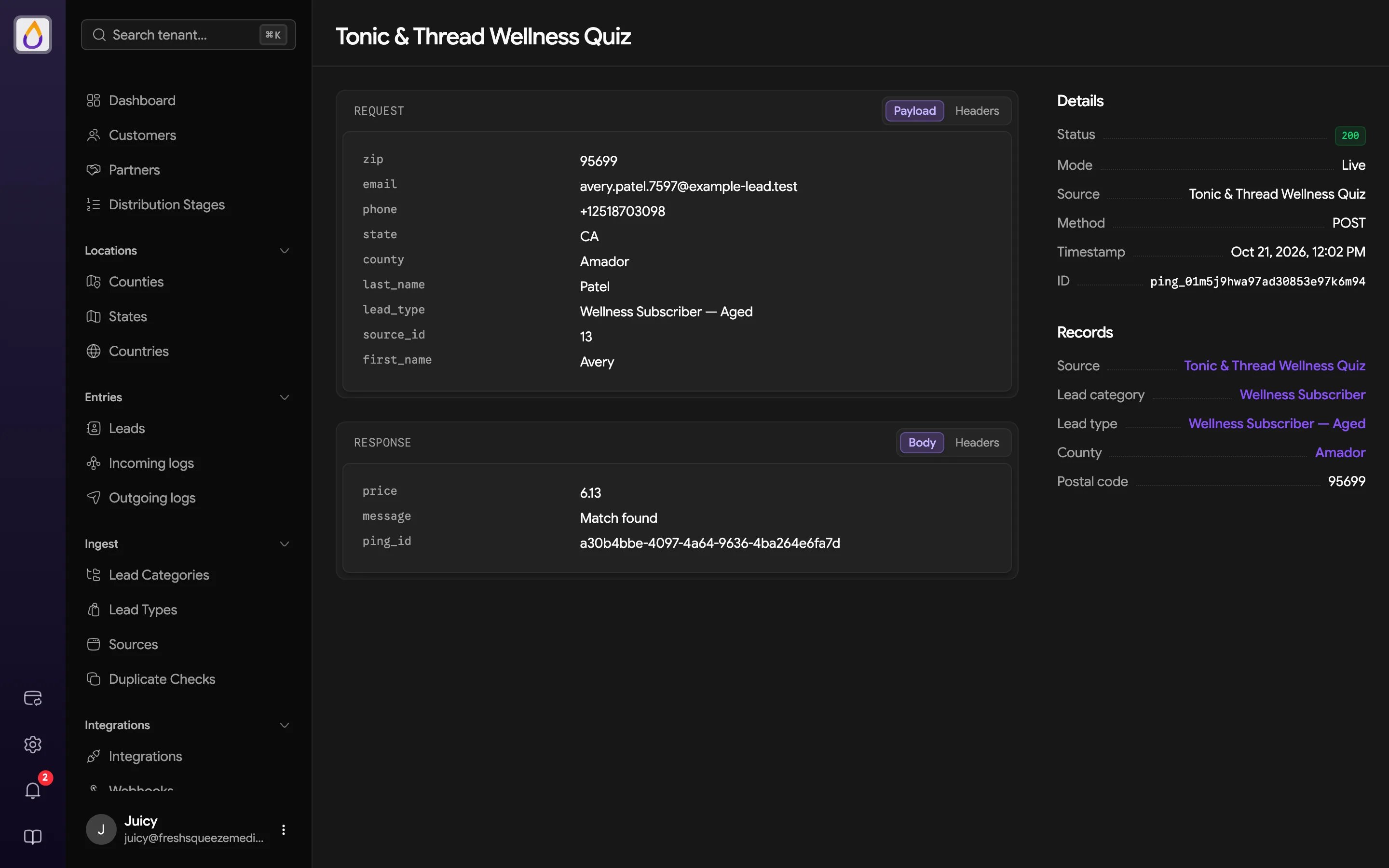
- Request shows the Payload and Headers, plus Validation errors when the ping was rejected.
- Response shows the Body and Headers Juiced returned, including the price offered.
- Details lists the response Status code, Mode, Source, Method, Timestamp, and ping ID.
- Records shows the Source, Lead category, Lead type, County, and Postal code the ping resolved to.
Post inspector
A post (also called a submission) is the full lead a source sent to the leads endpoint. Every post is stored as received, whether or not it became a lead.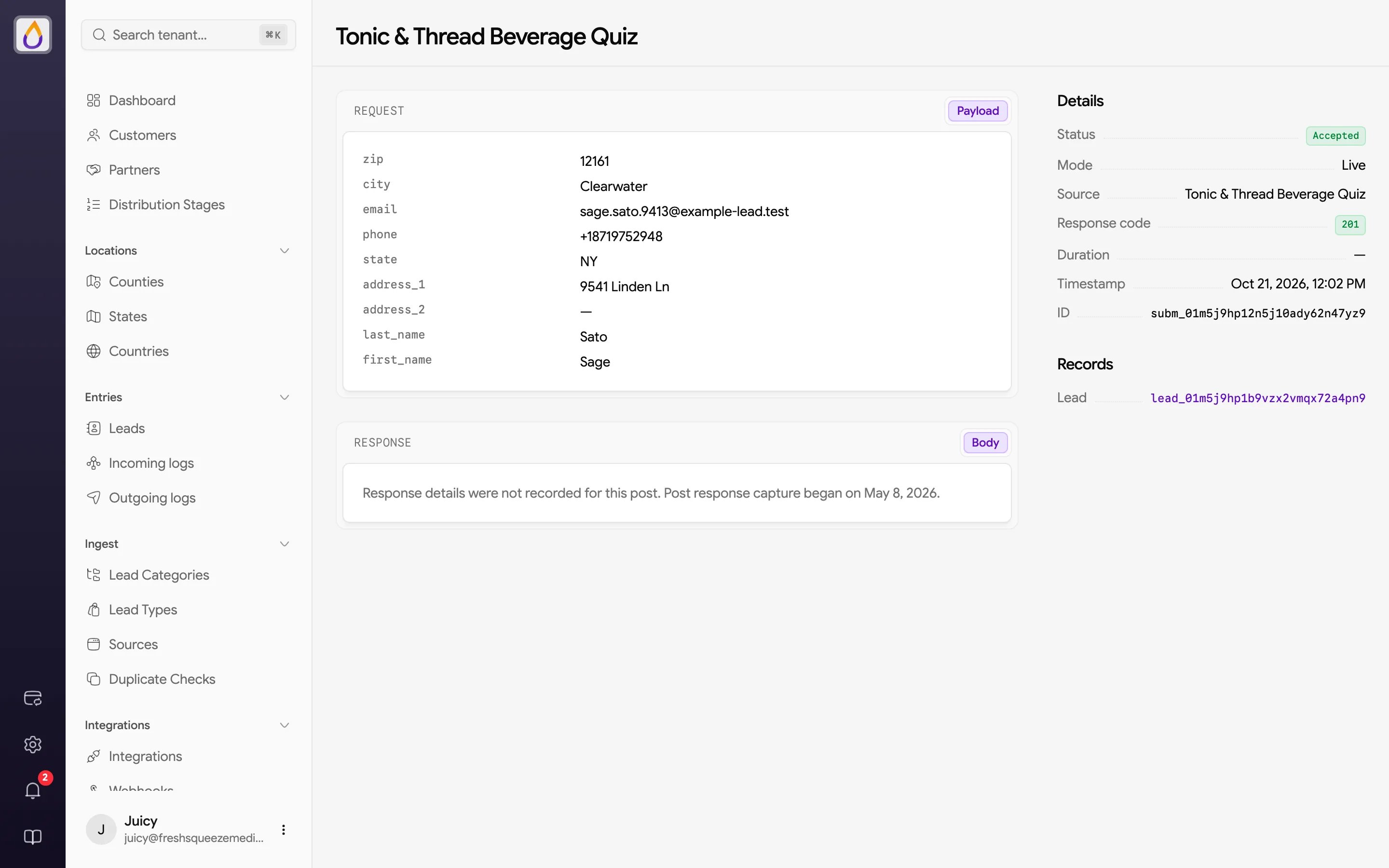
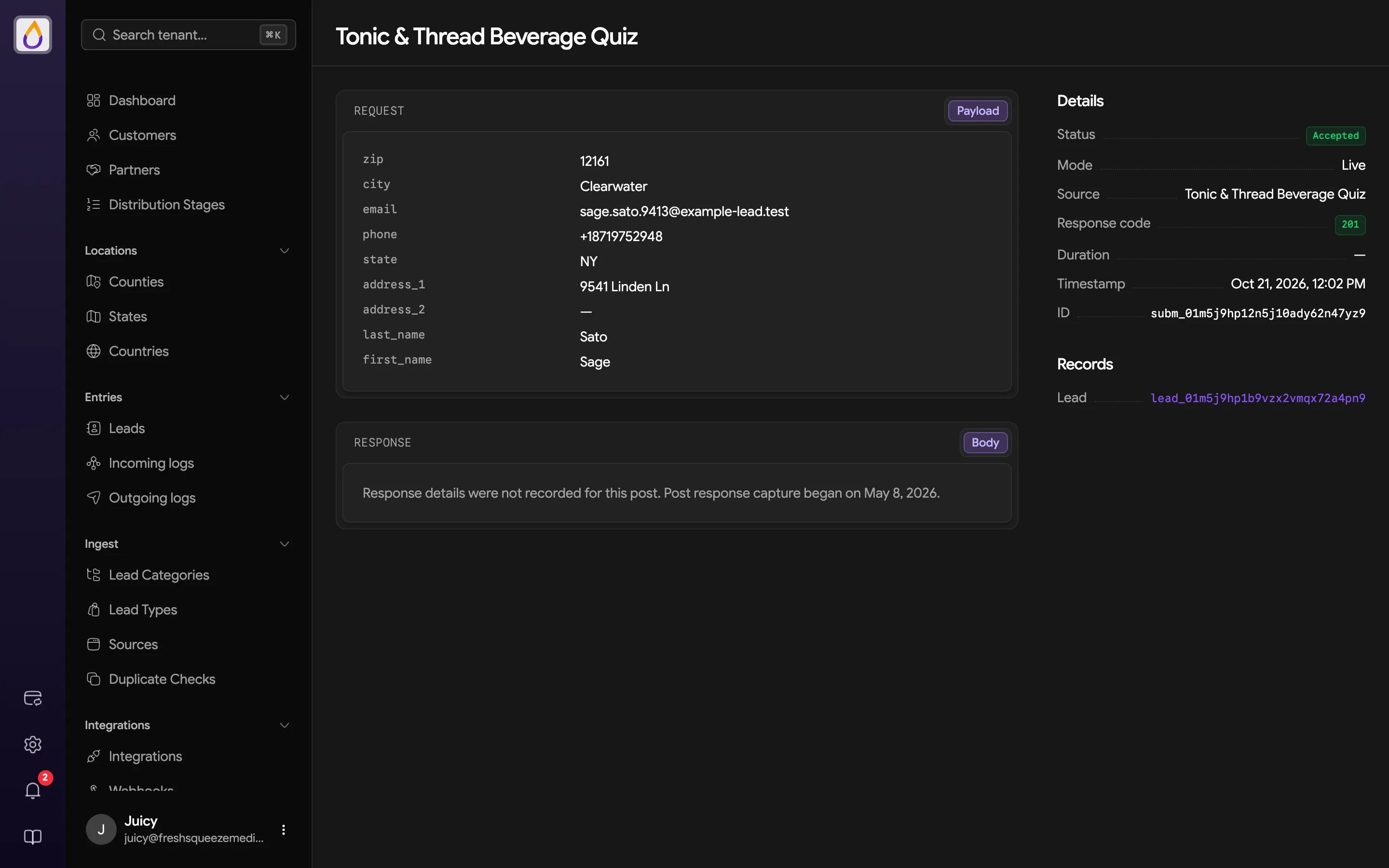
- Request shows the Payload as received (even fields that don’t map to anything in your lead category), plus Validation errors when the post was rejected.
- Response shows the Body, Headers, and Raw body Juiced sent back.
- Details lists Status (Pending, Accepted, or Rejected), Mode, Source, Response code, Duration, Timestamp, and ID.
- Records links to the Lead the post created, if any.