

Before you start
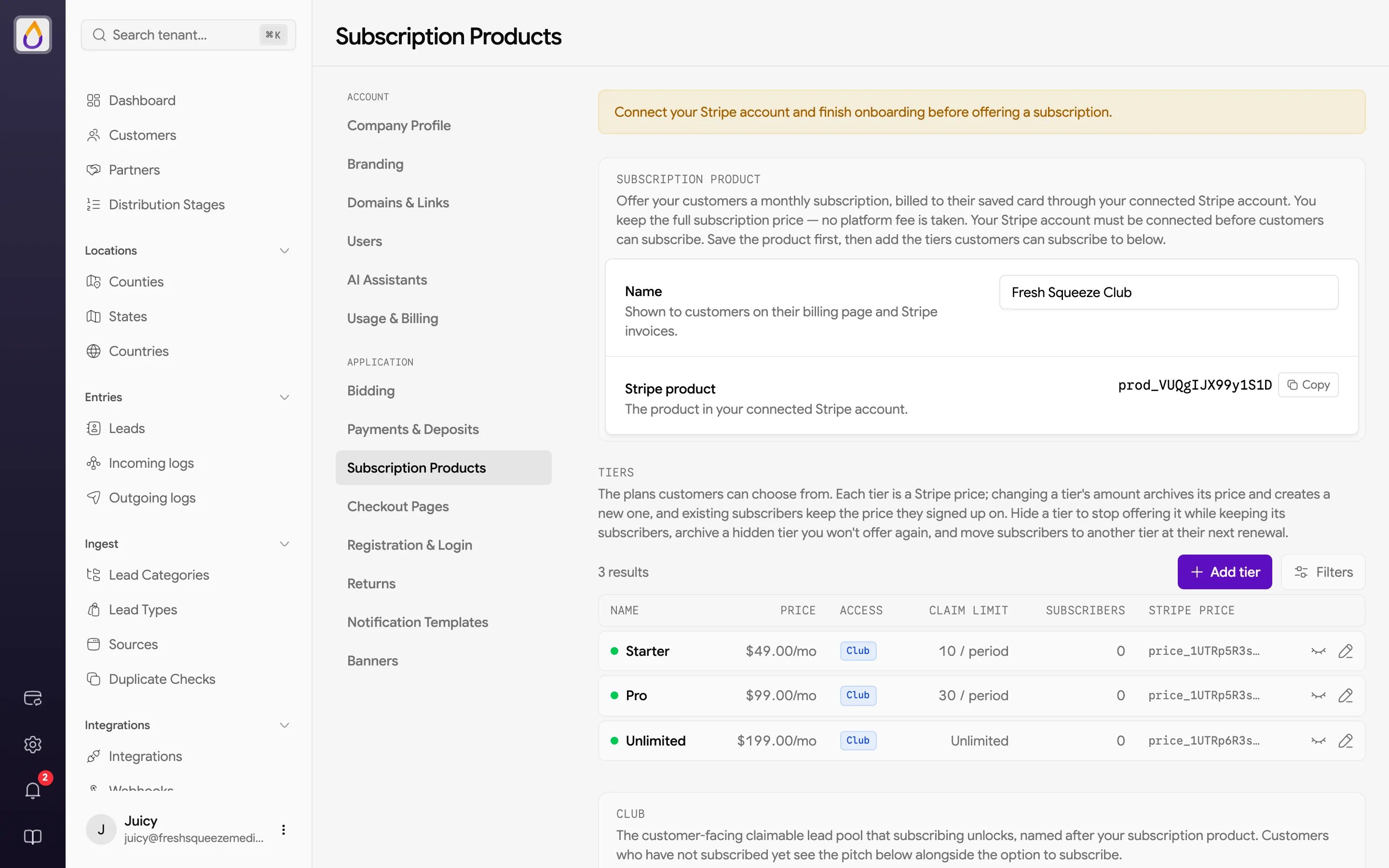
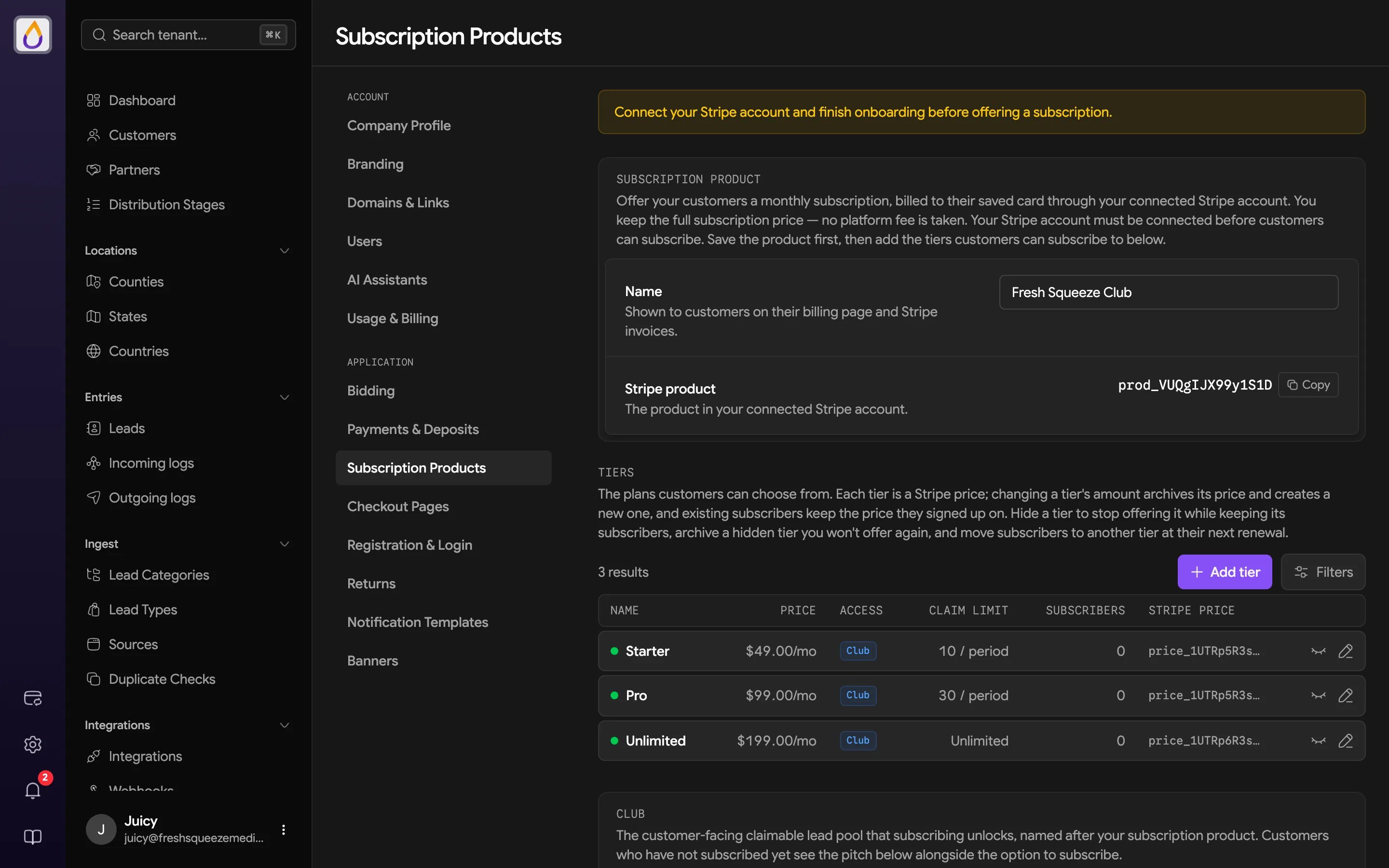
- Stripe must be connected and fully onboarded. Until it is, the page shows “Connect your Stripe account and finish onboarding before offering a subscription.” See Payments and deposits to connect.
- Admins only. The page is part of the billing settings, which only the Admin role can manage.
The product
You have one subscription product. Give it a Name (for example, “Fresh Squeeze Club”) and save it. The name shows on your customers’ billing page and on their Stripe invoices, and it’s also the name customers see for your Club. Once saved, Juiced creates the product in your Stripe account and shows its Stripe product ID. Save the product before adding tiers.Tiers
Tiers are the plans customers choose from. Click Add tier and fill in these fields.
The tiers table shows each tier’s Price, Access, Claim limit, number of Subscribers (active or past due, including pending cancellations and pending moves), and its Stripe price.
Each tier is a Stripe price. Changing a tier’s price archives the old Stripe price and creates a new one. Existing subscribers keep the price they signed up on, and only new subscribers pay the new amount.
Offered, hidden, and archived
Every tier has an availability dot next to its name.- Offered (green) means new customers can subscribe to it.
- Hidden (yellow) means it’s not offered to new signups, but existing subscribers keep their price and allowance. Use Hide from new signups to retire a tier gently, and Offer again to bring it back.
- Archived (gray) is a hidden tier you won’t offer again. Only hidden tiers can be archived. Archived tiers drop out of the table unless you turn on the Archived tiers filter, and their subscribers still keep their price and allowance.
If checkout pages are enabled for your account, a hidden tier can still be sold through a checkout page.
Moving subscribers to another tier
Want to shift everyone on an old tier onto a new one? Use Move subscribers on the tier’s row.- Choose the tier to move them to. Only offered tiers are listed, so offer the destination tier first.
- Review the preview. Each subscriber shows their current and new price, their current and new claim allowance, and the date the move takes effect. If a subscriber has a discount, the preview says whether it carries over or ends before the move.
- Select the subscribers to move and click Move n at renewal.
Cancelling a customer’s subscription
Open the customer, click More actions (⋯), and choose Cancel subscription. Then pick when it ends.- At end of current period lets the customer keep access until the paid period lapses. This is the same cancellation customers can request themselves.
- Immediately ends the subscription and any Club access it grants right away. You can also tick Refund the last payment to refund the most recent subscription payment in full through Stripe.
The Club card
The bottom of the page holds the Club settings. They cover whether leads can enter the Club, whether customers can see it, its URL, and the pitch shown to customers who haven’t subscribed yet. See Club for what each setting does.Related pages
Club
The claimable lead pool your tiers unlock.
Billing in the customer portal
What customers see when they subscribe.