

Checkout pages are available on request. Juiced enables them for your account; if you don’t see Checkout Pages in your settings, contact your Juiced representative.
Before you start
- The Admin role. Checkout pages take payments on your Stripe account, so only users who can manage billing see them.
- Card payments. Your Stripe account must be connected and able to take customer payments. Until it is, pages show as Not selling.
- For Club offers, turn on the Club and offer a tier in Subscription Products.
Products
Products are what your pages sell. Create them first by clicking New product on the Products tab.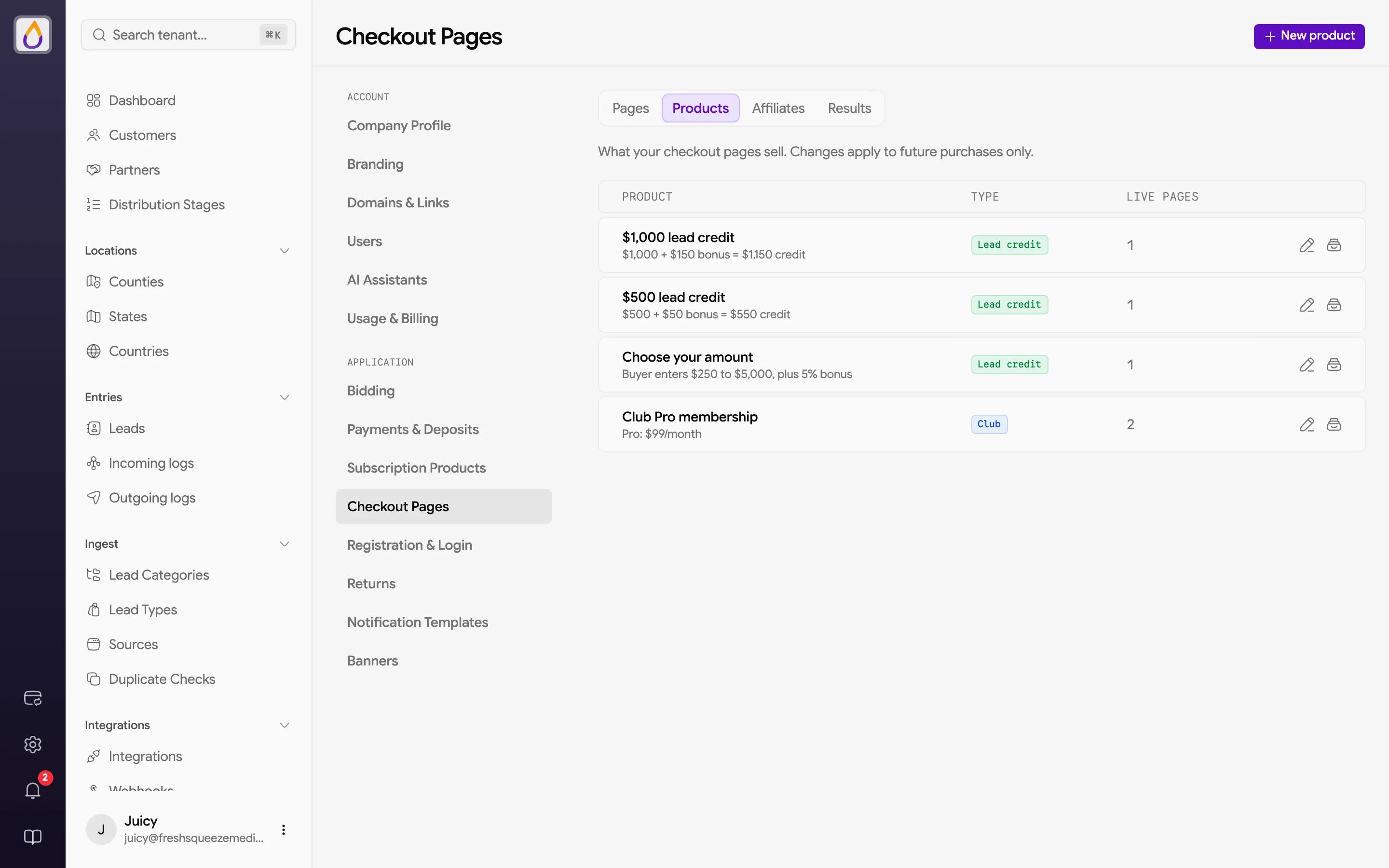
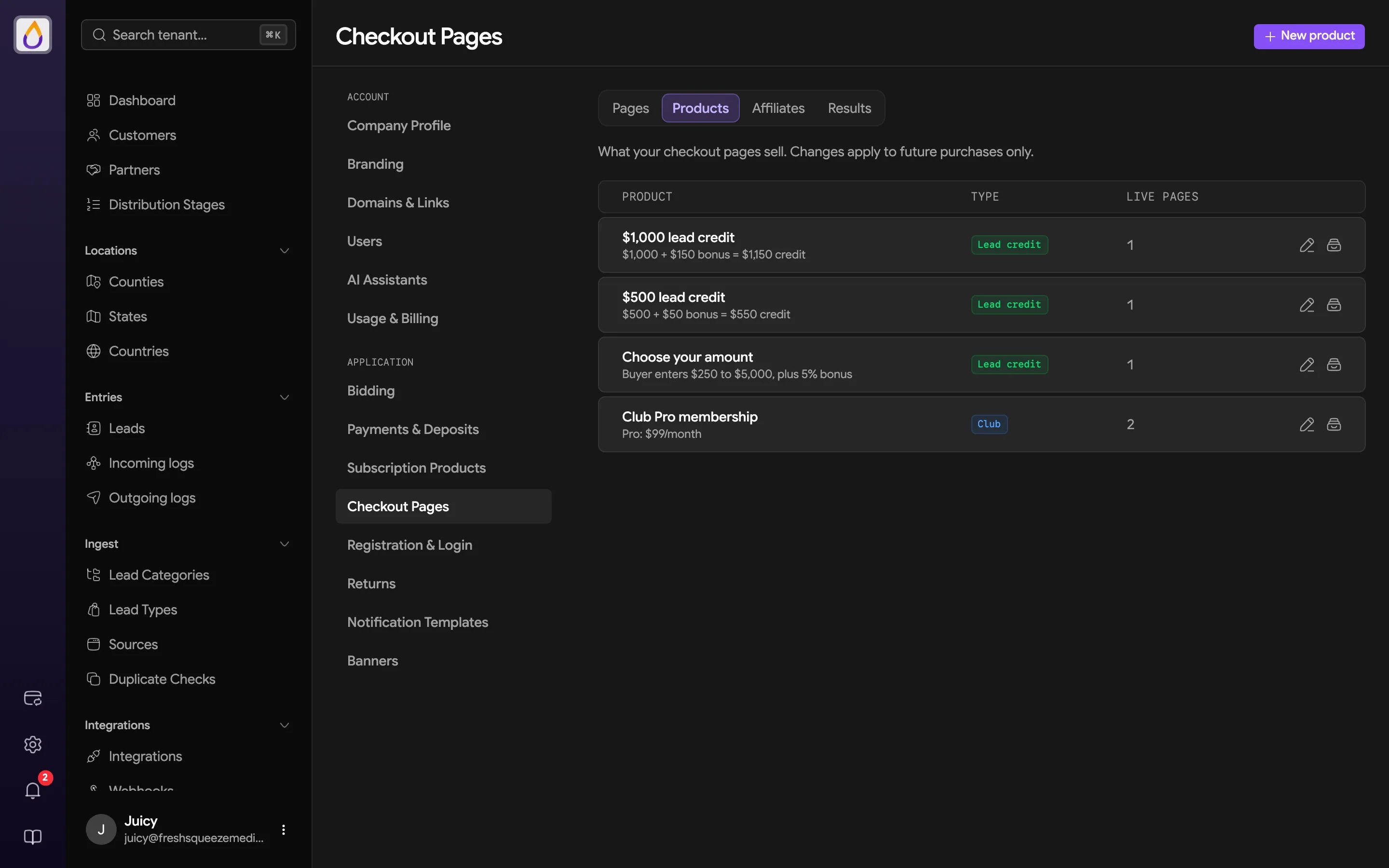
- Pricing is either a Fixed price, which is credited in full, or Buyer enters the amount with a Minimum and Maximum in whole dollars.
- Bonus can be No bonus, a Fixed amount, or a Percent of price, added on top as a separate checkout bonus. For buyer-entered amounts, Bonus applies to the first caps how much of the amount earns a bonus; leave it blank to apply the bonus to the whole amount. You can also round the bonus down to whole dollars.
Pages
The Pages tab lists each page with its Status, Price, Visits, Sales, and Revenue.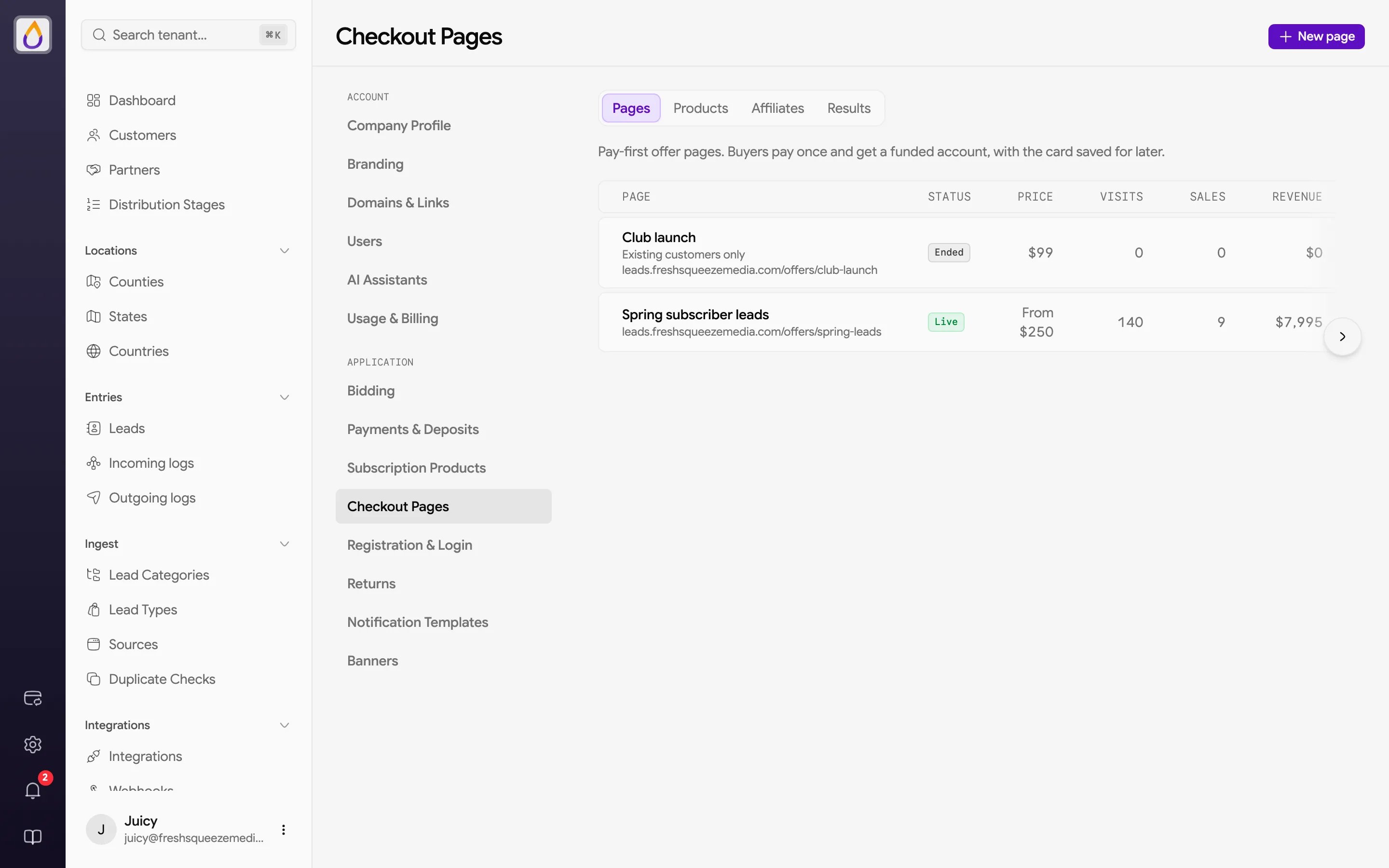
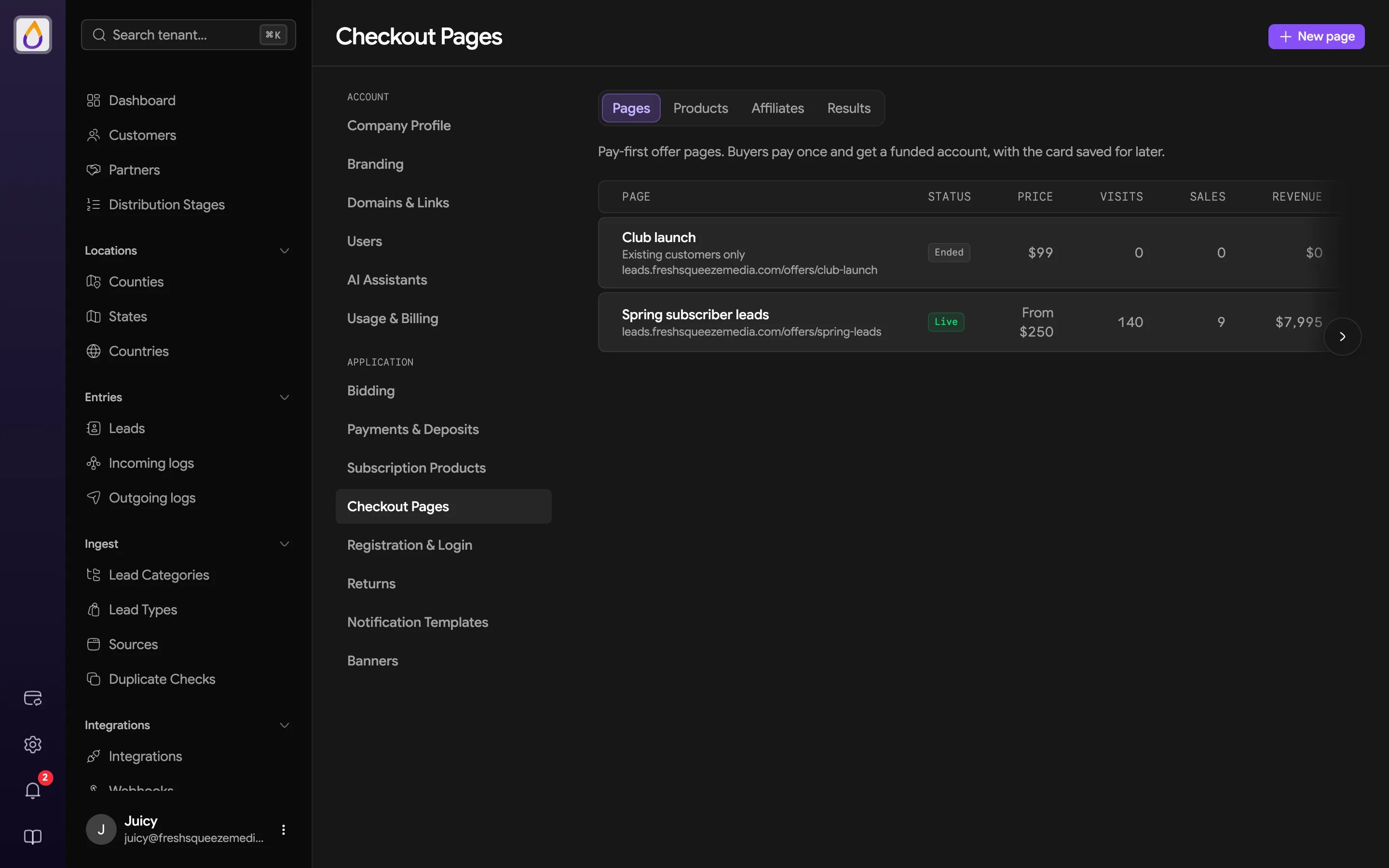
Each row has Edit, Preview, and Duplicate.
Building a page
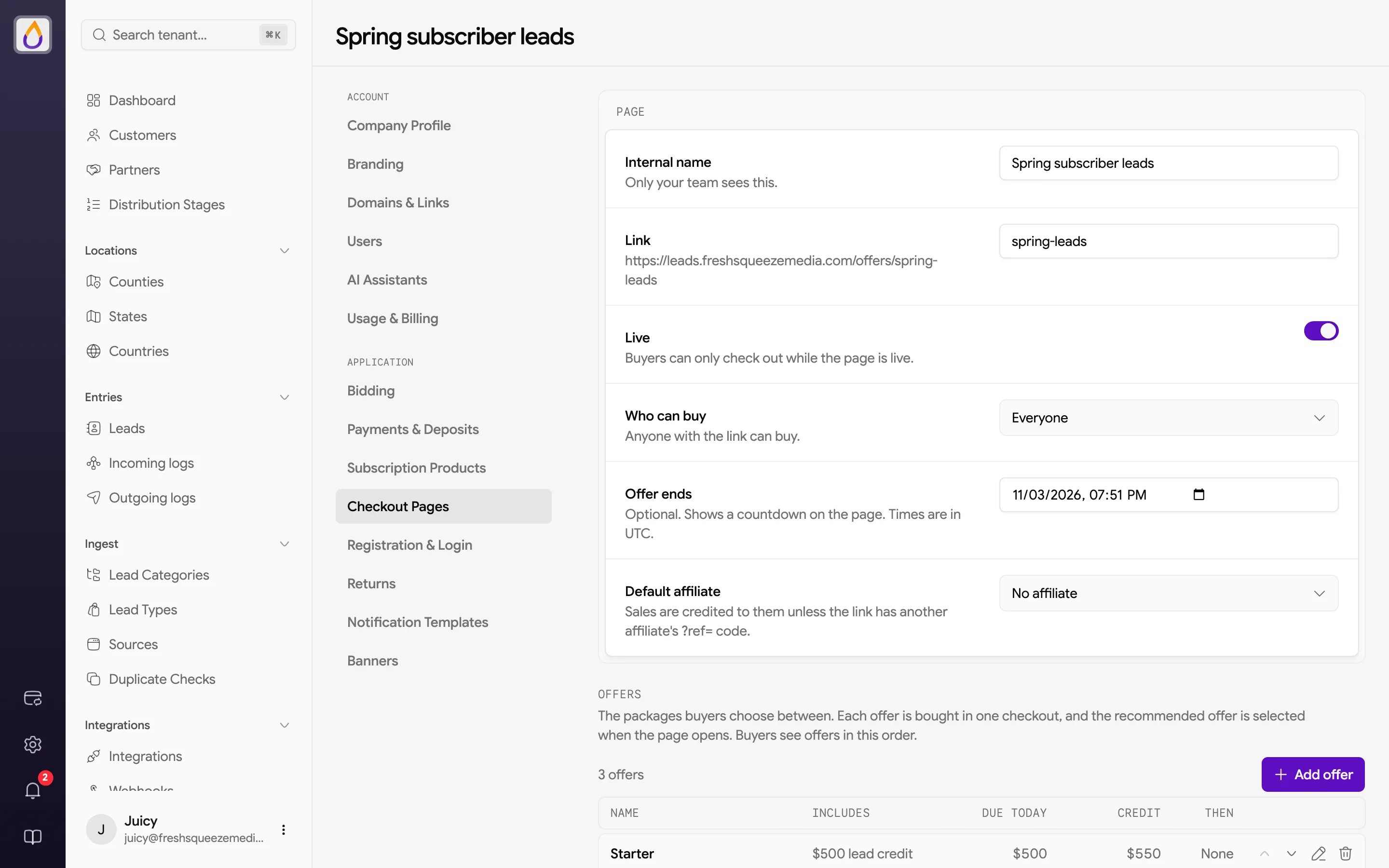
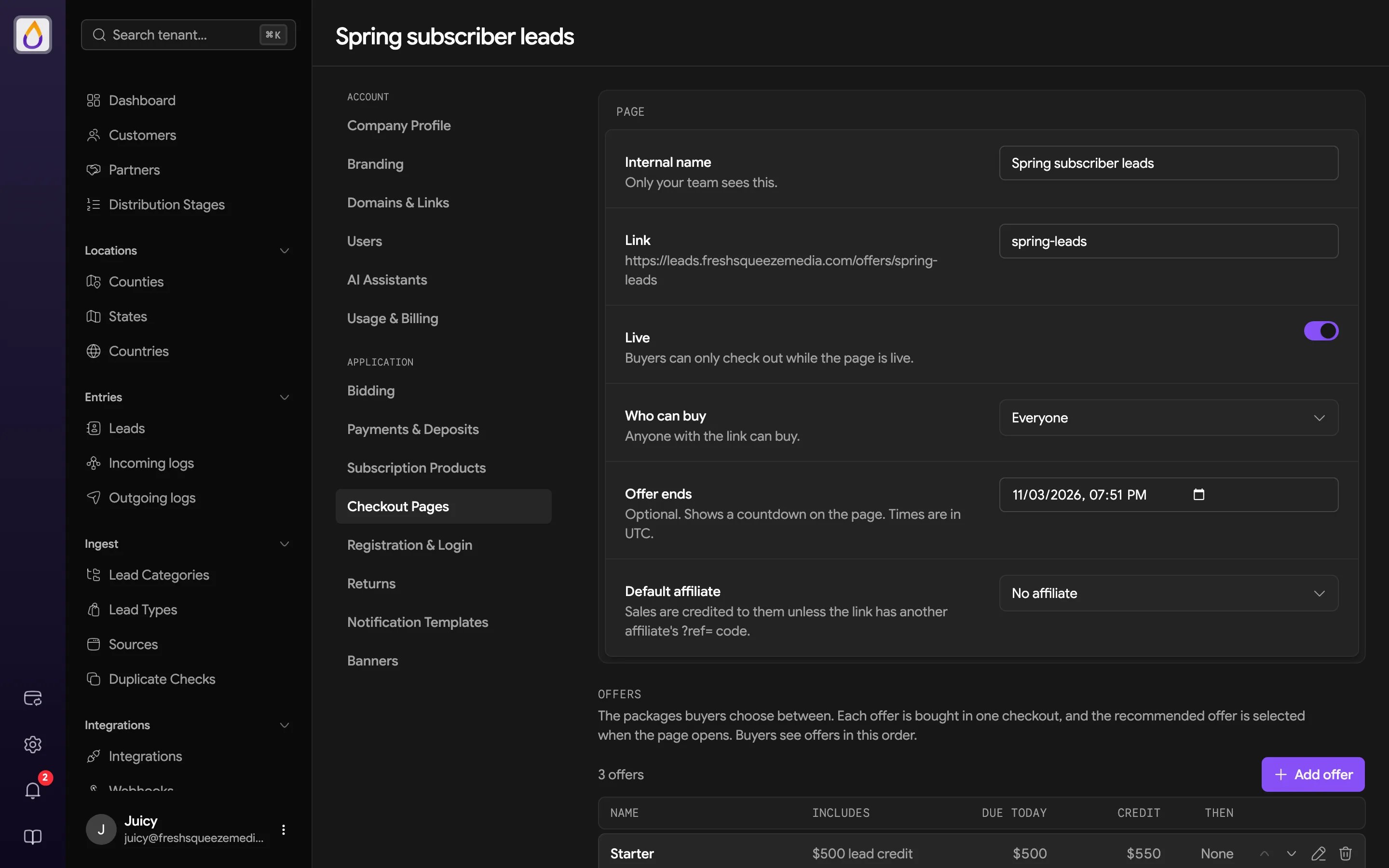
Offers are the packages buyers choose between. Click Add offer, give it a Name, and add products. The buyer gets all of them in one checkout. An offer can include one buyer-entered product and one Club tier. The dialog shows what’s Due today and how much Credit the buyer gets. Mark one offer Recommended to select it when the page opens. Buyers see offers in the order you set.
Content is what the page says, made up of a Headline, Subheadline, an optional Video (YouTube, Vimeo, or Loom), and Details. In Details, lines written as “Label: text” or starting with ”-” show as a highlighted list; other text shows as paragraphs.
Design picks the look. Every design shows the same content and checkout.
Use Preview to see the saved page before you share it.
What happens when someone buys
The buyer pays in Stripe Checkout. Once payment is confirmed, Juiced creates their customer account (or uses the one they signed in to), saves their card, adds the credit and any bonus to their wallet, and starts their Club membership if the offer included one. New buyers get a welcome email with a link to set up their login, and existing customers get a purchase confirmation. You can edit both emails in Notification Templates. In the customer’s transactions, the credit shows as Funds Added and the bonus as a separate Checkout Bonus.Page results
Open a page to see its link (with Copy link), when the offer ends, and how it’s doing.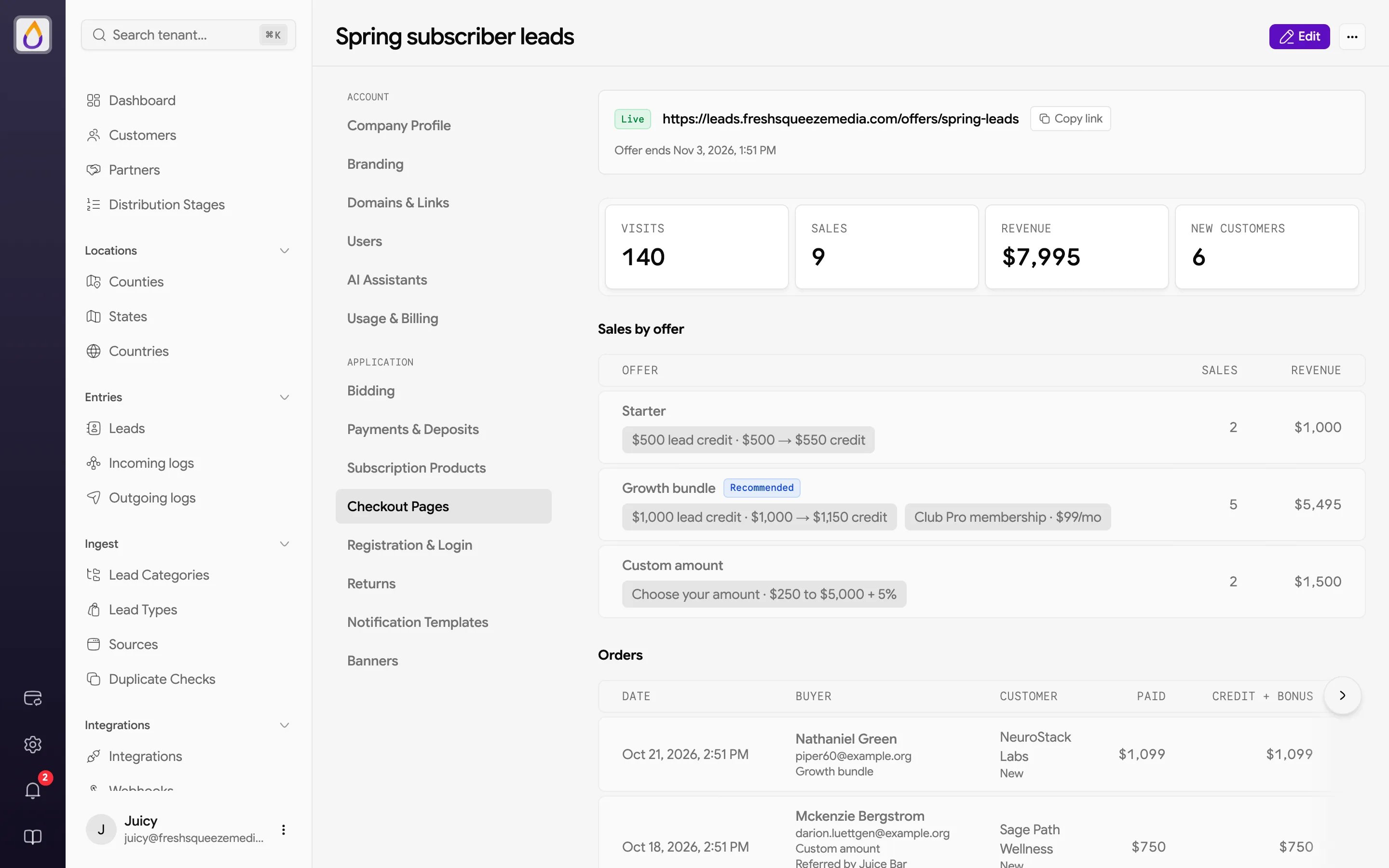
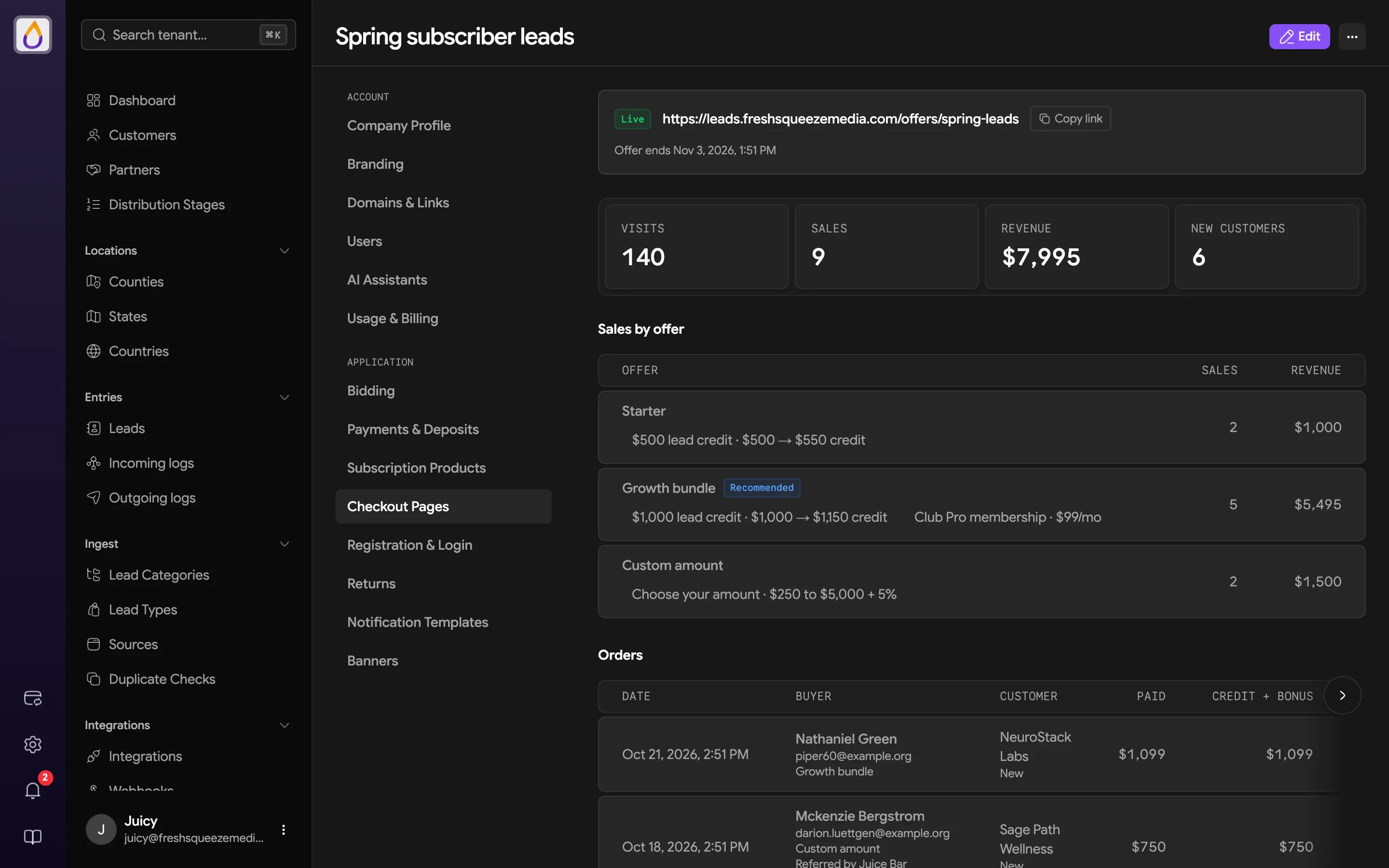
- Visits, Sales (with the conversion rate), Revenue, and New customers
- Sales by offer, including offers you’ve since removed
- Orders, with the buyer, the customer account, what they Paid, Credit + bonus, and a status of Fulfilled, Needs attention (paid, but delivery couldn’t complete as bought, so review it), or Abandoned (the buyer left Stripe Checkout and nothing was charged)
Affiliates
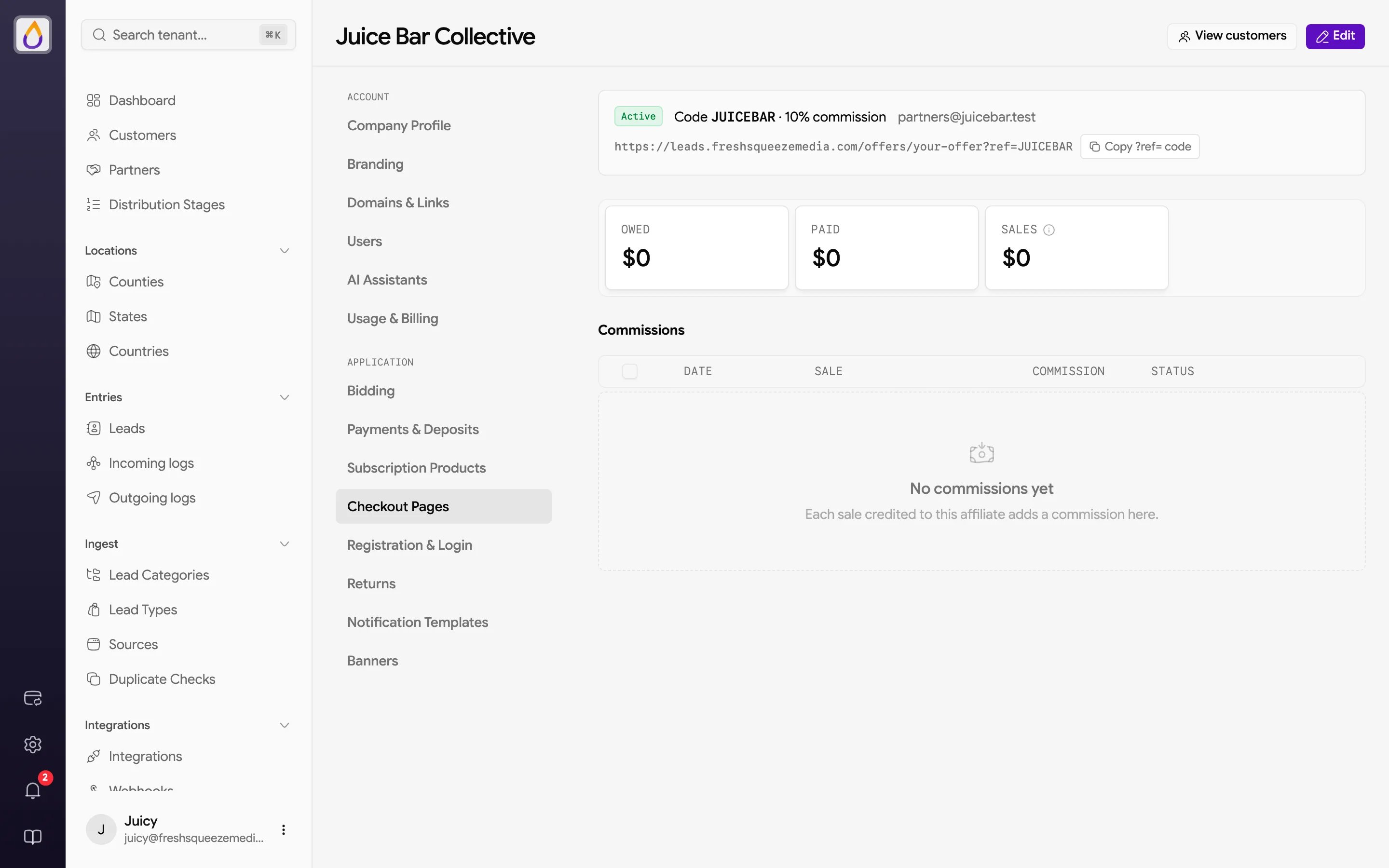
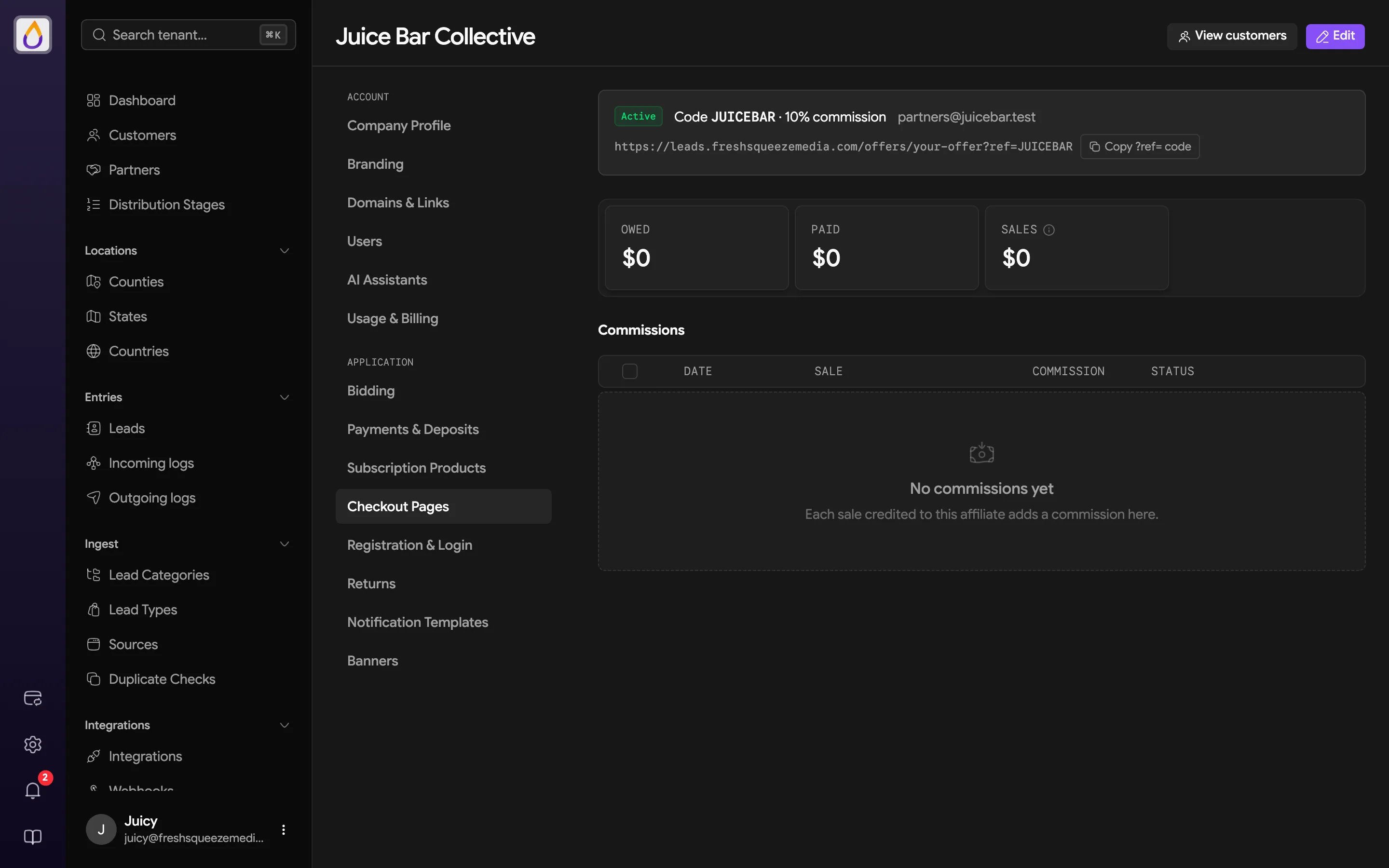
Affiliates are the people promoting your offers, like a podcast host or a partner agency. Credit their sales and track what you owe them on the Affiliates tab.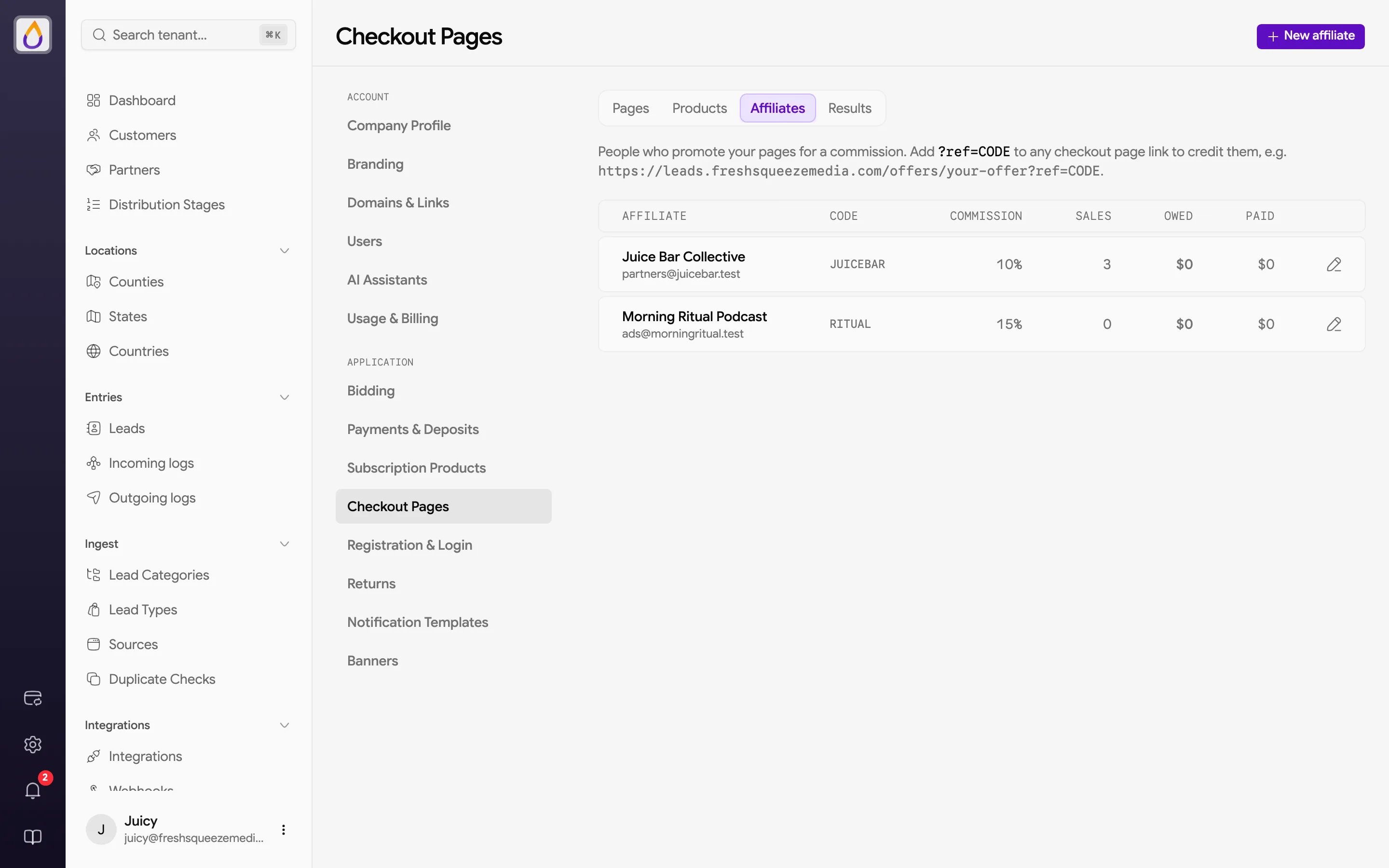
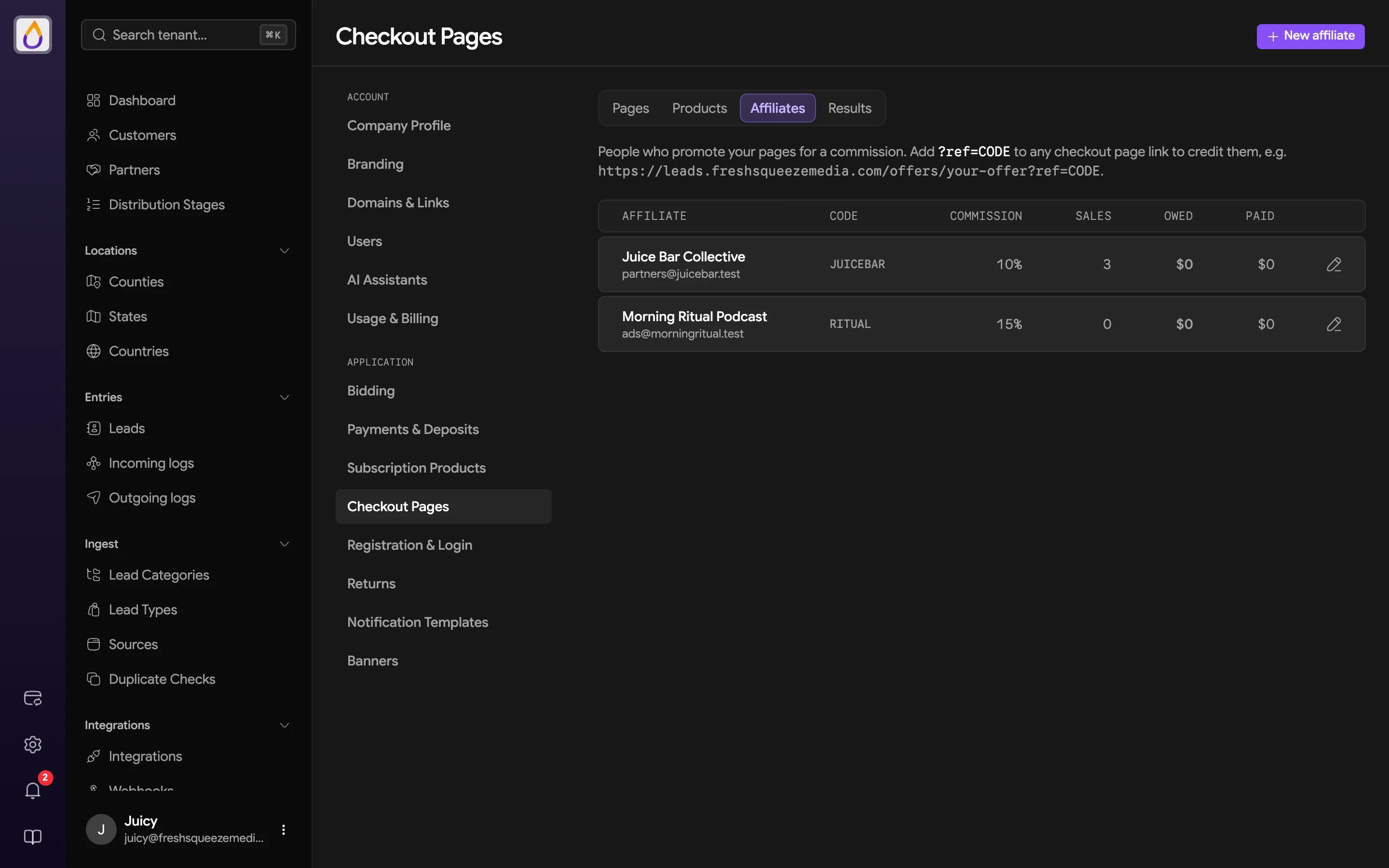
- Name, and an optional Email for your records (affiliates don’t get a login)
- Referral code, which goes after
?ref=in their link - Commission, a percent of what the buyer pays at checkout. Bonus credit, free months, reloads, and renewals earn nothing. Rate changes only apply to future sales.
- Active (inactive codes are ignored on checkout pages)
Results
The Results tab compares your pages and affiliates for the timeframe you pick, best performers first.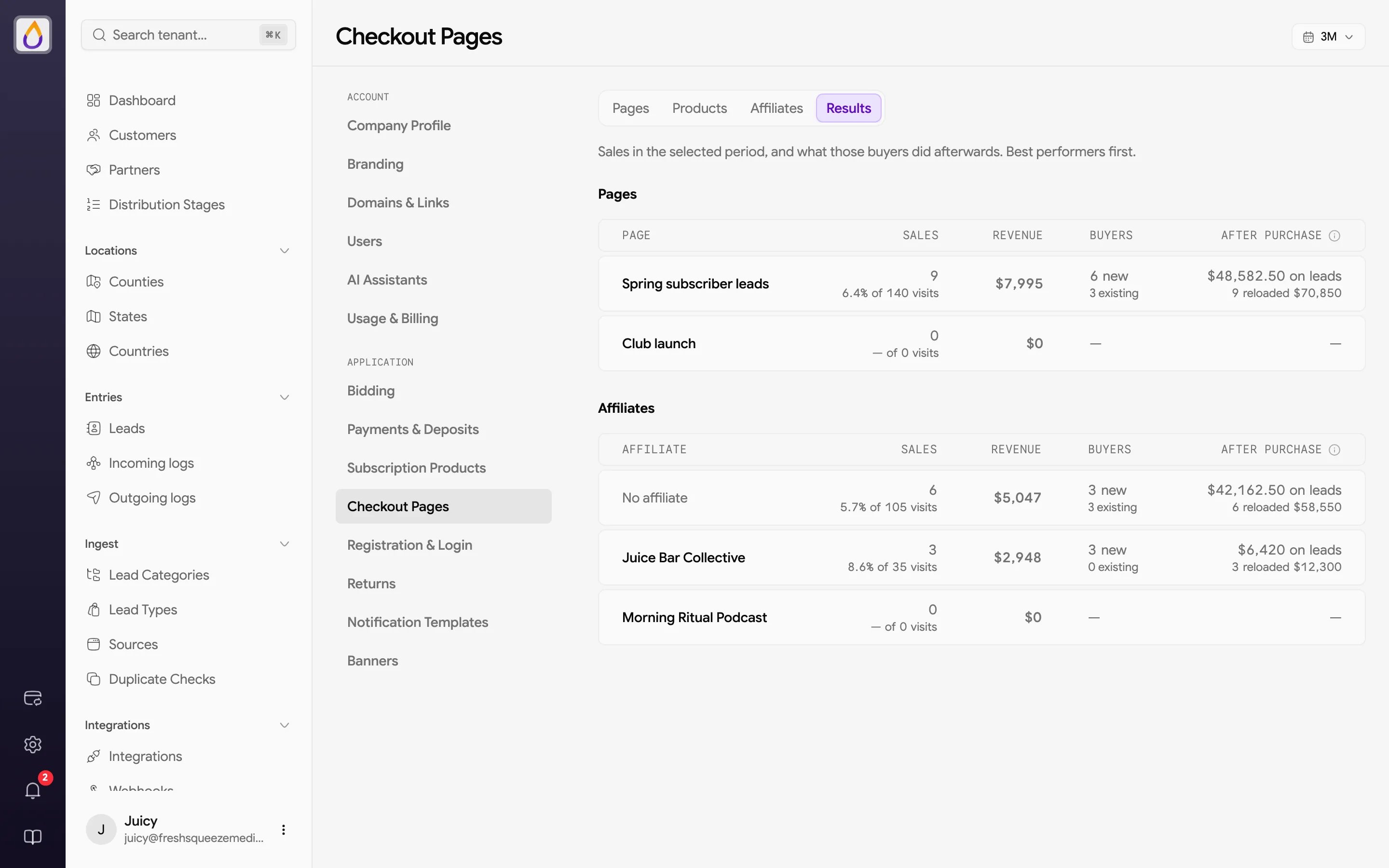
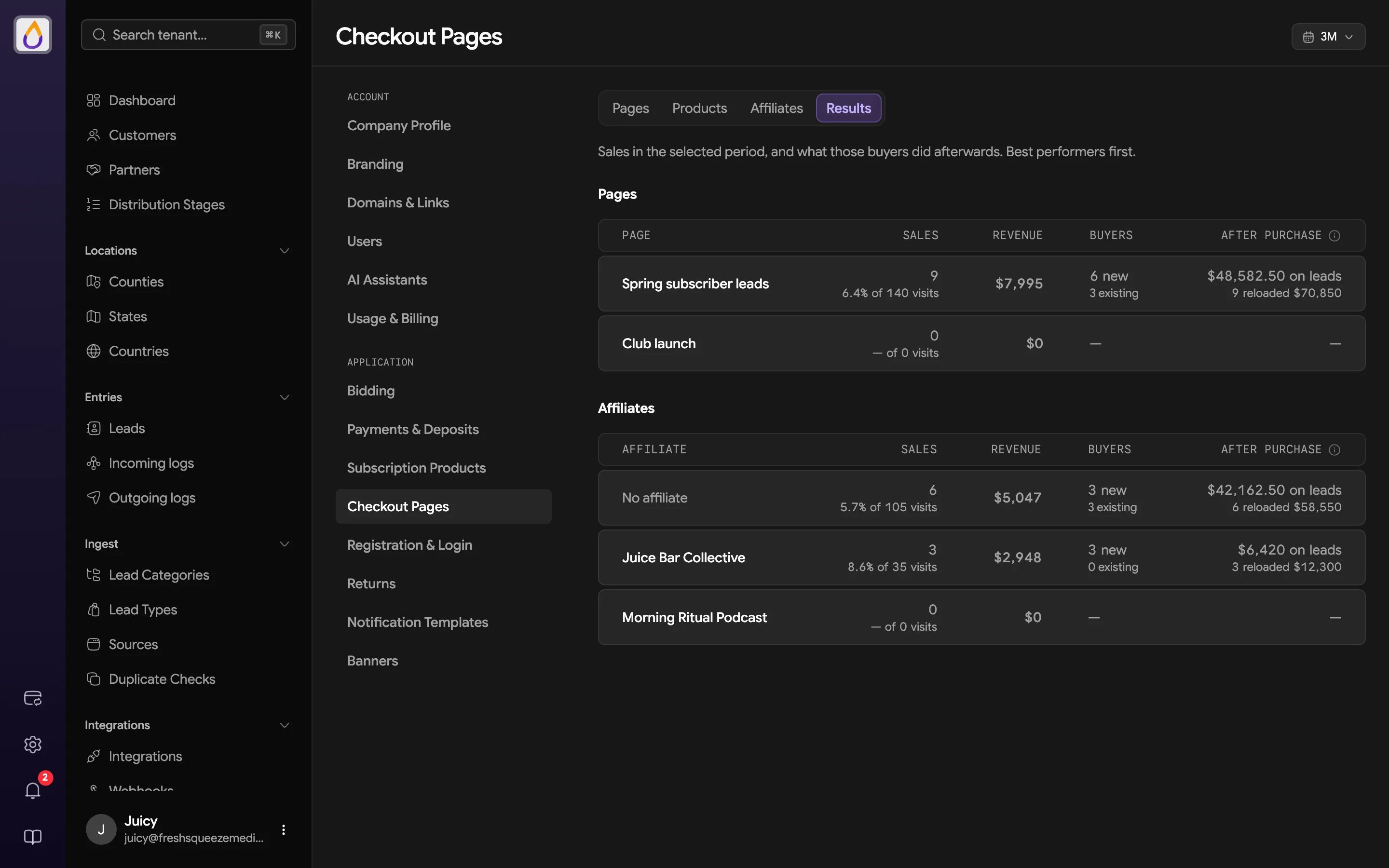
- After purchase shows what those buyers did next, meaning lead spend net of returns and how many added funds again by top-up or auto recharge. The original purchase doesn’t count.
- Club (when any sale included the Club) shows where those members stand today. Renewed means they’ve made a Club payment, and canceled includes memberships set to end.