

/app address, for example yourprovider.com/app. Everything on this page starts there.
Creating an account
Signing up takes two short steps, first your personal login and then your business.1. Create your login
From the login page, click Sign up (or go straight to/app/register).
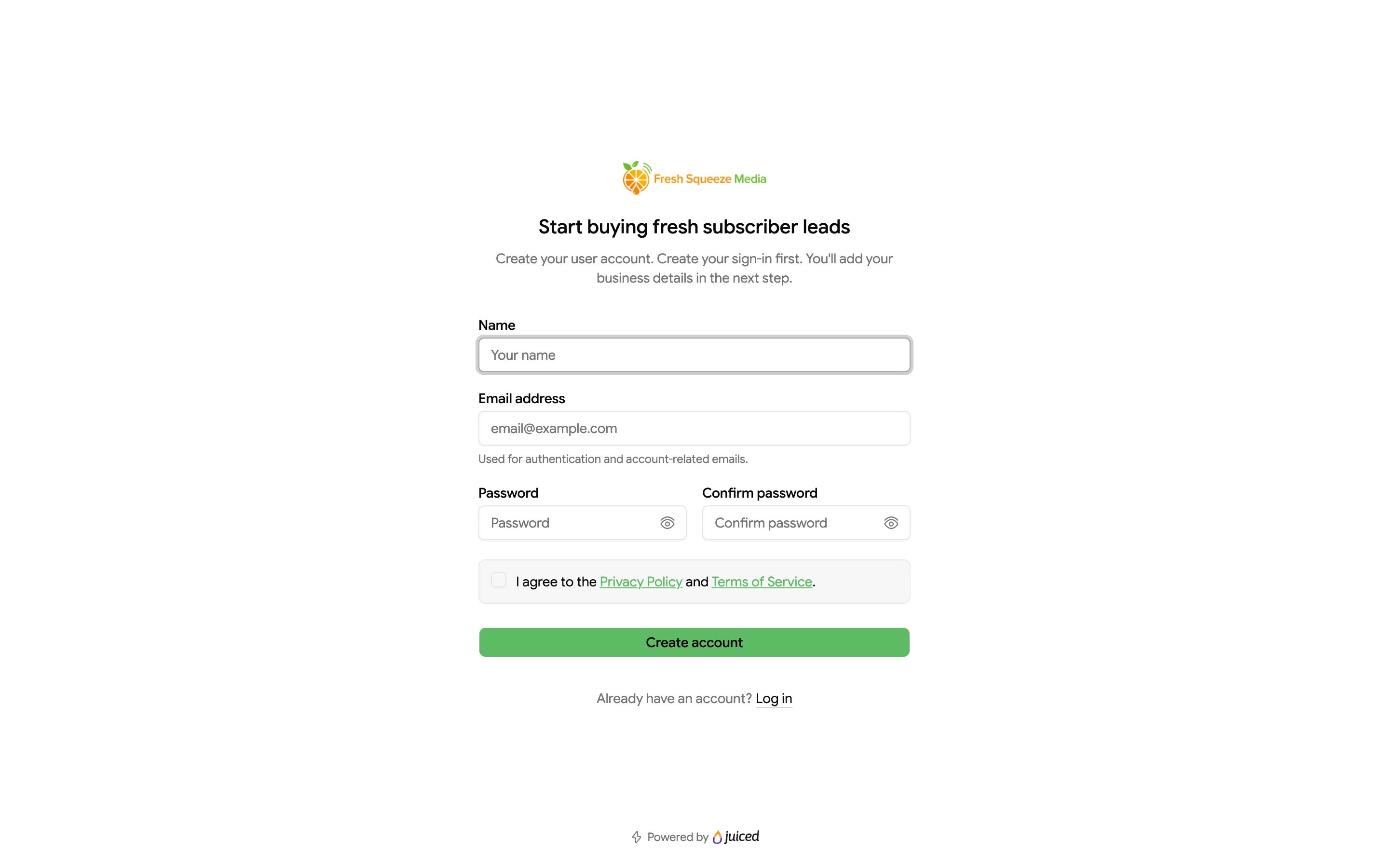
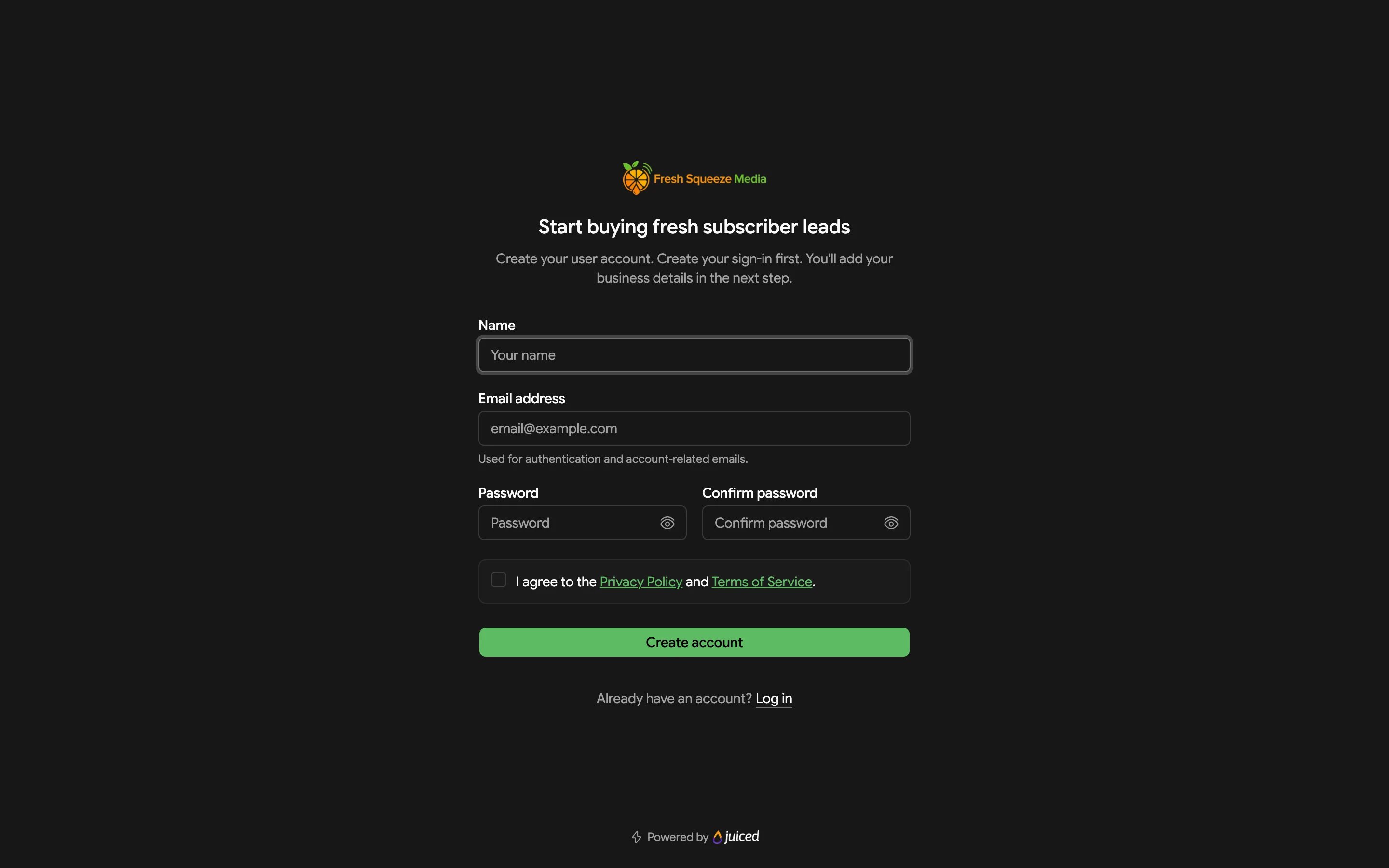
- Enter your Name, Email address, Password, and Confirm password.
- If your provider lists terms or policies, read them and check the box to agree.
- Submit the form.
2. Verify your email
Juiced sends a verification link to the address you entered. Open it to continue. If it hasn’t arrived, check your spam folder, or click Resend verification email.3. Set up your business
Next, the Set up your business form asks for the details of the business that’s buying leads.- Business details covers Business name, Billing email, and Phone.
- Business address covers Street address, Apt / Suite, City, Country, and your state (or province, or county) and postal code. The last two labels change to match the country you pick.
If you leave before finishing this step, you’ll come back to it the next time you log in. You need a business before you can use the rest of the portal.
Securing your account
The first time you sign in, Juiced shows a Secure your account screen. Email codes protect your account by default, and this is your chance to add a passkey or an authenticator app for stronger, faster sign-in. Set one up, or click Continue to stick with email codes. You can change this any time from Profile and security.Logging in
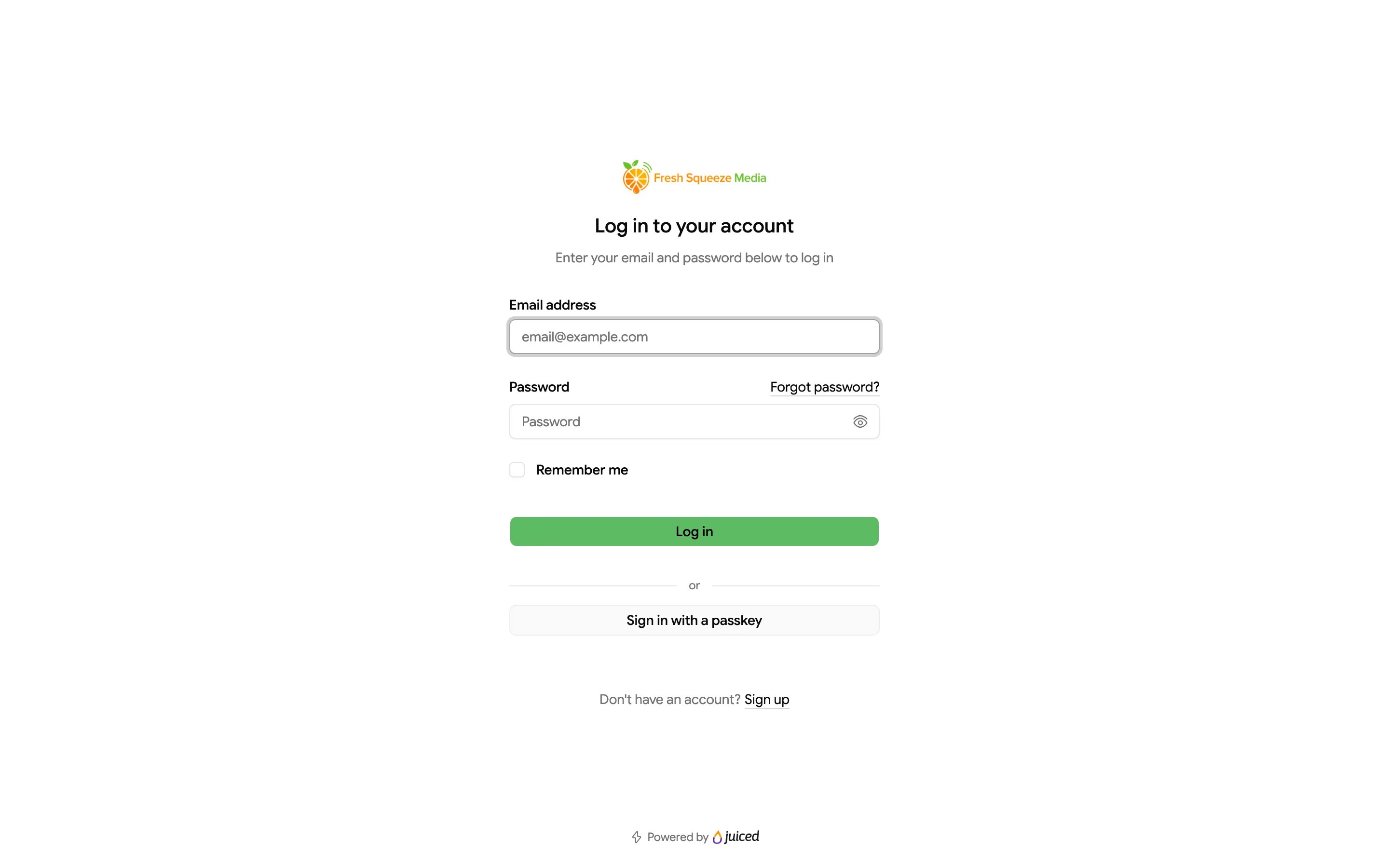
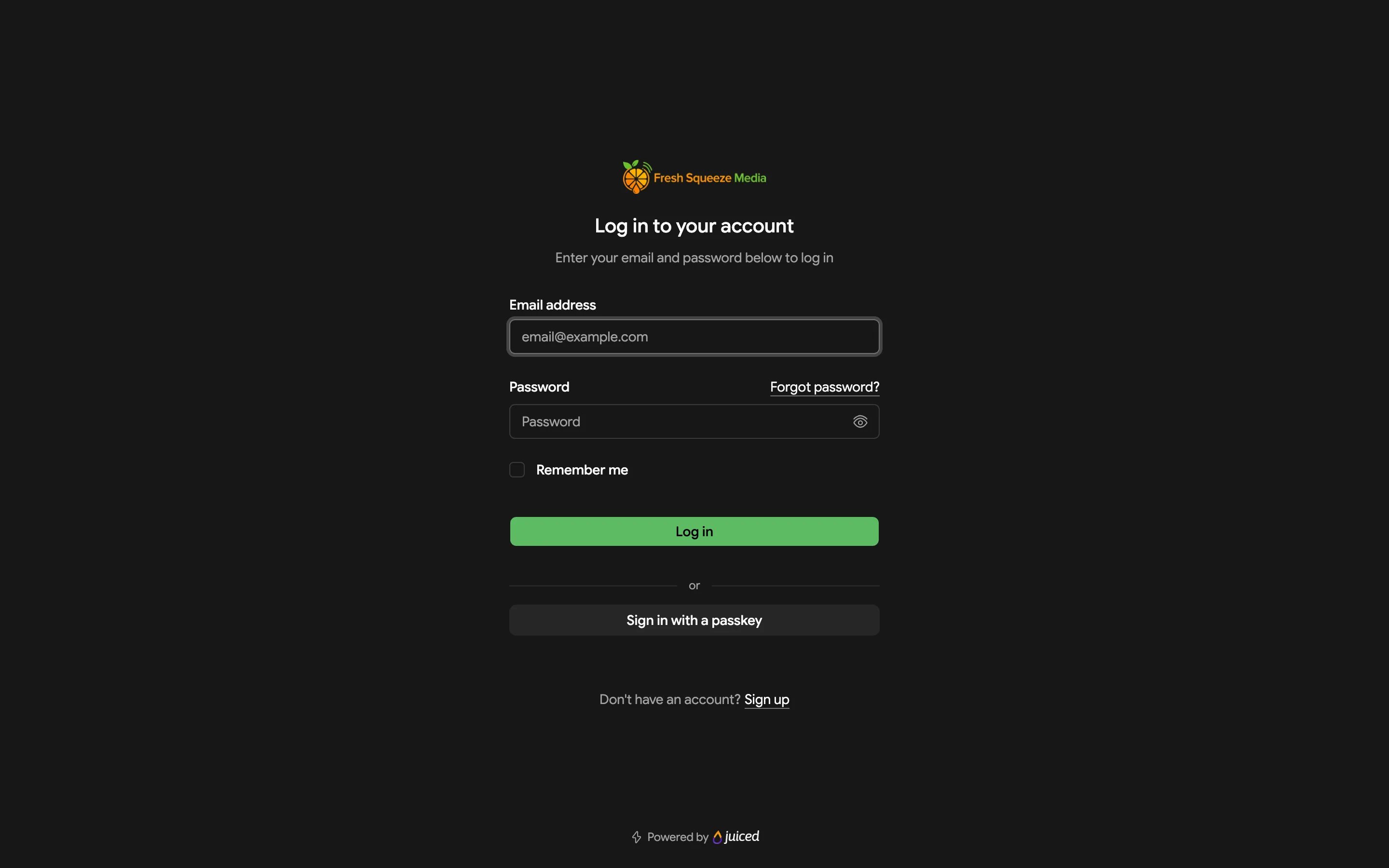
- For an Email code, enter the code sent to your account email. It expires in five minutes, so click Resend code if you need a fresh one.
- For an Authenticator app, enter the code from your app, or click Use a recovery code if you don’t have your phone.
Resetting your password
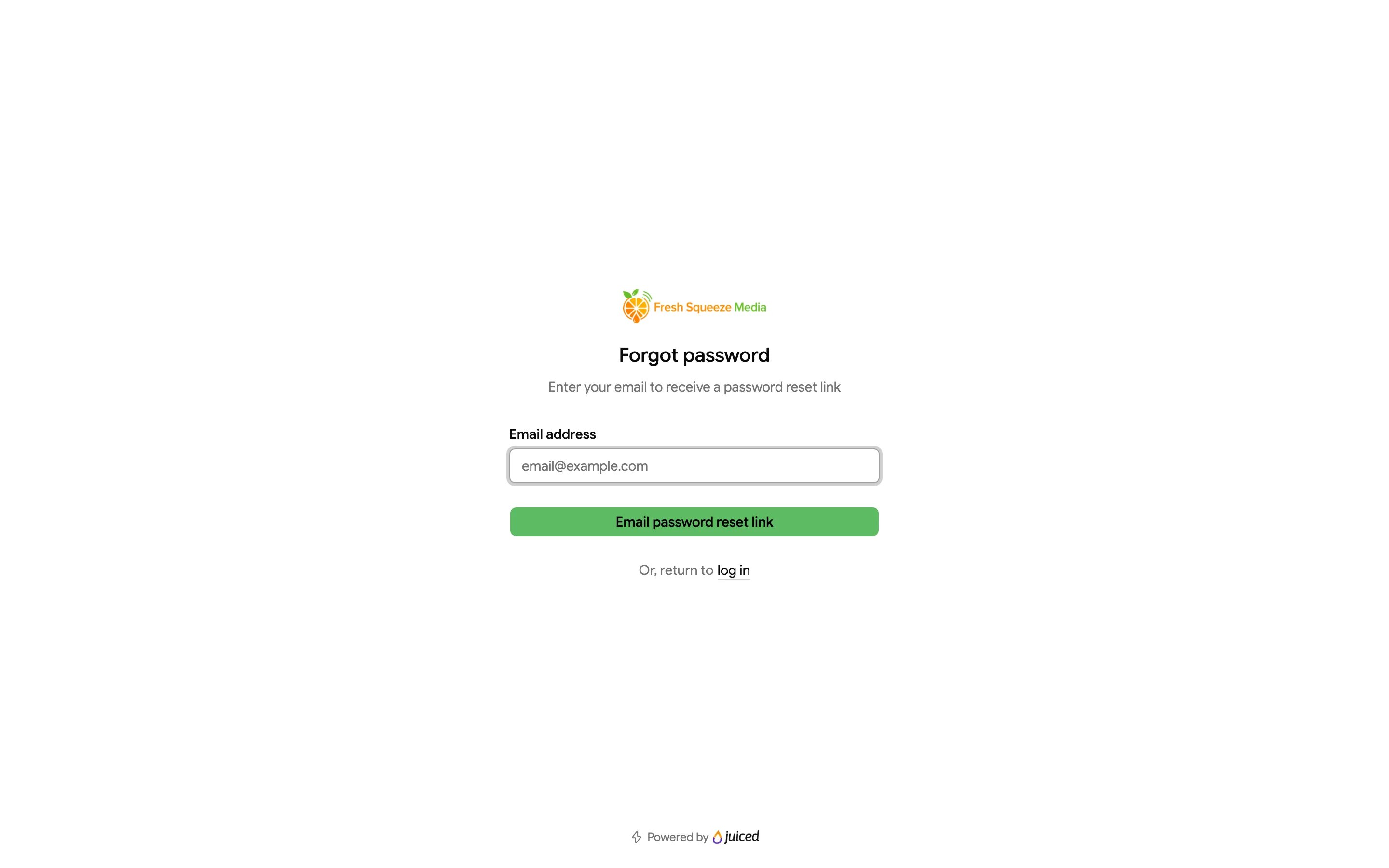
- On the login page, click Forgot password?
- Enter your Email address and click Email password reset link.
- Open the link in the email, enter your new Password twice, and click Reset password.
Adding another business
One login can buy for several businesses, each with its own wallet, bids, and leads. To add one, click the + (Create a new business) button in the business rail, or choose Create a new business from the Switch business menu on mobile. Fill in the same Set up your business form and click Complete setup. Click Back if you change your mind.Using the public marketplace before you sign up
Some providers let you browse their marketplace without an account, at/marketplace on their site. You can look around, but you’ll need to sign up and log in to buy. See Marketplace.