

The business rail
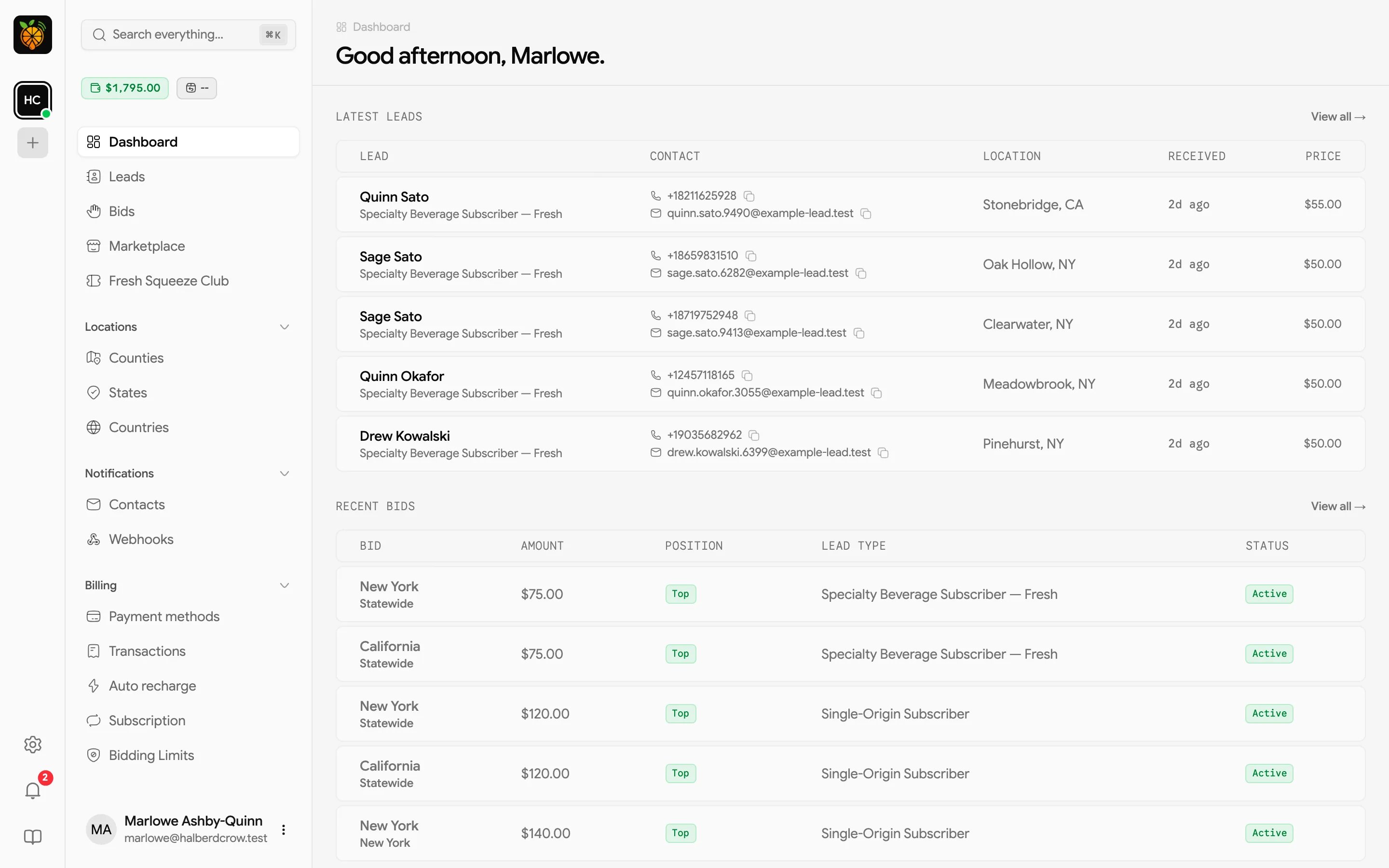
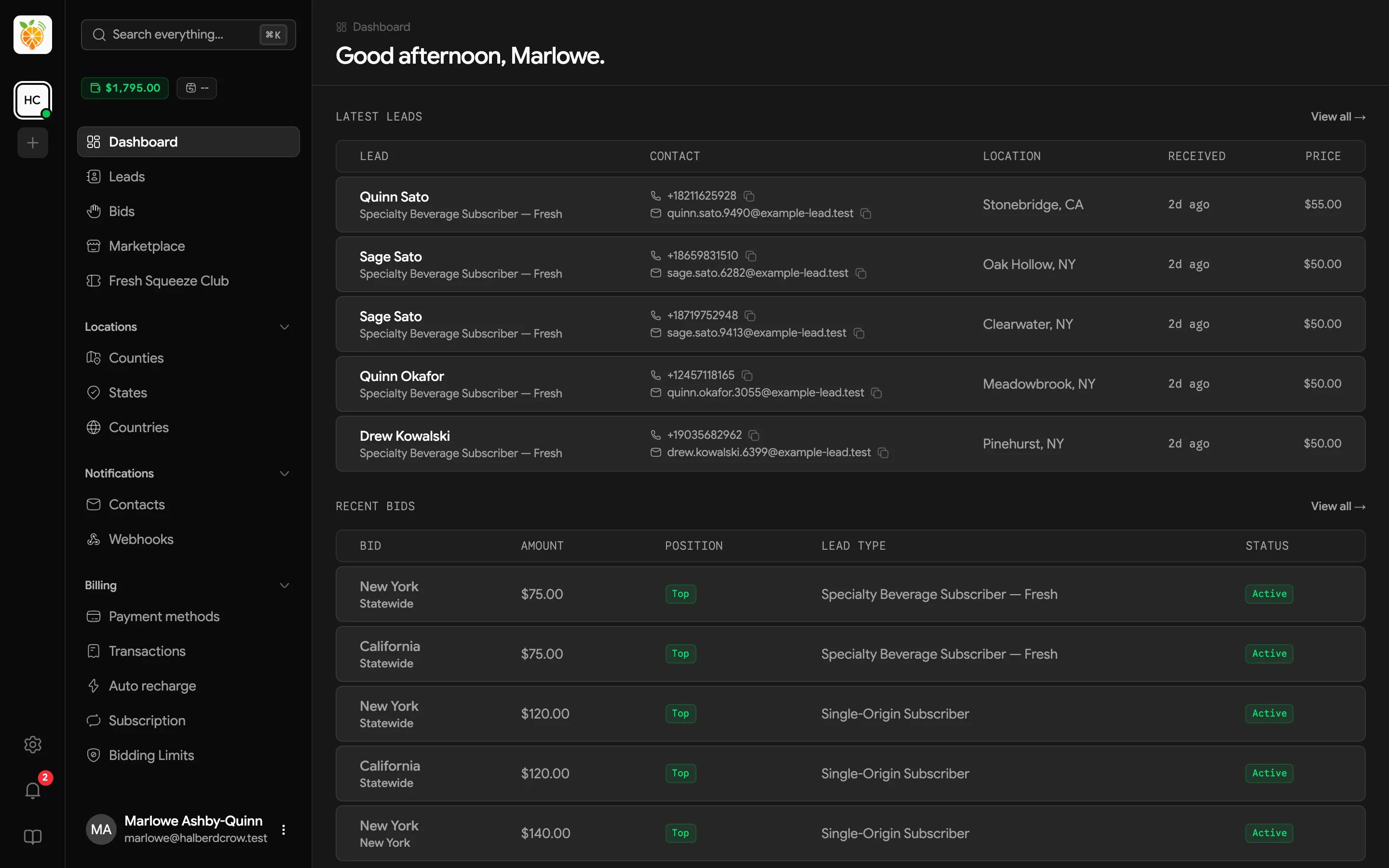
The rail runs down the left edge of the screen on desktop. Here’s what it shows, from top to bottom.- Your provider’s icon. Hover it to see their name.
- One avatar per business you belong to, shown as initials. The highlighted avatar is the business you’re working in. A small dot shows each business’s status (green for active, yellow for paused, red for inactive, and gray for archived).
- Create a new business (the + button). This opens the business setup form so you can add another business to your login. See Signing up and logging in.
- Company Profile (the gear icon). Shown only if you’re allowed to edit your company’s details. See Company Profile.
- Notifications (the bell). See Notifications bell below.
- Documentation, which opens these docs in a new tab.
The sidebar
The sidebar holds the main navigation, grouped by job.
Click a group’s label to collapse or expand it; the portal remembers your choice. You can also collapse the whole sidebar to icons with the toggle on its edge.
Why a page might be missing
Your sidebar only shows what applies to your account, so it may look shorter than the table above.- Marketplace appears only when your provider sells leads through the marketplace.
- Club appears only when your provider runs a Club. Your provider names it, so it might read “Fresh Squeeze Club” or something else entirely.
- Locations shows only the location levels you can bid on. If you can only bid on counties, you’ll only see Counties.
- Payment methods appears when your provider accepts card payments, or when you still have a saved card on file.
- Auto recharge is hidden when card payments are turned off or your account is archived.
- Subscription appears when your provider offers a subscription, or when you already have one.
- Bidding Limits appears only when your account can bid.
- Support links appear one by one as your provider sets them up.
Status chips
Just under the search box, a row of small chips sums up your account at a glance. Each one is a shortcut.Wallet
The wallet chip shows your current balance. Its color tells you whether that balance can keep your bids running.
Click the chip to jump to Payment methods, where you can add funds. If your provider doesn’t take card payments, you land on Transactions instead.
Paused or archived
If your account is paused or archived, a pulsing Paused or Archived chip appears first in the row. Leads aren’t being assigned to your bids while it’s there. Click it to open Bidding Limits, where you can unpause.Return rate or tier
If your provider shares return information with you, a chip shows either your return tier (a badge with the tier’s name) or your return rate as a percentage. Click it for the details. See Returns and your return rate.Lead cap and budget
If your provider lets you set account-wide lead caps or budgets and you’ve set one, chips show how much of it you’ve used. They turn red once a cap or budget is used up. Click either one to open Bidding Limits.Search everything
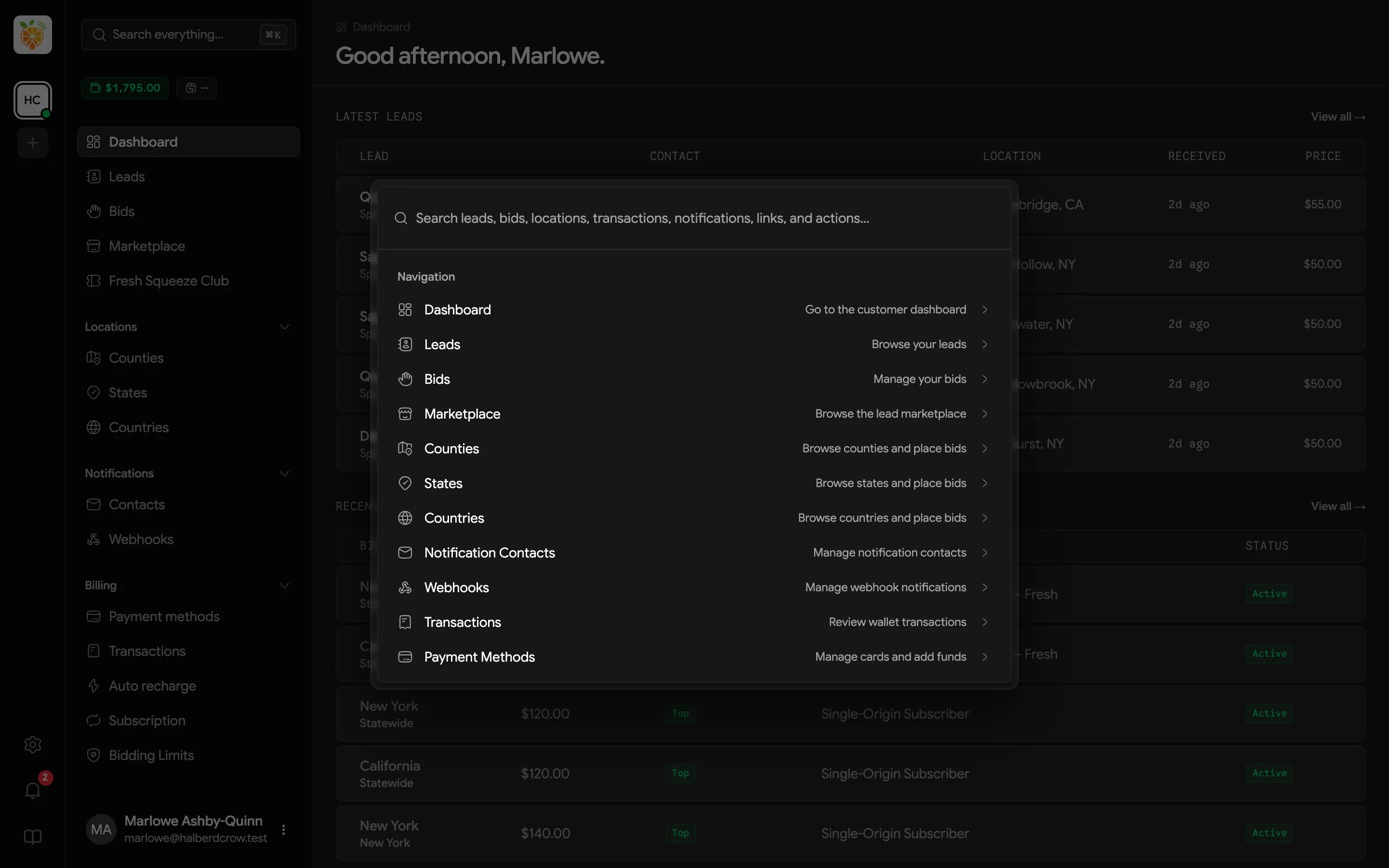
Click Search everything… at the top of the sidebar, or press ⌘ K (Ctrl K on Windows), to open search.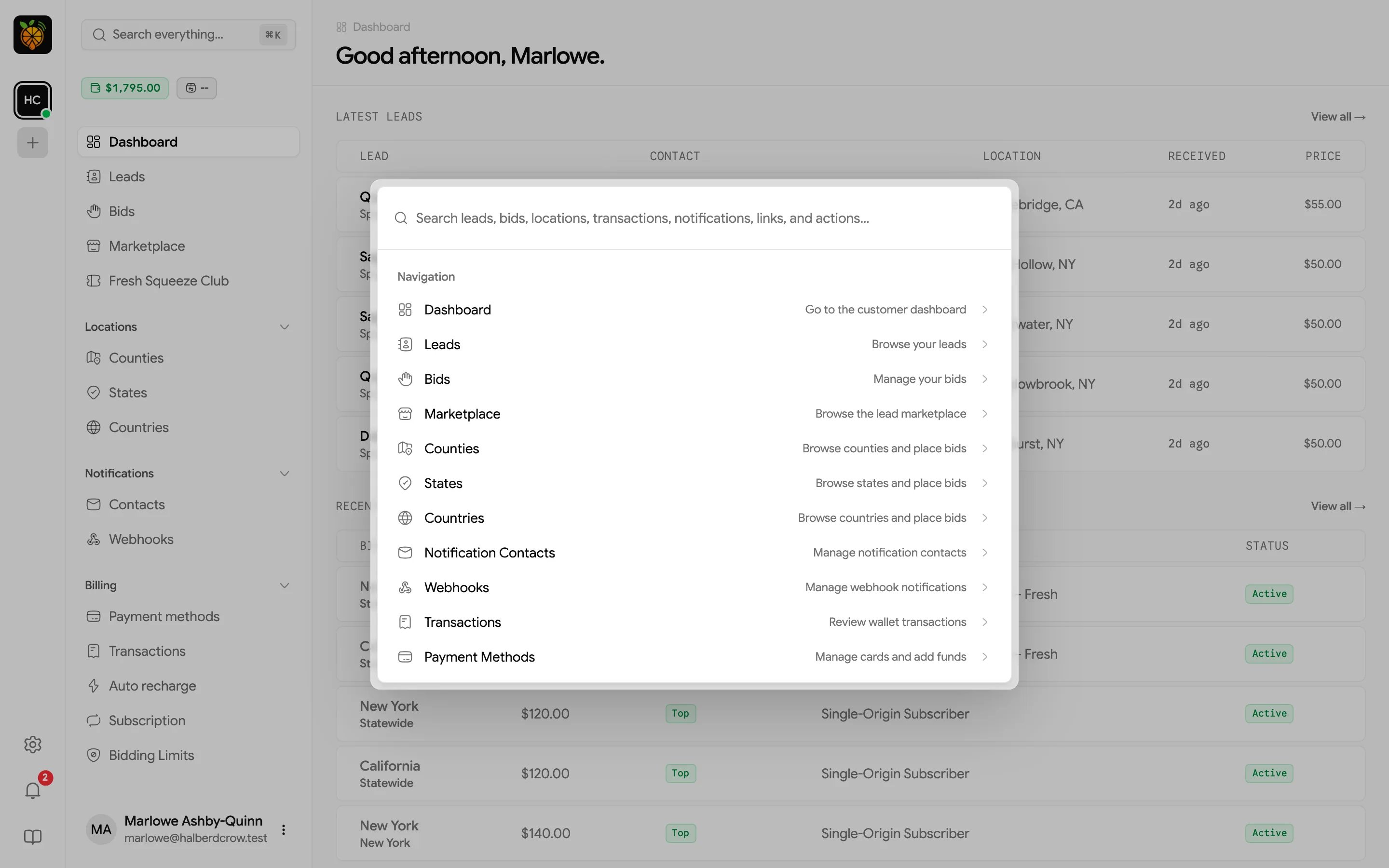
Notifications bell
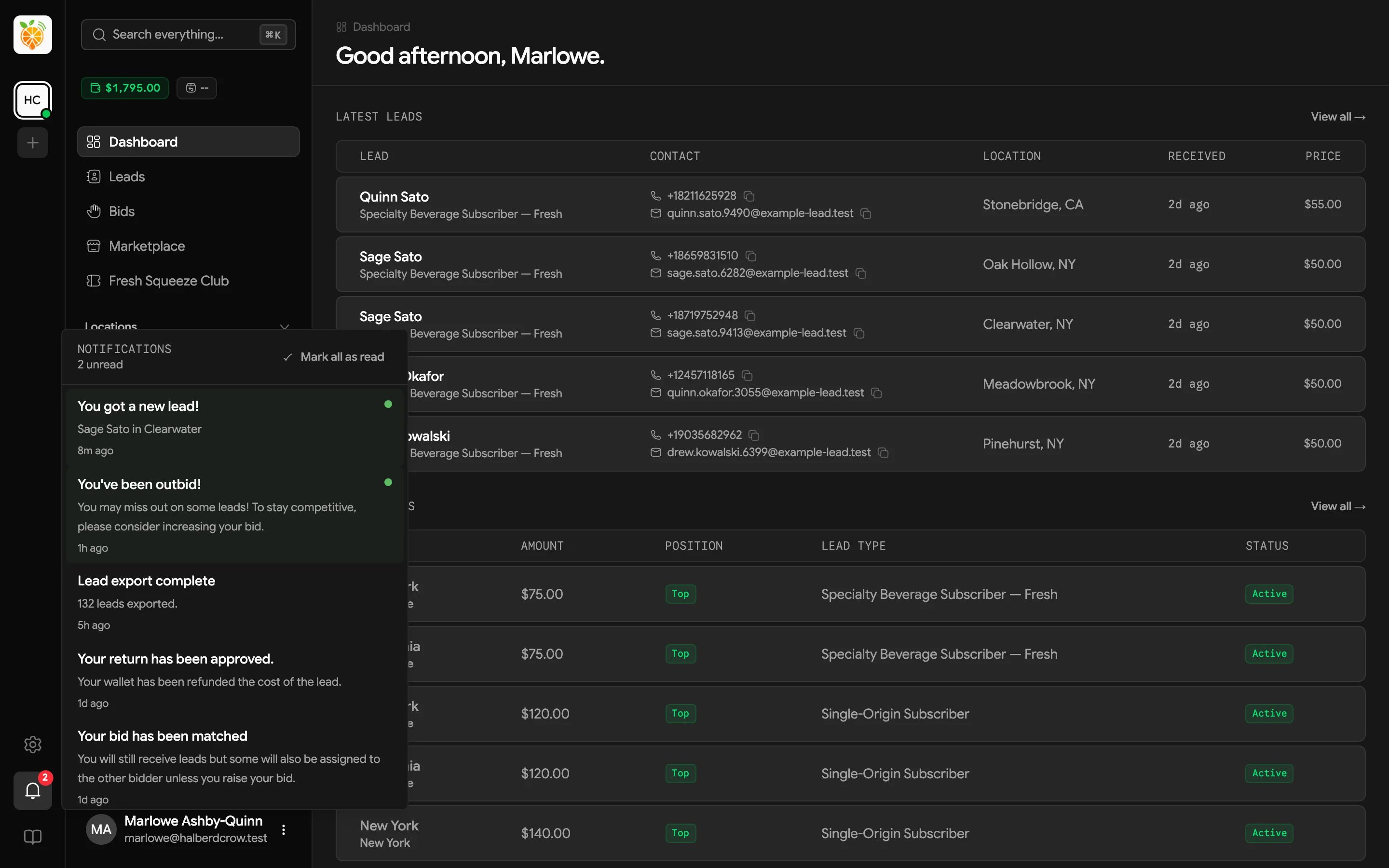
The bell in the rail shows a red count when you have unread notifications. Click it to see the latest ones. These include alerts like You got a new lead! or You’ve been outbid!, and Lead export complete when a lead export is ready to download. Your provider writes the wording of these alerts, so yours may read a little differently. Click a notification to open it and mark it read, or use Mark all as read to clear the count.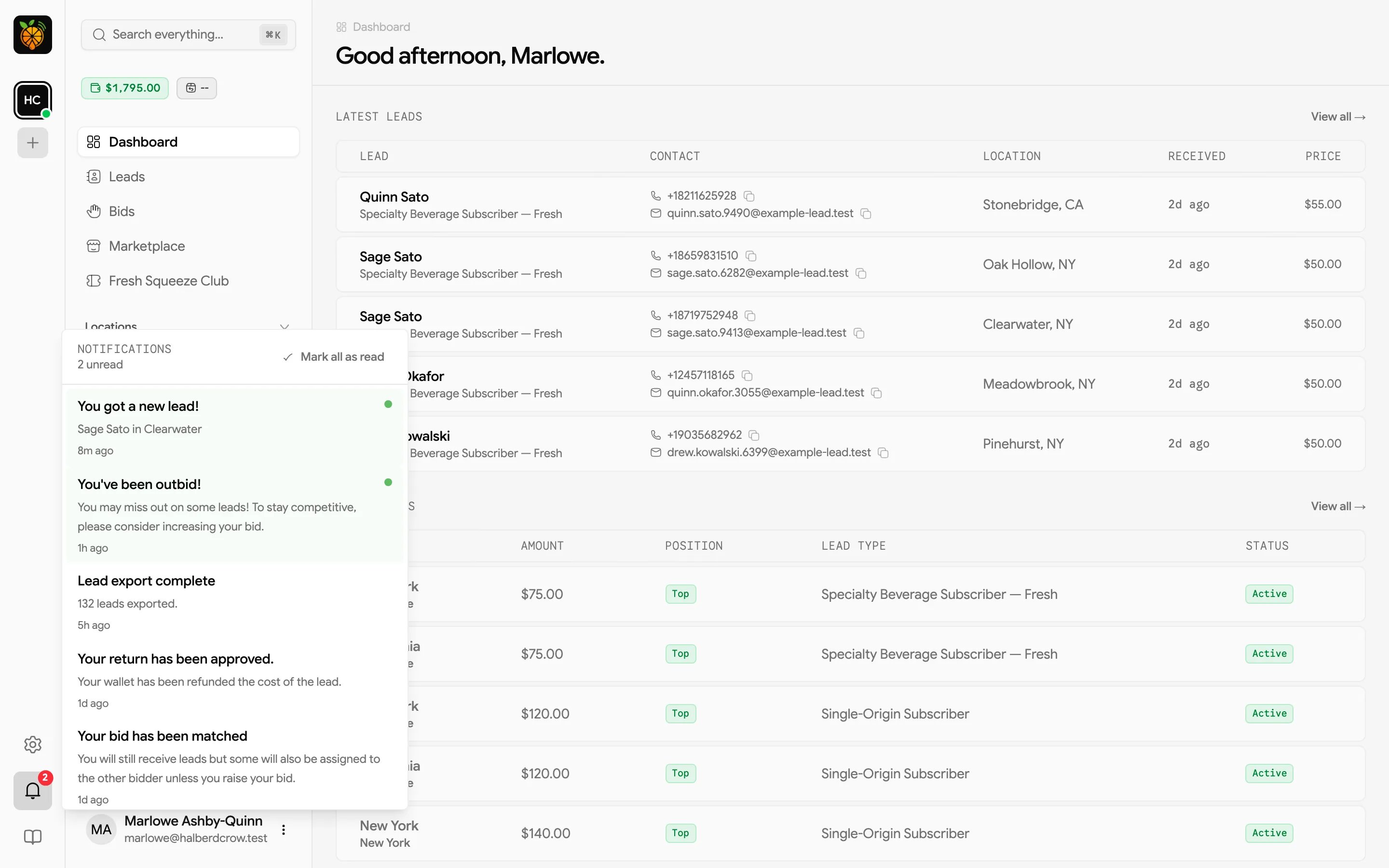
Banners
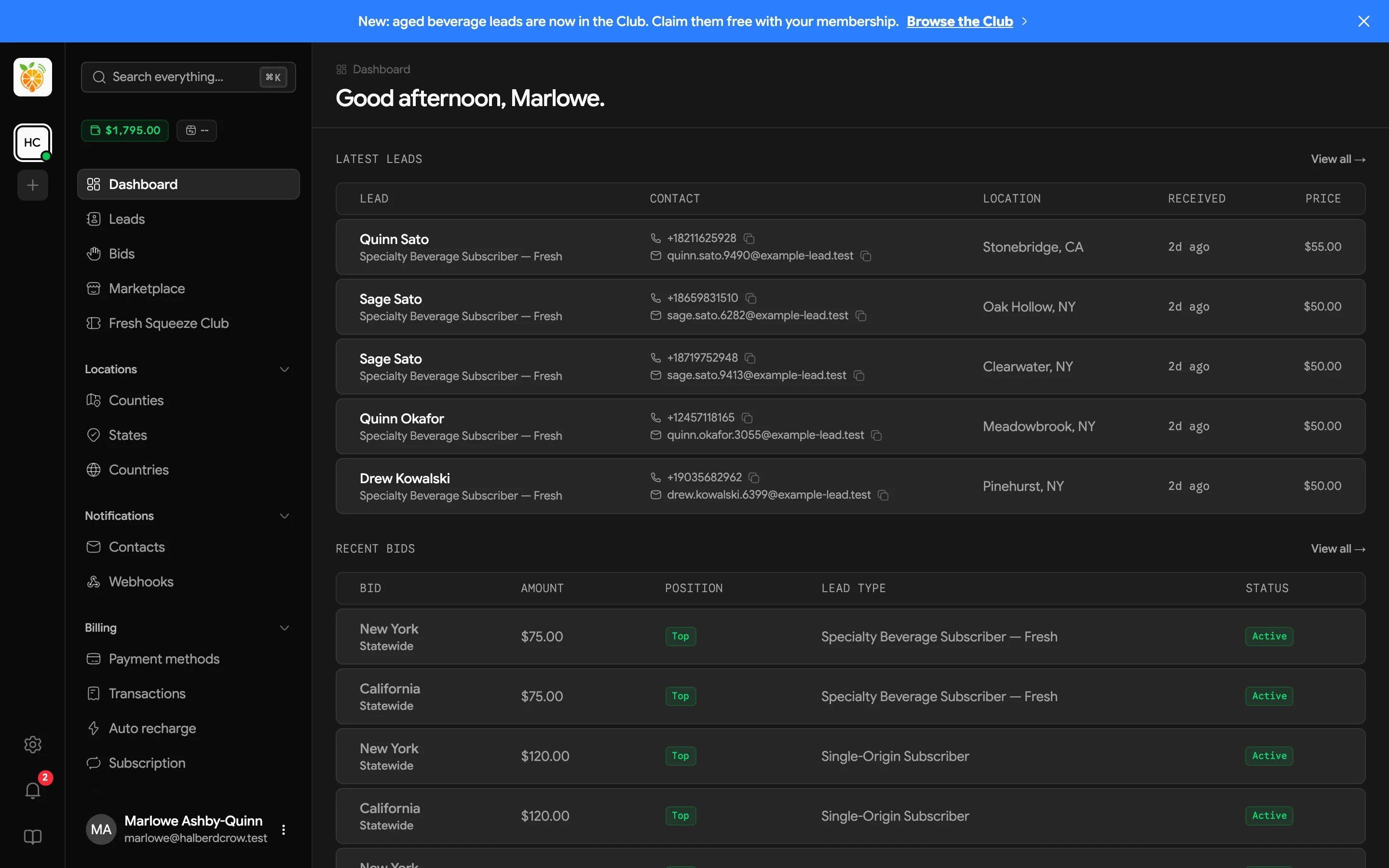
Your provider may post an announcement banner across the top of the portal, such as a heads-up about a holiday schedule or a new lead type. Some include a link to more information, and some can be dismissed with the close button on the right. A dismissed banner stays hidden in that browser.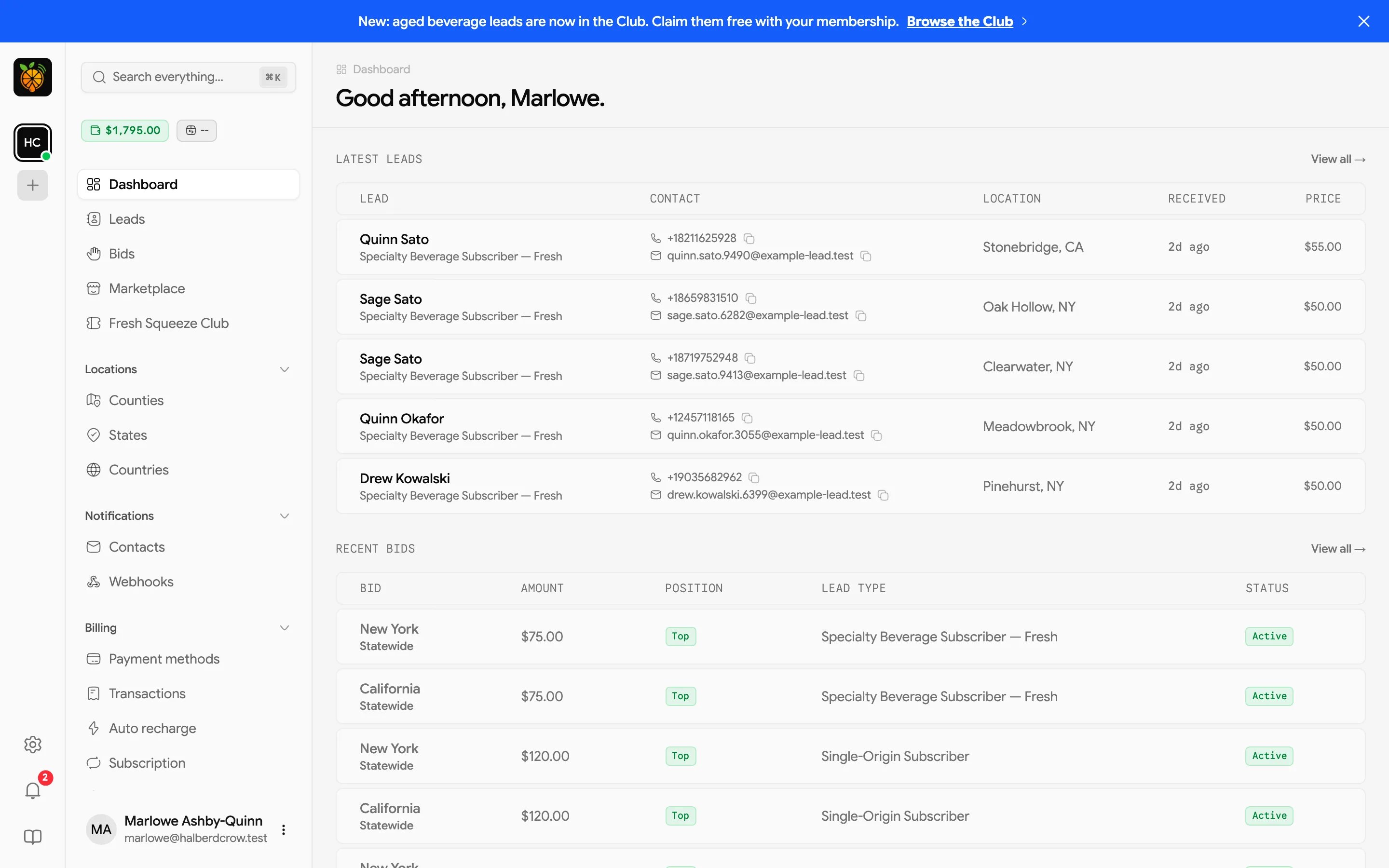
Your user menu
Your name sits at the bottom of the sidebar. Click it to open the user menu.- User Settings opens your personal profile and security settings. See Profile and security.
- Log out signs you out.
- Theme switches between light, dark, and your system setting. Pick whichever is easier on the eyes before your morning juice.
When a page is blocked
Some pages show a message you can’t close instead of their content.- Bidding not available. If your provider hasn’t turned on bidding for your account, the Bids and Counties pages show a message from your provider (by default, an invitation to schedule a call with their sales team) and a button back to your dashboard.
- Account archived. If your account has been archived, the Bids, Locations, and Marketplace pages say so. If your provider has set a support contact, a Contact Support button appears.