

API keys are available on paid plans. Only admins can see, create and revoke them.
Create a key
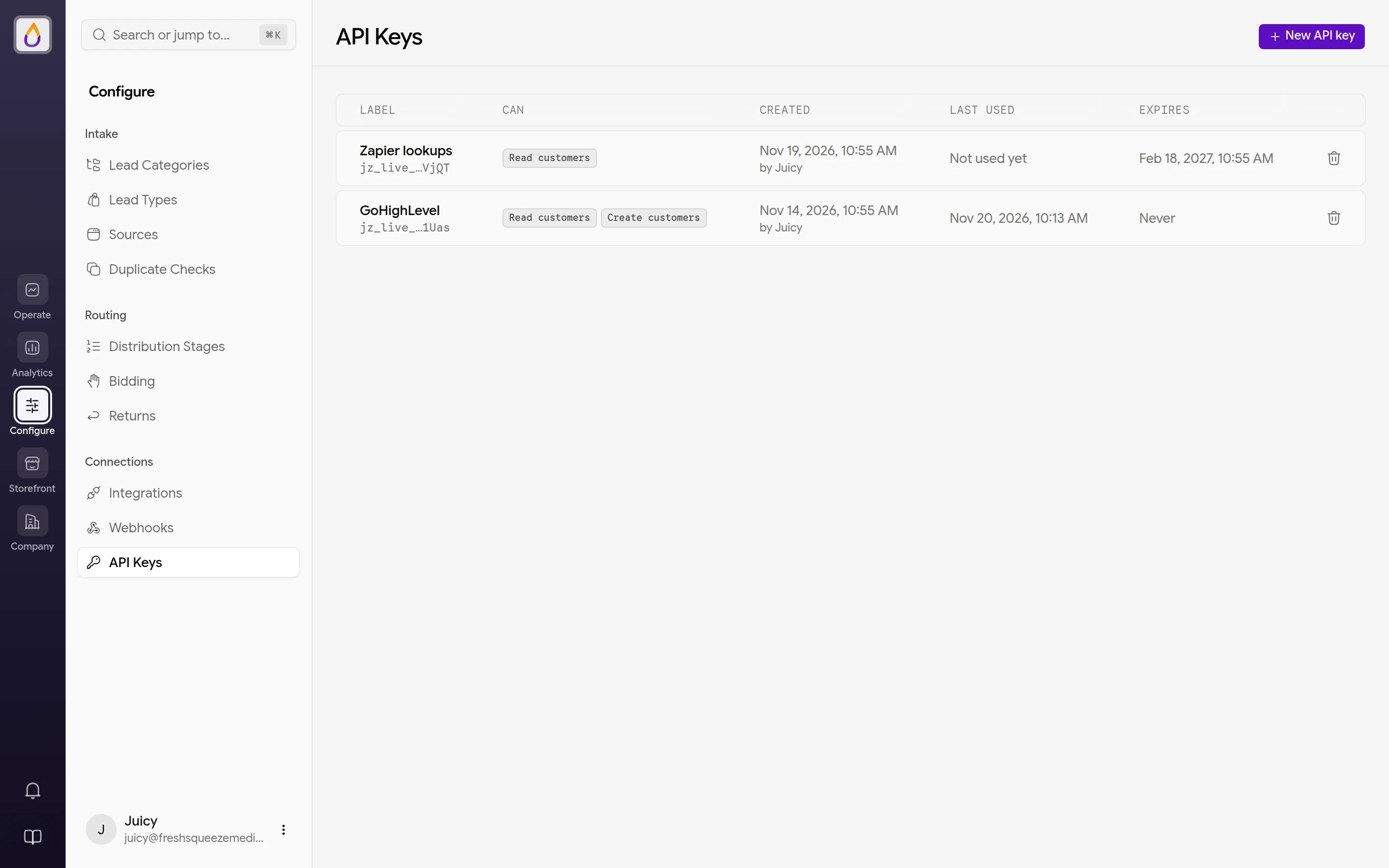
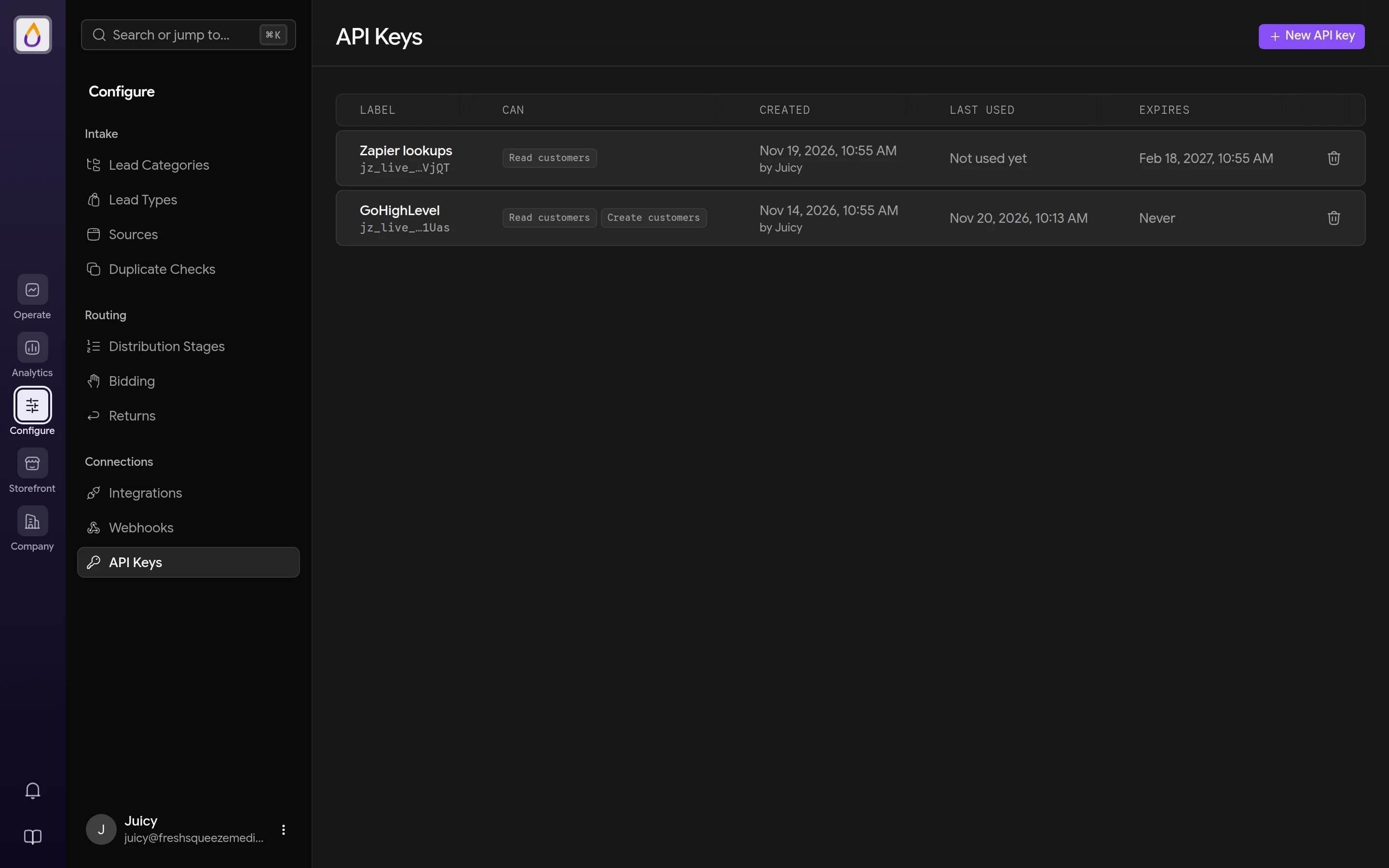
- Open Configure → API Keys.
- Click New API key.
- Give it a label that says where it’s used, such as
GoHighLevelorZapier. The label shows up in your customers’ activity timelines, so you can always tell what a key changed. - Choose what the key can do.
- Choose when it expires, or leave it set to Never.
- Click Create key and copy the key.
jz_live_, which makes them easy to spot if one leaks into a log or a repository.
Abilities
Give each key only what its integration needs.Use a key
Send the key as a bearer token, along with the usual JSON headers.Revoke a key
The key list shows what each key can do, who created it, when it was last used and when it expires, so a key nothing has used in months is easy to spot. To revoke one, open Configure → API Keys, click the trash icon on the key’s row, and confirm with Revoke. It stops working right away. Anything still using it gets401 errors until you give it a new key.
To rotate a key without downtime, create the new key, update your integration to use it, then revoke the old one.
Errors
API key requests use the same error envelope as the rest of v1.Safe retries
Creating a customer accepts an optionalIdempotency-Key header, any string up to 255 characters, such as your CRM’s contact ID. Send the same key again within 24 hours and you get the original response back, with an Idempotent-Replayed: true header, instead of a second customer.
- Same key, same body replays the original response.
- Same key, different body returns
409withidempotency_conflict. - The first request is still running returns
409withidempotency_in_progressand aRetry-Afterheader.